How to Use LaunchBuddy AI Playbooks Without Losing Control
LaunchBuddy AI playbooks are guided, goal-based workflows for preparing a release, triaging feedback and reviews, or analyzing app performance. They work best when you give them a narrow question, review the editable result, approve only the exact supported changes you want, and verify those changes in the authoritative system afterward.
Playbooks require LaunchBuddy Pro and are subject to AI usage limits. LaunchBuddy’s App Store Connect data and actions also require API credentials. Playbooks don’t build, sign, upload, or submit an app binary, and they don’t turn an AI recommendation into proof that a release is ready.
This guide shows a repeatable playbook workflow and three concrete examples. The intent is to delegate a bounded investigation, not the final decision.
What a LaunchBuddy AI playbook does
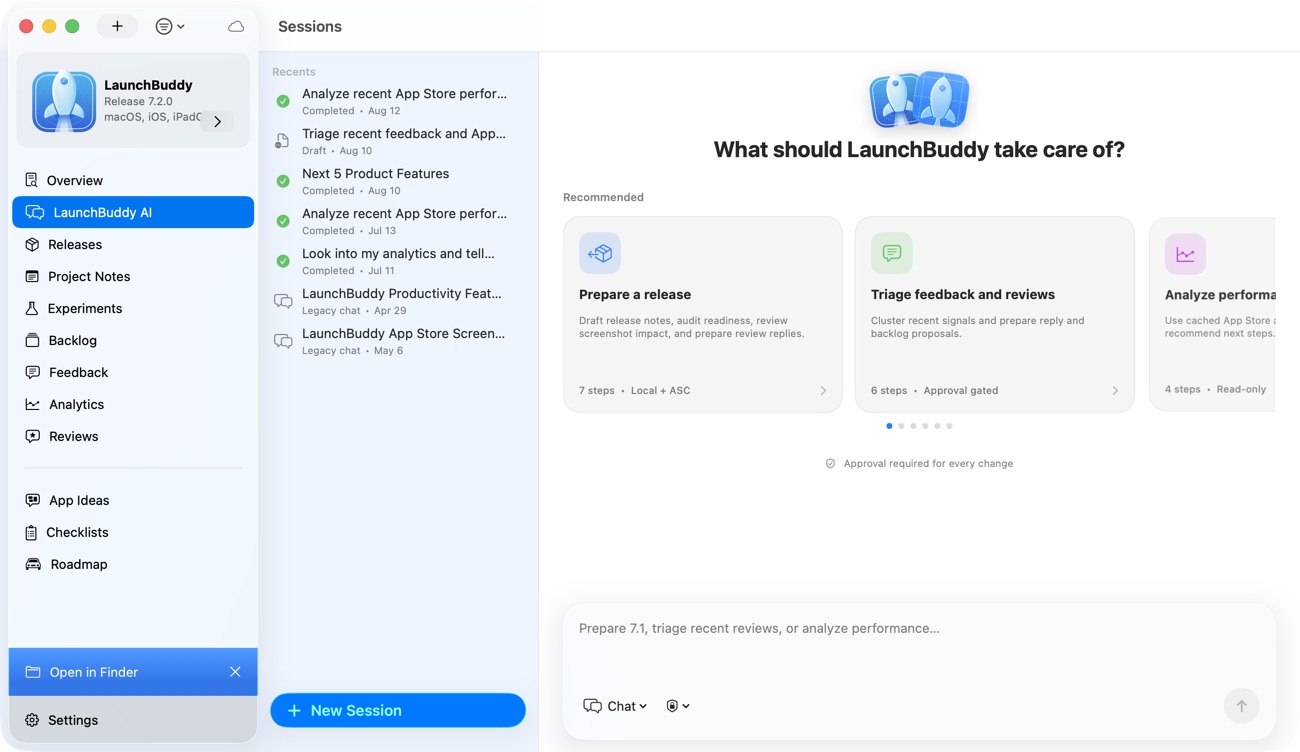
App Chat and playbooks serve different jobs:
| Tool | Best used for | Useful result |
|---|---|---|
| App Chat | An open-ended question or follow-up conversation | An explanation, brainstorm, or focused answer |
| AI playbook | A recurring goal with a recognizable sequence of checks | An editable audit, draft, analysis, or narrowly scoped proposal |
LaunchBuddy’s app-aware AI can use relevant context from the selected app, including releases, tasks, feedback, experiments, reviews, analytics, and other LaunchBuddy data. You choose whether private app notes, local project metadata, and project-note content may be included when relevant.
That does not mean every playbook reads every source. Available context depends on what the selected app contains and which connected features you have configured. Reviews, selected analytics, release-note uploads, and AI review replies require both Pro and App Store Connect API credentials.
Use a five-step control loop
Run every playbook through the same loop:
Scope → Select context → Review artifact → Approve or reject → VerifyThe two review points solve different problems. The artifact review catches weak reasoning or inaccurate copy. The proposal review controls a specific side effect. Verification then checks whether the approved action actually produced the intended state.
1. Write a one-sentence scope
Start with one decision, one app, and one release or measurement window.
Weak scope:
Get my app ready to ship.Better scope:
Audit version 2.4 for open release work and draft What's New text from completed
user-facing tasks. Do not create tasks, change release status, or upload text.
The second scope defines the result and exclusions. It also prevents “prepare a release” from silently expanding into every possible launch activity.
Add a stop condition when missing evidence should end the run:
Stop and flag the gap if the selected build or completed task list cannot be confirmed.2. Select the minimum useful context
More context is not automatically better. Include the records needed for the stated decision and leave unrelated notes out.
For a release audit, that might be:
- The selected app and release
- Completed and open release tasks
- Checklist progress
- The current changelog draft
- Known exclusions from the version
For feedback triage, add the relevant feedback or reviews and the release they may affect. For performance analysis, define the metric, period, comparison period, and any releases or experiments that changed during the window.
LaunchBuddy project data is stored in your private iCloud account, not on LaunchBuddy’s own project-data servers. AI disclosure is a separate boundary: Pro users control whether private notes and project details may be included when relevant to an AI request. Check that choice before running the playbook rather than assuming local storage means no context is disclosed.
3. Treat the artifact as a review surface
Read an AI artifact as a draft with evidence, not as a completion badge. A useful review asks:
- Does every claim trace to selected context?
- Did the playbook mix two releases, builds, or date ranges?
- Are observations separated from recommendations?
- Does any proposed copy promise work that isn’t complete?
- What evidence is missing?
If a readiness audit says “ready,” inspect the open tasks and checklist anyway. If a performance analysis says a release caused a change, rewrite that as a hypothesis unless the evidence establishes causation.
4. Approve only the exact side effect
LaunchBuddy AI pauses before supported actions change local data or write to App Store Connect. Supported actions include creating a release, creating or updating tasks, changing release status, drafting or updating a changelog, pushing approved release notes, sending an approved review reply, and creating ideas, experiments, or feedback.
Review the target and payload, then approve or reject. A useful proposal is narrow:
Target: Trail Notes / version 2.4
Action: Update changelog draft
Content: [exact reviewed text]
Not included: Change release status, upload a binary, submit for review
Decision: Approve or reject
Do not approve a task-creation proposal merely because the analysis was helpful. The task still needs the right release, priority, and scope. The human-in-the-loop AI approval guide explains why proposed, approved, applied, and verified are separate states.
5. Verify in the source of truth
After an approved change, re-open the destination:
- Check tasks, release status, or changelog changes in LaunchBuddy.
- Check an uploaded release note or sent review reply in App Store Connect.
- Check build, TestFlight, submission, pricing, and availability state in Apple’s tools.
Approval proves that you authorized a payload. It does not prove execution succeeded, that another system accepted the change, or that the release is ready.
Playbook 1: Prepare a release
Use the release-preparation playbook to find gaps and draft from known work. Before running it, record an input receipt:
App: Trail Notes
Release: 2.4
Goal: Improve offline map recovery
Included: 4 completed user-facing tasks
Excluded: Internal database refactor
Still open: Small-iPhone regression test, screenshot review
Requested result: Readiness audit and editable What's New draft
Allowed writes: None on the first pass
A useful result should keep facts, gaps, and copy separate:
Confirmed:
- Four user-facing tasks are marked complete.

Gaps:
- Regression test and screenshot review remain open.

Draft:
- Editable What's New text based only on completed user-facing work.

Decision:
- Not yet ready for a release-status change.
Then compare the result with a version-specific App Store Connect release checklist. Apple’s submission instructions require the appropriate role, required metadata, and the intended build before an app version can be added and submitted for review. LaunchBuddy can organize and audit the work around those steps; App Store Connect remains the official submission record.
If you later approve a changelog update or release-note upload, verify the exact copy. Use Xcode, Transporter, Fastlane, or CI for code signing and binary upload. LaunchBuddy does not perform those jobs or autonomously submit the version.
Playbook 2: Triage feedback and reviews
Feedback triage fails when sentiment replaces evidence. Give each item an origin and an outcome:
Source:
App or release:
Build, if applicable:
Observed issue:
Evidence:
Decision: Blocker / current task / later backlog / reply / no action
Reason:
For TestFlight feedback, Apple’s tester-feedback documentation says App Store Connect can show screenshots, comments, crash feedback, and details such as version, build, device, and OS. Filter and verify those details in App Store Connect before assigning an item to the current release. The TestFlight feedback workflow provides a build-aware triage process.
Don’t treat LaunchBuddy as a mirror of TestFlight: direct TestFlight feedback import isn’t a documented LaunchBuddy capability. Do not assume the playbook has seen Apple’s complete feedback record. Use the relevant feedback available in the selected LaunchBuddy context, then compare its result with App Store Connect and Xcode where necessary.
App Store customer reviews are a different path. With Pro and App Store Connect API credentials, LaunchBuddy can read and reply to reviews, draft an editable AI reply, and turn a review into a structured backlog task. Sending a reply or creating work still requires review and approval.
A strong triage result might propose two tasks and one reply draft. Approve them separately. A polite reply does not prove the reported defect is fixed, and a backlog task should not imply that every reviewer request belongs in the product.
Playbook 3: Analyze performance
Begin with a question rather than “analyze my app”:
Question: Did acquisition change after version 2.4?
Window: 14 complete days before vs. 14 complete days after release
Primary metric: First-time downloads
Context: Release date and one screenshot experiment
Guardrails: Conversion and crashes
Requested result: Observations, competing explanations, and at most one next-step proposal
Allowed writes: None
LaunchBuddy Pro can show selected downloads, revenue, and subscription metrics through App Store Connect credentials, and an AI playbook can analyze relevant available analytics context. Apple’s Analytics dashboard remains authoritative for deeper segmentation and metric definitions across acquisition, engagement, monetization, retention, and quality.
Use the App Store Connect analytics guide to check definitions and comparison windows. Keep three labels in the artifact:
- Observed: what the selected data actually shows
- Possible explanation: a hypothesis consistent with the data
- Next check: evidence that could support or weaken the hypothesis
For example, “first-time downloads rose after release” is an observation. “The new screenshots caused the increase” is not established if the release, campaign, and creative changed together. The safer next step may be a focused experiment or another complete comparison window, not an immediate product task.
Know when to stop the playbook
Reject or rerun the result when:
- The selected app, release, or date range is ambiguous.
- A claim cannot be traced to available context.
- A recommendation depends on missing Apple data.
- The artifact treats a draft, proposal, or approval as completed work.
- The proposed action includes more scope than the request.
- Generated public copy describes an unfinished or excluded feature.
Sometimes the correct output is “insufficient evidence.” That is more useful than a confident plan built on the wrong release or an incomplete metric window.
Keep a compact decision receipt
After a playbook run, save a short receipt beside the work:
Goal:
Context included:
Private context allowed:
Artifact reviewed:
Evidence checked:
Proposal:
Decision:
Applied result:
Verified in:
Open uncertainty:
This record makes the handoff inspectable without preserving a long chat as the only explanation. It also gives the next playbook run a clean starting point: what was known, what changed, and what still needs judgment.
LaunchBuddy AI playbooks are most valuable when they reduce repeated inspection while leaving authority visible. Scope one goal, disclose only useful context, review the artifact, approve a bounded action if needed, and verify the result where it lives.
Download LaunchBuddy on the App Store and try one read-first AI playbook.