AI Release Notes for iOS Apps: A Practical Workflow

To write iOS release notes with AI, give the model the version’s completed tasks and fixes instead of a blank prompt, ask for a short user-facing draft that leads with the most visible change, and check every sentence against the build before you paste it into the What’s New field. AI is good at turning task titles into plain language. It has no idea what actually made it into the build, so that check stays with you.
Release notes also arrive at the worst moment. You have a build in TestFlight. App Store Connect still needs metadata. Screenshots might need a final check. A reviewer note is waiting. Your changelog is scattered across Git commits, Xcode tasks, pull requests, and memory. Then the “What’s New” field asks you to explain the update clearly to users.
In LaunchBuddy, the changelog lives on the release next to its tasks. With Pro, LaunchBuddy AI drafts it from the completed work, and you can push the version you approve to App Store Connect.
Why AI release notes matter for iOS apps
Most App Store release notes are written too late. By the time you open App Store Connect, you already did the hard work: fixed bugs, polished UI, tested edge cases, updated subscriptions, or improved onboarding. The problem is that the work is no longer in one clean story.
AI release notes help because they can:
- Summarize completed tasks into user-facing language
- Turn technical implementation details into benefits
- Keep the tone consistent across releases
- Suggest a first draft when you do not know where to start
- Help localize or adapt notes for different audiences
- Reduce the temptation to paste “Bug fixes and performance improvements”
The best use of AI is not to publish whatever it writes. The best use is to create a strong first draft from structured release context, then edit it with developer judgment.
What good App Store release notes need to do
App Store release notes sit in a strange place. They are short, but they have to serve several audiences at once:
- Existing users deciding whether to update
- New users scanning the App Store page
- Reviewers checking what changed
- Your future self trying to remember what shipped
Good App Store Connect release notes do not need to describe every commit. They need to explain what changed in a way that is accurate, user-facing, and easy to trust.
That means the job is not “make the app sound exciting.” The job is to turn the release into a clear summary:
- What is new?
- What is better?
- What did you fix?
- Why should the user care?
- Is there anything important they need to know before updating?
AI-generated release notes can help answer those questions quickly, but only when they are based on the real release plan.
Start with the release, not the text field
AI works best when the source material is specific. Before asking for release notes, collect the release context:
- Version number
- Release goal
- Completed features
- User-visible bug fixes
- Performance or reliability improvements
- Known limitations or excluded changes
- App Store Connect status
- TestFlight feedback that shaped the final build
- Any reviewer context or launch timing decisions
If you start from only a git log, AI may overemphasize internal changes. If you start from only memory, you may forget important details. A release in LaunchBuddy gives the draft a better input because tasks, notes, and checklist items already live next to the version you are shipping.
Turn developer tasks into user benefits
The most important transformation is from “what changed in the code” to “what changed for the user.”
For example:
| Internal change | Better App Store release note |
|---|---|
| Refactored sync conflict handling | Sync is more reliable when you switch between devices. |
| Fixed onboarding layout on small screens | Onboarding now looks better on smaller iPhones. |
| Added ASC status polling | Release progress is easier to track without leaving your workflow. |
| Reworked task grouping model | Releases now stay cleaner as your project grows. |
| Optimized launch query | The app opens faster for projects with many tasks. |
AI can draft these transformations quickly, but you should still check every line. If a note promises faster sync, better reliability, or easier setup, make sure the release really delivers that benefit.
A practical AI prompt for App Store release notes
Here is a prompt you can adapt when drafting App Store release notes from a release plan:
You are writing App Store release notes for an iOS app.

Audience: existing users and potential new users reading the App Store page.
Tone: clear, friendly, specific, not hype-heavy.
Format: plain text, short paragraphs or simple bullets, no Markdown links.

Release context:
- App name:
- Version:
- Main goal of this update:
- Completed user-facing features:
- Fixed user-visible bugs:
- Performance or reliability improvements:
- Things to avoid mentioning:

Write 3 options:
1. A concise version under 300 characters.
2. A standard version under 700 characters.
3. A more detailed version under 1,200 characters.

Rules:
- Focus on user-visible changes.
- Do not mention internal refactors unless they create a clear user benefit.
- Do not invent features.
- Avoid "bug fixes and performance improvements" unless you make it specific.
This kind of prompt gives AI enough structure to help while keeping you in control of the final message.
Keep App Store Connect constraints in mind
The App Store’s “What’s New” field is generous compared with many other app stores, but generous does not mean users will read everything. Treat the opening lines as the most important part.
A good App Store release note should:
- Lead with the biggest user-facing improvement
- Be specific about what changed
- Avoid developer jargon
- Avoid overselling small fixes
- Stay readable when shown in a short preview
- Work as plain text
- Match the actual build selected in App Store Connect
When LaunchBuddy can keep App Store Connect status and release tasks close together, you are less likely to draft notes for the wrong build or forget that a feature slipped to the next version.
Use AI differently for different release types
Not every iOS update needs the same release note style.
Feature release
Lead with the new capability and explain what the user can now do.
Example:
This update adds saved release checklists, so every App Store submission can start from a workflow you already trust.

We also improved project search and fixed a few layout issues on smaller iPhones.
Bug fix release
Be honest and specific. Users appreciate knowing that a problem they felt is fixed.
Example:
This update fixes an issue where some release tasks could appear out of order after syncing between devices.

We also improved reliability when opening large projects.
Maintenance release
If changes are mostly behind the scenes, connect them to stability, speed, compatibility, or preparation for future features.
Example:
This update improves sync reliability and prepares LaunchBuddy for upcoming App Store Connect workflow improvements.AI-assisted release
If your app includes AI features, describe the outcome rather than the model or internal implementation.
Example:
Release notes are easier to draft in this version. LaunchBuddy can now help turn completed release tasks into clearer App Store-ready copy.Do not let AI invent the release
AI release notes can fail in predictable ways. Watch for:
- Features that sound plausible but are not included
- Claims that are broader than the actual fix
- Vague language that could apply to any app
- Internal jargon copied from tasks or commits
- Mentioning experimental work that is not visible to users
- Repeating the same tone every release
The safest workflow is draft, verify, edit, then paste into App Store Connect. If you cannot point to the task, build, or test result behind a sentence, remove or rewrite it.
Build a repeatable release notes workflow
For indie developers, the goal is not to create a perfect writing system. The goal is to make every release a little less chaotic.
A repeatable workflow can look like this:
- Create a release in LaunchBuddy.
- Attach tasks, checklists, notes, and launch decisions to that release.
- Sync or review the relevant App Store Connect status.
- Mark user-visible work as complete.
- Use AI to draft release notes from the completed release context.
- Edit the draft for accuracy, tone, and App Store clarity.
- Paste the final copy into App Store Connect.
- Save the final note with the release for future reference.
That last step matters. When your release notes live with the release, your future self can see what shipped, what you promised users, and how the version was positioned.
A simple checklist for AI-generated App Store release notes
Before submitting, run through this checklist:
- Does the first sentence explain the most important user benefit?
- Are all listed changes included in the selected build?
- Did you remove internal implementation details?
- Did you avoid unsupported claims like “faster” unless you can stand behind them?
- Is the copy readable in plain text?
- Does it match the app’s normal tone?
- Is it specific enough to be more useful than “bug fixes”?
- Did you save the final version with the release?
If the answer is yes, AI did its job: it helped you communicate the release without taking over the release.
Frequently asked questions
How long can App Store release notes be?
The What’s New field accepts up to 4,000 characters, but the product page only shows the first few lines before the “more” link. Put the change most users will notice in the first sentence and keep the whole note short enough to read at a glance.
Is “Bug fixes and performance improvements” good enough?
It’s allowed, but it tells users nothing in the one place where returning users read about an update. Name at least one fix in plain words, like “Widgets no longer show yesterday’s tasks after midnight,” and save the generic line for changes nobody can see.
Ship clearer updates with LaunchBuddy
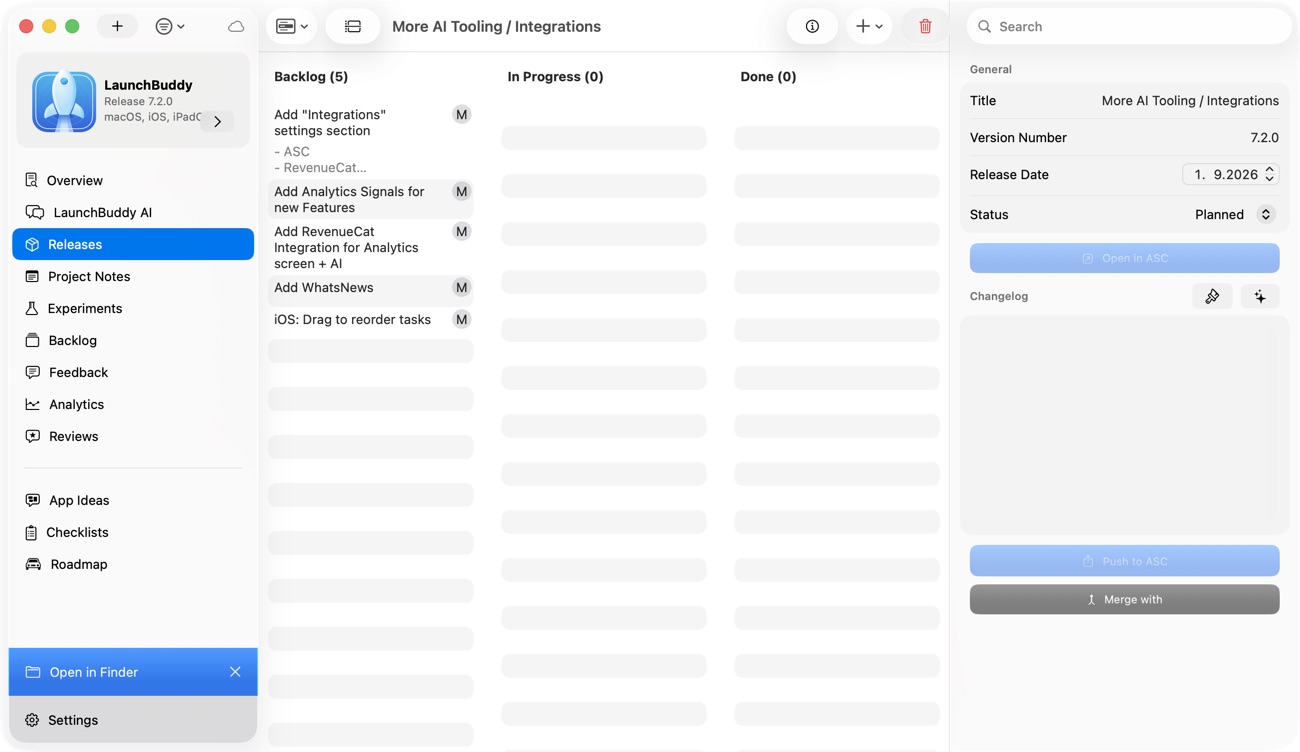
AI release notes for iOS apps are most useful when they are connected to the work you already planned. A generic AI text box can draft sentences. A release workflow can give those sentences context.
LaunchBuddy helps indie iOS developers organize projects, tasks, releases, checklists, and App Store Connect work in one place. With AI features, it can help turn completed release work into clearer App Store release notes, so every update feels easier to explain and easier to ship.
If your next iOS release is almost ready but the “What’s New” field is still blank, start with the release context. Then let AI help you write from the truth of what you actually shipped.