In-App Purchase Status Meanings and What to Do Next
An In-App Purchase status tells you where the product is in App Store Connect’s setup, review, or sale lifecycle. The fastest response starts with the owner of the next action. You act on Prepare for Submission, Ready for Review, Accepted, Rejected, Developer Rejected, and Developer Removed from Sale. Apple normally owns Waiting for Review and In Review. Approved means review is complete, while Removed from Sale means Apple removed the product.
That label doesn’t tell you whether a particular customer should receive access. App Store Connect product status, submission status, and StoreKit entitlement are three different records. Diagnose the right one before changing metadata or code.
In-App Purchase statuses at a glance
Apple’s current In-App Purchase status reference lists ten statuses. Use this table as a next-action map:
| Status | What it means | Owner | Next action |
|---|---|---|---|
| Prepare for Submission | The product exists but hasn’t been added for review. Required metadata may still be incomplete. | Developer | Complete the product and review information, then use Add for Review. |
| Ready for Review | The product is in a draft submission that hasn’t been sent to App Review. | Developer | Inspect the complete draft, then select Submit for Review. |
| Waiting for Review | Apple has received the submission but hasn’t begun reviewing the product. | Apple | Record the submission and wait unless you discover a material error. |
| In Review | App Review is evaluating the product. | Apple | Monitor App Review messages; don’t change unrelated fields to try to accelerate review. |
| Accepted | This product passed, but at least one other item in the same submission was rejected. | Developer | Fix or remove every rejected item, then resubmit the submission. |
| Approved | Apple approved the product and country or region availability is provided. | Developer verification | Verify the intended storefronts and test the production purchase path. |
| Rejected | App Review rejected this product. | Developer | Read the cited issue, make the supported correction, use Update Review, and resubmit. |
| Developer Rejected | You removed the product from review. | Developer | Correct the product or packet, then add it for review again. |
| Developer Removed from Sale | You removed the product from sale. Existing customers retain access. | Developer | Leave it unavailable or update availability to return it to sale. |
| Removed from Sale | Apple removed the product from sale. | Apple / developer follow-up | Review Apple’s notice and contact Apple when the reason or recovery path isn’t clear. |
Apple also uses color as a coarse signal: red means developer action is required before availability, yellow means an Apple- or developer-controlled process is underway, and green means the product is available. The written status is still more useful because it identifies the actual state.
Read the label in the right context
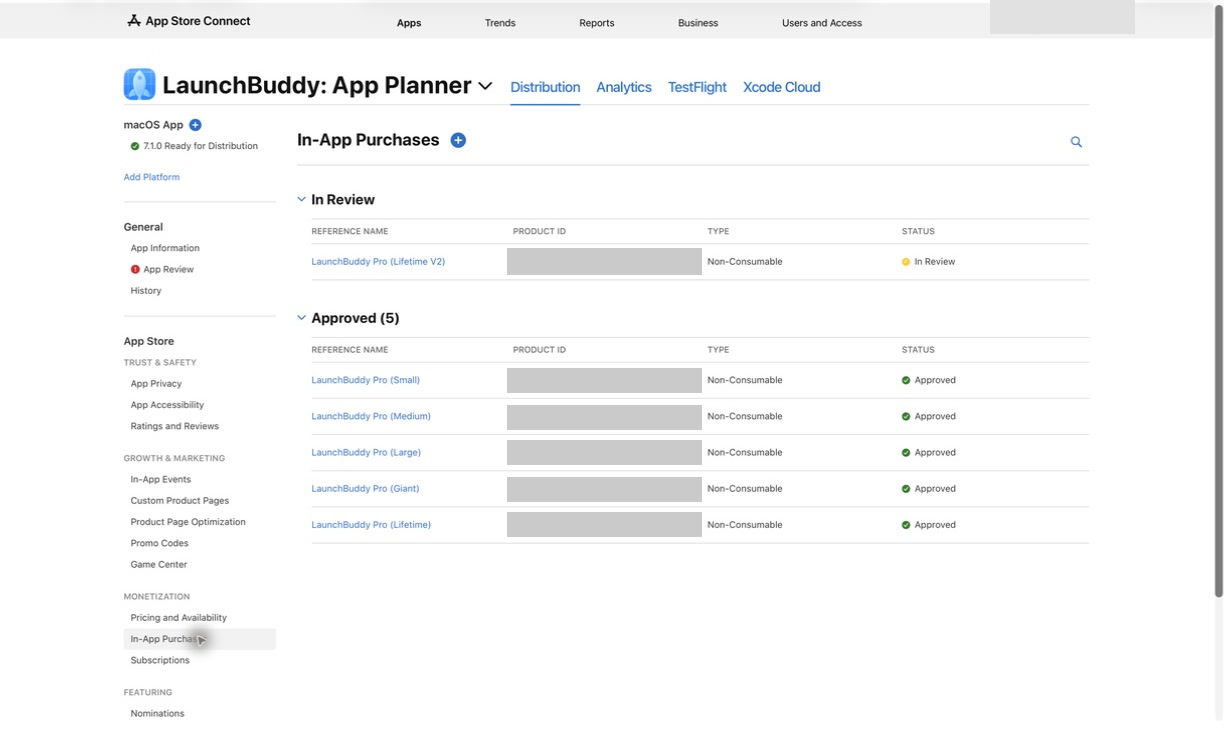
Before troubleshooting, name the record you’re looking at:
- Product status describes one In-App Purchase in App Store Connect.
- Submission status describes the packet containing that product, an app version, a subscription group, or other reviewable items.
- Customer entitlement describes whether a specific customer should receive content or service in your app.
These records can disagree without being contradictory. A product can be Accepted while its submission has unresolved issues because another item was rejected. An Approved product can still be unavailable in a storefront you didn’t select. A product can remain Approved after a customer’s subscription expires or a transaction is revoked.
For customer access, use verified StoreKit data rather than the App Store Connect product label. Apple’s Transaction.currentEntitlements emits qualifying transactions for non-consumables and subscriptions, but excludes consumables and refunded or revoked products. Apply the documented rules for the product type instead of treating every returned transaction alike. For auto-renewable subscriptions, Apple’s renewal-state reference treats subscribed and inGracePeriod as entitled states.
The practical rule is simple:
Question: Can this product be reviewed or sold?
Source: App Store Connect product and submission status

Question: Should this customer have access?
Source: Verified StoreKit transaction and entitlement state
Don’t grant or remove access because an App Store Connect admin label changed.
Troubleshoot Prepare for Submission
Prepare for Submission is a configuration state, not evidence that Apple rejected the product. It means the product hasn’t entered a draft submission.
Work from the product page instead of repeatedly looking for a different status:
- Confirm the product ID and purchase type are the intended immutable values.
- Complete pricing and country or region availability.
- Add at least one localization.
- Add the App Review screenshot and useful review notes.
- Save every section and read any inline errors.
- Confirm your role can submit the product.
- Select Add for Review.
Apple’s product-information guide says the product ID and purchase type can’t be edited after saving. Don’t create a replacement merely to clear a missing field; reserve a new product for an actual identifier or type mistake.
If you haven’t decided which product model fits the customer promise, use the In-App Purchase types guide before proceeding.
Troubleshoot Ready for Review
Ready for Review is the handoff trap. The product is inside a draft, but Apple hasn’t received that draft.
Open App Review, inspect the draft, and verify:
- the correct platform and app version, when required;
- the intended product and no stale items;
- the subscription group, when required;
- current review evidence;
- no unrelated item that could block the packet.
Then select Submit for Review. Apple’s submission instructions separate Add for Review from Submit for Review. They also require the first product of each In-App Purchase type to be submitted with a new app version. A new subscription group must travel with at least one subscription.
If the product remains Ready for Review, first ask whether the final submission action happened. The draft-submission guide explains the two-step handoff in detail.
Handle Waiting for Review and In Review
These statuses usually call for observation, not speculative edits:
- Waiting for Review: Apple has the submission but hasn’t started reviewing the product.
- In Review: Apple is reviewing it.
In both states, Apple’s status reference says you can edit only the reference name, pricing, and availability. That doesn’t mean changing those fields will move the review forward.
Keep a submission receipt instead:
App:
Platform:
Product reference name:
Product ID:
Purchase type:
Submission contents:
Submitted by / at:
Current product status:
Current submission status:
Last App Review message:
Next check:
If you find a material problem, decide whether the submission should continue before removing anything. Withdrawal creates more work and changes the state; it isn’t a refresh button.
Resolve Accepted without waiting for it to become Approved
Accepted is easy to misread as “approved soon.” It actually means this product passed while another item in the same submission did not.
Apple won’t approve the accepted product until the submission’s rejected items are resolved. Open the submission rather than editing the accepted product:
- Find every rejected item and read its message.
- Decide whether to correct it or remove it from the submission.
- Update each rejected item.
- Resubmit after all rejected items are resolved or removed.
Apple’s unresolved-issues instructions describe this as a submission-level recovery. The accepted item isn’t the blocker, so changing it can introduce unnecessary review risk.
Recover from Rejected or Developer Rejected
For Rejected, preserve the reason before changing anything. Classify the failure:
- product metadata or localization;
- review screenshot or notes;
- submitted app behavior;
- product implementation or StoreKit flow;
- missing app-version or subscription-group dependency;
- policy or business-model issue.
Make the smallest change that addresses Apple’s message, retest the affected path, use Update Review, and resubmit after the packet is coherent. The complete In-App Purchase review guide includes a review-evidence template.
Developer Rejected means you removed the item from review yourself. Reconstruct the reason from your release record, correct the product or packet, and use Add for Review again. If nobody recorded why it was withdrawn, don’t guess. Compare the current product with the submitted build and ask the person who made the change.
Diagnose Approved but unavailable
Approved confirms App Review approval and configured country or region availability. It doesn’t prove that every customer, storefront, device, build, and account can purchase the product.
Separate the checks:
| Check | Evidence |
|---|---|
| Review | Product says Approved in App Store Connect |
| Storefront | Customer’s Apple Account country or region is selected |
| App configuration | The build requests the exact saved product ID |
| Store response | StoreKit returns the expected product in the intended environment |
| Purchase | A test transaction completes |
| Access | Verified transaction or entitlement grants the correct content |
Apple’s availability guide warns that configured availability alone doesn’t guarantee a product can be purchased. If Approved is green but the app still fails, stop trying to “fix” the review status. Capture the storefront, environment, build, product ID, StoreKit result, and customer-account state, then investigate the failing layer.
Treat sale-removal statuses as availability decisions
Developer Removed from Sale means someone on your team removed the product. Apple says existing customers retain access and the transactions remain available through StoreKit and the App Store Server API. Re-enabling sale is an availability change, not a new product-creation task.
Removed from Sale means Apple took the action. Review App Store Connect messages and account notices before editing metadata. If Apple hasn’t provided enough information, contact Apple with the app, product ID, current status, affected storefronts, and timeline.
Don’t use either status as a signal to erase customer entitlements. Sale availability controls new purchases; customer access still follows the relevant verified transaction and product rules.
Keep a status-to-action record with the release
App Store Connect remains authoritative for In-App Purchase configuration, submissions, review messages, availability, and status. StoreKit remains authoritative for the app’s transaction and entitlement handling.
Keep LaunchBuddy on the planning side. It doesn’t sync per-product In-App Purchase statuses or validate StoreKit entitlements. Add the product ID, current Apple status, owner, evidence, and next check to the release. Turn a rejection or availability investigation into scoped tasks, and use a submission checklist so Ready for Review isn’t mistaken for submitted. Release planning, taskboards, and default submission checklists are available on the Free plan; Pro adds custom reusable checklists. LaunchBuddy doesn’t replace the final App Store Connect or StoreKit verification.
The useful outcome isn’t merely knowing what a label means. It’s knowing which system holds the evidence, who acts next, and what will prove the issue is resolved.
Download LaunchBuddy and keep each In-App Purchase follow-up attached to the release that needs it.
