LaunchBuddy MCP Server: Capabilities, Limits, and Safe Use

The LaunchBuddy MCP server is a macOS-only, localhost-only bridge between LaunchBuddy and MCP clients such as Cursor, Claude Code, and Codex. It lets a client read local project and release context, including next-release status, task and checklist progress, backlog tasks, cached App Store reviews, and automation approval status.
Its write tools don’t mutate LaunchBuddy data directly. They create proposals that you approve or reject in LaunchBuddy before a change is applied. Those write tools require LaunchBuddy Pro. The server isn’t a cloud service, doesn’t run on iPhone or iPad, and isn’t a replacement for App Store Connect, Xcode, TestFlight, Fastlane, or CI.
LaunchBuddy MCP server at a glance
| Question | Verified answer |
|---|---|
| Where does it run? | On macOS, over a localhost-only server |
| Which clients can connect? | Cursor, Claude Code, Codex, and other compatible MCP clients |
| Is authentication available? | Yes, optional bearer-token authentication |
| What can read tools inspect? | Next-release status, task and checklist progress, backlog tasks, cached App Store reviews, and approval status |
| Do write tools edit data immediately? | No. They create approval proposals before changes are applied |
| Which writes are supported? | Proposals for task updates, task completion, release creation, release-status changes, and changelog updates |
| What requires Pro? | MCP write tools and the creation of write-action proposals |
MCP read tools are available without Pro. MCP write tools require Pro, currently $2.99 per month or $19.99 per year. Separately, the free portfolio is limited to two apps and two releases.
What kind of MCP server is this?
MCP gives an AI client a standard way to discover and invoke tools. The official MCP tools specification defines tool discovery through tools/list and invocation through tools/call. It doesn’t require every server to expose the same tool names or data.
LaunchBuddy’s server exposes LaunchBuddy context. That distinction prevents a common setup mistake:
- A LaunchBuddy read can inspect your planned release, its tasks, checklist progress, backlog, cached reviews, or pending approvals.
- A separate App Store Connect MCP server may expose live Apple API operations, depending on that server’s implementation and credentials.
- A coding agent may edit source code or run tests through its own tools.
- Xcode, Transporter, Fastlane, or CI still handle building, signing, and binary upload.
These tools can participate in one release workflow, but they aren’t interchangeable. The App Store Connect MCP workflow guide covers the Apple-facing side in more detail.
The read and write paths are deliberately different
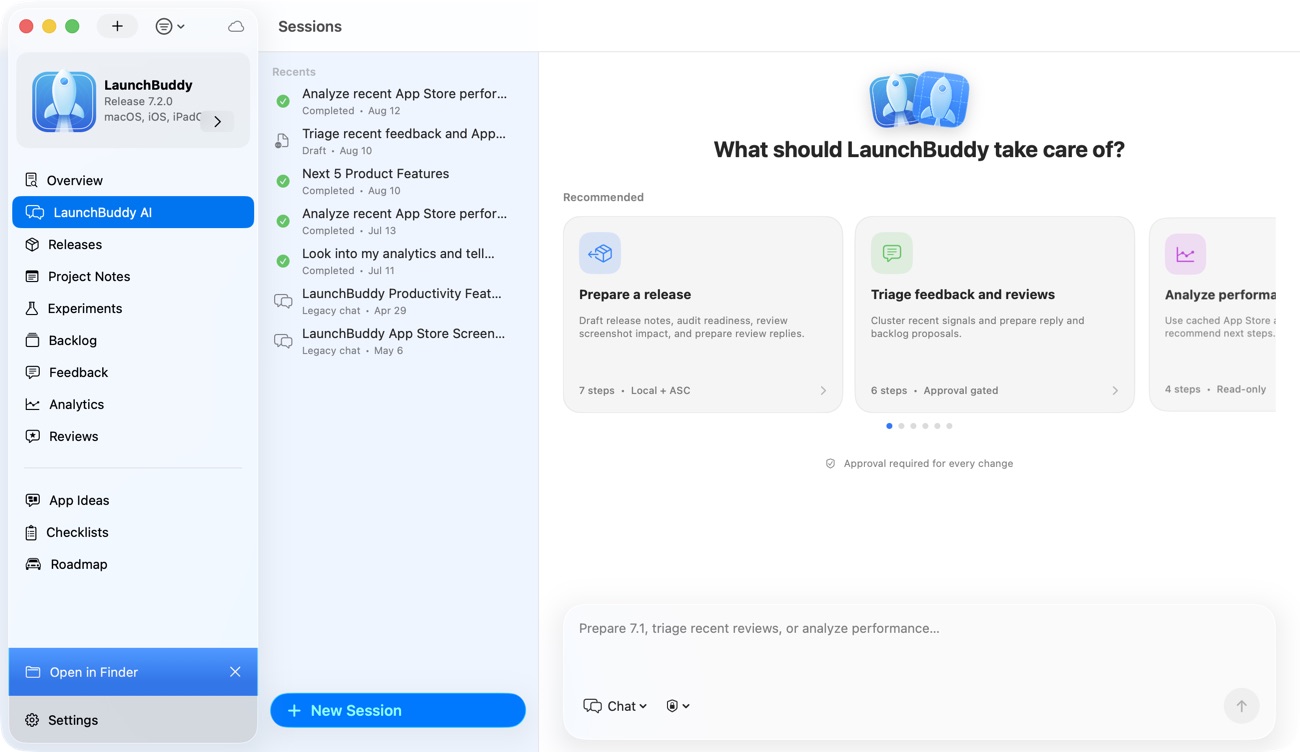
The server has two paths:
Read request
MCP client → local LaunchBuddy server → project or release result

Write request
MCP client → local LaunchBuddy server → approval proposal
           → LaunchBuddy approval queue → approve or reject
           → change applied only after approval
The read path helps an agent answer questions. The write path asks LaunchBuddy to stage a defined change for human review. A client must not describe a proposed update as completed merely because it successfully called a write tool.
This adds a product-level approval boundary beyond prompt instructions. The MCP tools specification says there should be a human in the loop with the ability to deny invocations, and that clients should show tool inputs before calling a server. LaunchBuddy’s pending MCP, Shortcut, and AI changes share an automation approval queue.
Connect a client without inventing configuration
LaunchBuddy documents localhost access and optional bearer-token authentication, but not an endpoint, port, transport, exact tool names, or client-specific JSON. This guide won’t fabricate those details.
Use this connection sequence instead:
- Use LaunchBuddy on a Mac. The local MCP server isn’t hosted on iPhone, iPad, a remote LaunchBuddy cloud, Windows, or Linux.
- Use only server details shown by your installed LaunchBuddy version or supplied by official support. If neither supplies them, don’t guess or copy a localhost port from an unrelated tutorial.
- Add those details to the MCP client using that client’s current documentation. Cursor, Claude Code, and Codex don’t necessarily use the same configuration file or field names.
- If you enable bearer authentication, store the token as a secret. Don’t paste it into a repository, prompt, screenshot, or article.
- Connect, then inspect the discovered tools before invoking one. Check each tool’s description and input schema rather than guessing a name from the capability list in this article.
- Run read-only checks first. Compare the returned state with the same release in LaunchBuddy before enabling a write workflow.
The official MCP transport specification says that Streamable HTTP servers running locally should bind to localhost and should implement authentication for all connections. LaunchBuddy’s verified boundary is localhost-only with optional bearer-token authentication. Its exact transport isn’t stated in the product facts, so configure the client from LaunchBuddy’s actual connection details.
Validate the read path with a source-aware prompt
Start with a narrow release question, not “analyze my whole project.” A good first prompt is:
Using only the LaunchBuddy tools, inspect the next release for [app].
Report:
1. release status;
2. task progress and any incomplete task details returned;
3. checklist progress;
4. pending automation approval status.

Do not propose or apply changes.
Name the tool used for each section.
Distinguish missing or unavailable data from an empty result.
Do not invent timestamps or fields the tools do not return.
This prompt limits the source, identifies the app, separates four kinds of state, and tells the client not to turn absent data into a confident “none.”
Then test individual supported reads:
List backlog tasks for [app]. Group only by fields the LaunchBuddy tool returns.
Do not assign new priorities or move tasks.
If cached App Store reviews are available for [app], summarize recurring themes.
Quote or paraphrase only review data returned by the tool, and say when the cache
does not contain enough evidence for a theme.Cached review access has an extra dependency: LaunchBuddy’s App Store Connect integration requires App Store Connect API credentials and Pro. Local tasks, releases, and checklists don’t require those Apple credentials. If a review read is unavailable, don’t treat that as proof that the app has no reviews.
Add one write proposal at a time
After the read path returns the right app and release consistently, test the smallest write proposal supported by your workflow. For example:
Inspect next-release task progress for [app].
If the returned data uniquely identifies [task] as incomplete, propose marking it complete.
Do not claim completion unless a later supported read confirms it.
Stop for human review and report only fields the tool actually returns.
Before approving, check the proposal against the fields it displays. Reject it if required context is absent:
- App: Is this the intended project?
- Release: Is this the intended release and version?
- Object: Is the task, changelog, or release uniquely identified?
- Current state: Does the proposal start from the state you just verified?
- Requested change: Is the requested action limited to what the prompt asked for?
- Consequence: Could approval affect release reporting or user-facing copy?
Approve or reject the proposal in LaunchBuddy’s shared automation approval queue. After approval, run a supported read when one is available; otherwise, verify the state in LaunchBuddy. That check, not the agent’s earlier wording, confirms whether the state changed.
The same rule applies to larger supported proposals such as creating a release, changing release status, or updating a changelog. Keep each proposal scoped enough that you can understand the requested action without reconstructing the agent’s entire conversation. Unless the discovered tools include a changelog read, verify an approved changelog update in LaunchBuddy.
A worked release-status example
Suppose a hypothetical LaunchBuddy release contains this state:
App: Trail Notes
Next release: 2.3
Release status: Preparing
Release tasks: 8 complete, 2 incomplete
Checklist: 7 complete, 2 incomplete
Pending approvals: 0
A read-first client should report the incomplete task count and checklist progress without changing either. If the returned data identifies a task you know is finished, you can ask for a single completion proposal. LaunchBuddy holds that proposal for approval.
The useful output isn’t “release ready.” It is a traceable handoff:
Observed:
- Release 2.3 is Preparing.
- Release task progress is 8 of 10.
- Checklist progress is 7 of 9.
- No automation approvals are pending.

Proposed:
- Mark task "Verify onboarding analytics events" complete.

Still manual:
- Confirm the task evidence.
- Review and approve or reject the proposal in LaunchBuddy.
- Re-read release 2.3 before making a readiness decision.
This pattern prevents three states from collapsing into one: what the server observed, what the agent proposed, and what a person approved.
Security and data boundaries to keep visible
“Localhost-only” limits where the server listens; it doesn’t make every client request trustworthy. A local MCP client can still be influenced by a vague prompt, incorrect context, or content it has read elsewhere.
Keep these safeguards in place:
- Enable the optional bearer token when it fits your client setup, and handle it like any other credential.
- Review the tools and inputs exposed to the model.
- Keep write proposals narrow and inspect them in LaunchBuddy.
- Re-read important state after approval.
- Review the MCP client’s own data-handling policy before exposing private project or review context.
- Disconnect clients you no longer use and remove credentials from their configuration.
LaunchBuddy project data is stored in your private iCloud account rather than on LaunchBuddy-hosted project servers. An MCP result is also given to the connected client, so your privacy review must include that client’s behavior and any model service it uses.
Troubleshoot by checking the boundary that failed
Avoid guessing from a generic connection error. Check the relevant boundary:
| Symptom | What to verify |
|---|---|
| The client can’t reach the server | You are on macOS; the address came from LaunchBuddy rather than another tutorial; the local server and client are available on the same Mac |
| Authentication fails | If bearer authentication is enabled, the configured value matches the current LaunchBuddy token and isn’t being altered by quoting or secret substitution |
| The client connects but expected tools are absent | Inspect the client’s discovered tool list and tool descriptions; don’t assume unpublished tool identifiers |
| A release read is empty | Confirm the requested app exists, has a next release, and contains the expected tasks or checklist progress |
| Cached reviews are unavailable | Confirm App Store Connect credentials and Pro access; distinguish unavailable data from an empty review set |
| A write tool isn’t offered | Confirm Pro access and that the requested action is one of the documented write proposals |
| A proposed change hasn’t taken effect | Check the automation approval status; a proposal must be approved before application |
| A remote device can’t connect | The server is localhost-only and isn’t a remote cloud endpoint |
Don’t weaken localhost binding. If bearer authentication is enabled, don’t remove it merely to match configuration copied from another product. Resolve the client and LaunchBuddy settings using their exact current documentation.
Frequently asked questions
Can the LaunchBuddy MCP server upload builds or change App Store metadata?
No. It reads LaunchBuddy’s own project and release context and proposes LaunchBuddy changes, such as task updates, new releases, release-status changes, and changelog edits. Building, signing, uploading a binary, and editing App Store metadata stay with Xcode, your CI, or App Store Connect.
What LaunchBuddy data does my AI client see?
Only what its tool calls return. Each MCP result is passed to the connected client and to whatever model service that client uses, so check the client’s data policy and keep requests narrow when they touch private reviews or project notes.
When you need a different tool
Use the LaunchBuddy MCP server when the question is about LaunchBuddy’s local project and release context or when you want an approval-gated project change.
Use another part of the release stack when you need to:
- build, sign, notarize, or upload an app binary;
- operate Xcode or CI;
- access a live App Store Connect capability not exposed by LaunchBuddy;
- automate a direct Apple API workflow;
- host an MCP endpoint for remote machines.
For Apple API boundaries and credentials, read the App Store Connect API workflow. LaunchBuddy remains the project and release layer around those systems, not a substitute for them.
If you want your MCP client to read release context while keeping writes behind an approval step, download LaunchBuddy on the App Store and use its macOS MCP server.
