App Store Connect MCP Workflow for Indie iOS Developers
An App Store Connect MCP workflow is quickly becoming one of the most interesting ways for iOS developers to connect AI agents to real release work.
MCP servers can give tools like Cursor, Claude, and other AI assistants access to App Store Connect data. Depending on the server, an agent may be able to list apps, inspect versions, check build status, read TestFlight state, update metadata, draft release notes, prepare localizations, run pre-submission checks, or even submit a version for review.
That is powerful. It is also exactly the kind of workflow that needs a reliable release source of truth.
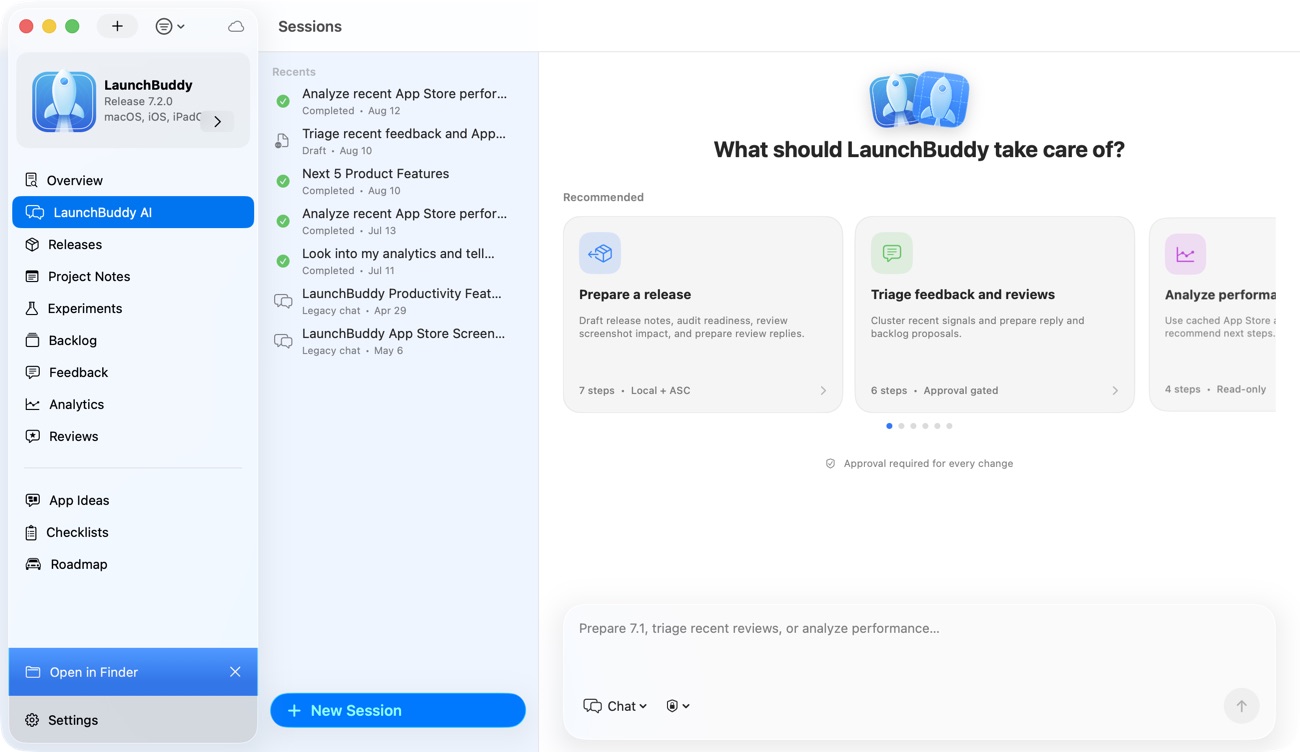
LaunchBuddy is built for that layer. With App Store Connect integration and AI features, it helps indie iOS developers keep tasks, versions, TestFlight feedback, App Store metadata, AI drafts, release notes, and final launch decisions connected before an agent starts acting on App Store Connect.
What an App Store Connect MCP server can do
An MCP server is useful because it turns App Store Connect API capabilities into tools an AI assistant can call. Instead of manually clicking through App Store Connect or writing a one-off script, the developer can ask for a release summary, metadata check, or TestFlight status update in natural language.
Depending on the implementation, common App Store Connect MCP capabilities include:
- Listing apps and bundle IDs
- Finding App Store versions
- Creating a new version
- Attaching a build to a version
- Checking build processing status
- Reviewing TestFlight availability
- Managing beta groups and testers
- Reading customer reviews
- Drafting or updating “What’s New” text
- Updating localized descriptions, keywords, and promotional text
- Checking screenshots and metadata completeness
- Preparing App Review notes
- Running pre-submission audits
- Submitting an app version for review
- Managing phased release settings
Those tools can remove a lot of repetitive App Store Connect work. But they do not automatically know what should ship, what should wait, which beta feedback matters, or whether a generated sentence is true for the selected build.
That is why the workflow matters more than the tool list.
For the lower-level API view, read the App Store Connect API workflow. For the broader release automation view, read App Store Connect automation.
Start with a read-only MCP workflow
If you are connecting an AI assistant to App Store Connect for the first time, start with read-only work.
A safe first App Store Connect MCP workflow looks like this:
1. Read the current App Store version state.
2. Read the selected build and build processing status.
3. Read TestFlight status and recent feedback.
4. Compare App Store Connect state against the release checklist.
5. Summarize what is ready, blocked, or unclear.
6. Draft release notes or review notes without publishing them.
7. Ask the developer to approve every outward-facing change.
That gives the agent useful context without giving it too much authority too early.
Good first prompts include:
Summarize the App Store Connect status for version 2.4 and list anything that blocks submission.Check whether the selected build matches the release plan and whether TestFlight feedback has been reviewed.Draft App Store release notes from the completed release tasks, but do not update App Store Connect.Compare the pending metadata against the release checklist and flag anything that needs human review.These prompts make the AI assistant an inspector, summarizer, and drafter. They do not make it the release manager.
Give the agent release context before credentials
The risky part of an App Store Connect MCP workflow is not only API access. It is API access without release context.
App Store Connect can tell an agent:
- Which apps exist in the account
- Which versions exist
- Which build is attached
- Whether a build is processing
- Which metadata fields are filled
- Which TestFlight groups are active
- Which App Review state the version is in
- Which reviews or feedback items exist
But App Store Connect may not know:
- Which tasks are user-facing
- Which internal refactors should not appear in release notes
- Which beta comments are blockers
- Which bugs were fixed after the last build
- Which feature was delayed to the next version
- Which screenshot task is still waiting
- Why a keyword or subtitle changed
- Whether the app is ready for a phased release
- What the developer wants App Review to understand
That missing layer is where LaunchBuddy can help.
In LaunchBuddy, the release can hold the version, tasks, checklist, App Store Connect state, AI drafts, TestFlight decisions, metadata notes, ASO experiments, and follow-up tasks together. The MCP-connected agent can still use App Store Connect tools, but it has a clearer release story to work from.
Use MCP for status, drafts, audits, and handoffs
An App Store Connect MCP workflow is strongest when it helps with work that benefits from structured inspection.
Status
AI can use MCP tools to answer questions that usually require clicking through App Store Connect:
- Is the build processed?
- Is the right build attached?
- Is the version in an editable state?
- Is TestFlight ready?
- Is App Review waiting, in review, approved, or rejected?
- Are required metadata fields missing?
- Are there recent reviews or feedback items that need attention?
Status is a good early MCP use case because the agent is reading state and explaining it.
Drafts
Once the release context is clear, AI can draft:
- App Store release notes
- TestFlight “What to Test” notes
- App Review notes
- Metadata alternatives
- Keyword candidates
- Review replies
- Launch copy
- Post-release summaries
The agent should draft from known release facts, not from vague memory. If the final text cannot be traced back to a task, build, feedback item, or release decision, rewrite it.
For a focused writing workflow, read AI release notes for iOS apps and the App Store release notes generator guide.
Audits
MCP tools can also help the agent audit the release before submission:
- Build attached
- Release notes present
- App Review notes complete
- Screenshot tasks checked
- Metadata fields reviewed
- Keyword field not overfilled
- Privacy, pricing, and subscription changes reviewed manually
- TestFlight feedback triaged
- Launch checklist complete
This is where a connected checklist matters. The agent can compare App Store Connect state against the release plan instead of treating the dashboard as the whole truth.
For a field-by-field process, use the App Store Connect release checklist.
Handoffs
The best MCP workflow also leaves a trail for the developer:
- What the agent checked
- Which App Store Connect fields changed
- Which generated copy was accepted
- Which risks remain
- Which manual approvals are still needed
- Which follow-up tasks should move to the next version
LaunchBuddy is useful here because the handoff can become part of the release record instead of disappearing into a chat transcript.
Be careful with write access
Some App Store Connect MCP demos are exciting because the agent can update metadata or submit a version from a prompt. That may be useful for mature release systems, but indie developers should add write access gradually.
Treat these actions as high-risk:
- Creating or changing App Store versions
- Attaching or swapping builds
- Updating final App Store metadata
- Updating localized keyword fields
- Changing screenshots or app previews
- Changing pricing or availability
- Editing in-app purchases or subscriptions
- Changing App Privacy answers
- Submitting for App Review
- Releasing an approved version
- Enabling, pausing, or completing phased release
- Replying publicly to customer reviews
The problem is not that an AI agent will always fail. The problem is that it may successfully make a plausible change that does not match the selected build, the release plan, Apple’s rules, or your product positioning.
Use a simple permission ladder:
Level 1: Read App Store Connect state.
Level 2: Draft text and checklist updates outside App Store Connect.
Level 3: Prepare exact change sets for developer review.
Level 4: Apply low-risk approved changes.
Level 5: Apply high-risk changes only with explicit confirmation.
Most indie developers will get a lot of value from levels 1 through 3 before they need anything more aggressive.
A practical App Store Connect MCP checklist
Use this checklist before relying on an AI agent during an iOS release:
Release source of truth:
- Version number created
- Release goal written
- User-facing tasks attached
- Internal-only work marked
- Known exclusions listed
- Launch checklist added

App Store Connect connection:
- API key scope reviewed
- MCP server configured securely
- Read-only prompts tested first
- App and bundle ID verified
- Correct App Store Connect team selected
- Selected version and build confirmed

Build and TestFlight:
- Build processing status checked
- Selected build matches release plan
- Internal testing complete
- External TestFlight feedback triaged, if used
- Crash or screenshot feedback reviewed
- Blockers separated from future ideas

AI-assisted copy:
- Release notes drafted from completed tasks
- App Review notes drafted from saved context
- Metadata ideas reviewed manually
- Keyword candidates checked for relevance
- Every generated claim verified against the selected build

Human approval:
- Screenshots and app previews checked manually
- App Privacy reviewed manually
- Pricing and subscriptions reviewed manually
- Final metadata approved manually
- App Review submission confirmed by the developer

Handoff:
- Accepted copy saved with the release
- MCP changes recorded
- Remaining risks listed
- Post-launch tasks created
- Next-version follow-ups captured
This checklist gives the agent clear boundaries. It can reduce context switching and catch missed work without turning release day into a black box.
What this looks like in LaunchBuddy
Imagine you are preparing version 1.8 of an iOS app.
An MCP-connected agent can query App Store Connect and find:
- Version 1.8 exists
- Build 142 is processed
- TestFlight is available
- The “What’s New” field is empty
- App Review notes are missing
- Two recent reviews mention onboarding confusion
That is useful, but it is not enough to submit confidently.
In LaunchBuddy, the same release can also show:
- Version 1.8 is focused on onboarding improvements
- Four onboarding tasks are complete
- One database refactor is internal-only
- One TestFlight comment confirmed the new flow
- Screenshot review is still open
- A demo account needs to be included in App Review notes
- AI-generated release notes are drafted but not approved
- A follow-up task exists for localization next release
Now the agent can give a much better answer:
Version 1.8 is close, but screenshot review and App Review notes are still open. Build 142 matches the release plan. I drafted release notes focused on onboarding improvements and excluded the internal database refactor. Submit only after the demo account note and screenshots are approved.That is the difference between App Store Connect access and release management.
Why LaunchBuddy fits App Store Connect MCP workflows
LaunchBuddy is not trying to replace MCP servers, App Store Connect, Xcode, Fastlane, CI, or coding agents. Those tools can be valuable parts of an iOS release system.
LaunchBuddy fits the layer that makes them safer and more useful:
- Organize iOS projects and releases
- Tie tasks to the version being shipped
- Keep App Store Connect state close to release work
- Reuse submission checklists
- Connect TestFlight feedback to decisions
- Draft release notes and review replies with AI
- Track ASO experiments and metadata notes
- Save final copy and launch decisions
- Keep post-launch follow-up work visible
Connect the agent, but keep the release accountable
An App Store Connect MCP workflow can make iOS releases faster. It can reduce dashboard checking, summarize state, draft release notes, audit metadata, and help an AI assistant understand what is happening in App Store Connect.
But the release still needs accountability. The selected build, user-facing changes, TestFlight feedback, metadata decisions, App Review notes, and launch checklist should be visible before the agent takes action.
Start with read-only status. Add drafts. Add audits. Let the agent prepare exact changes. Keep human approval around anything that affects users, reviewers, privacy, pricing, or public positioning.
That is the practical path for indie iOS developers: AI and MCP where they help, LaunchBuddy as the release source of truth, and final decisions kept clear.
That is the workflow LaunchBuddy is designed to support.

