App Store Review Management: A Triage Workflow

App Store review management is the process of turning public customer feedback into a clear next action: reply, investigate, create product work, report a concern, or close with no action. For a solo developer or small studio, a sustainable starting point is one or two review sessions per week, with closer monitoring after a major or high-risk release.
The goal isn’t to answer everything. It’s to catch urgent problems, respond where you can help, and prevent useful feedback from disappearing after the inbox is cleared.
This guide covers operating the review queue and converting feedback into product decisions. For response wording, templates, and AI drafting, use the separate App Store review reply generator guide.
How to manage App Store reviews: a seven-step workflow
First, set a sustainable inbox cadence. Then use the same six stages for every review:
Collect
  -> Triage
  -> Choose an action
  -> Record product work
  -> Respond when useful
  -> Revisit after release
This order is deliberate. Writing a reply before deciding what the review means can produce a sympathetic response without fixing the underlying problem. Creating a task for every complaint creates the opposite failure: an inflated backlog with no evidence or priority.
A review is managed when it has a decision and an owner, not merely when it has a response.
Step 1: Set an inbox cadence you can sustain
Choose a schedule based on release activity rather than an arbitrary response target:
- Normal weeks: Process the inbox once or twice.
- The first days after a major or high-risk release: Check daily for regressions, purchase failures, login problems, or repeated confusion.
- After a fix ships: Revisit the reviews connected to that problem.
Apple recommends promptly replying to new and updated reviews following a major release. Its ratings and reviews guidance also says that, if you can’t respond to every review, you can prioritize low ratings and reviews that mention technical issues with the current app version.
Keep the session bounded. Start with the highest-risk reviews, stop once each has a status and owner, and leave low-information items for the next pass. A small queue processed consistently is more useful than a heroic cleanup every few months.
If more than one person handles reviews, define one owner for each session. That avoids duplicate replies and conflicting promises. Don’t assume you need a collaborative review tool, though; a written rotation is enough for a small studio.
Step 2: Read the review in context
Before classifying a review, capture the facts that can change its meaning:
- App and platform
- Star rating
- Review title and text
- Country or region
- Review date
- App version, when available
- Whether a developer response already exists
- Whether the review was edited
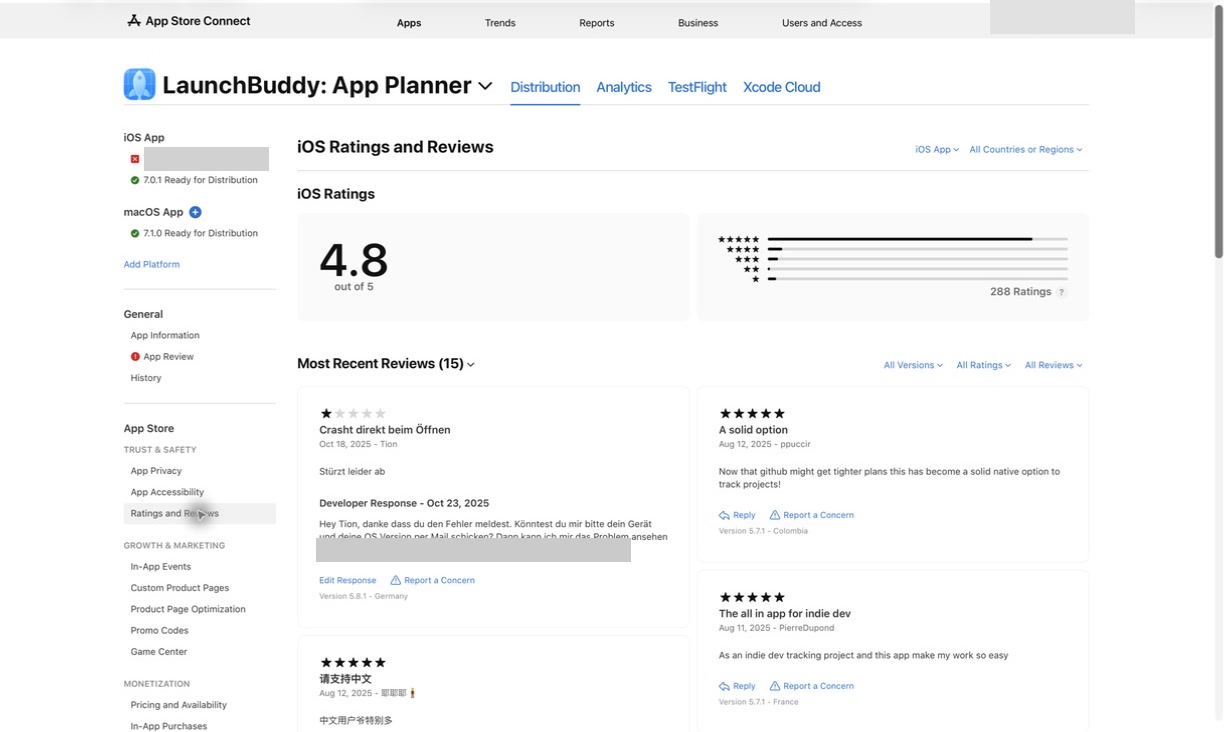
App Store Connect lets users with an eligible role select a platform and country or region, then filter individual reviews by app version, rating, and whether they were edited or responded to. Apple’s view ratings and reviews documentation is the source of truth for the current controls and roles.
Version context matters. “Sync is broken” posted against yesterday’s release deserves a different decision from the same sentence attached to a version from two years ago. Region can matter for storefront, language, payment, or service-availability issues. Neither field proves a cause, but both help you form the next question.
Step 3: Triage by risk and next action
Use categories that route work instead of trying to capture every nuance.
| Review type | Look for | Immediate action | Product action |
|---|---|---|---|
| Crash, data loss, or blocked core flow | Version, device, action before failure, repeated reports | Investigate first; reply if you have a verified next step | Create or update a high-priority bug |
| Purchase, billing, or account issue | Failed download or purchase, unexpected charge, login failure, or account-access symptom | Keep private troubleshooting out of the public response; direct App Store download or billing issues to Apple Support | Track an app-side defect only when evidence points to one |
| Usability confusion | Several people misunderstanding the same label or flow | Give a verified instruction if it can help | Consider copy, onboarding, or interaction work |
| Feature request | Problem to solve, frequency, affected workflow | Acknowledge without promising a roadmap date | Add evidence to an existing idea or create a candidate |
| Praise | Feature or outcome the customer values | Reply when a specific thank-you is worthwhile | Record the language as qualitative evidence, not proof of demand |
| Spam, abuse, or unrelated content | Policy concern rather than product feedback | Use Report a Concern instead of arguing | No product task |
| Too little information | Rating with no actionable detail | Ask for context only if a public reply is likely to help | No task until there is evidence |
Apple directs developers to use Report a Concern for offensive material, spam, or other content that violates its Terms and Conditions instead of replying. The reviewer isn’t notified when you report a concern.
Separate urgency from sentiment
A one-star rating is not automatically a critical bug, and a five-star review can still contain an important usability issue. Score the decision on two axes:
- Customer risk: Could the issue cause data loss, block access, prevent a purchase, or make a core flow unusable?
- Evidence strength: Is there a reproducible detail, a matching support case, analytics evidence, or more than one independent report?
Prioritize in this order:
- High risk with strong evidence
- High risk with weak evidence, which needs investigation
- Lower risk with repeated or specific evidence
- Isolated requests and low-information ratings
The method keeps the star rating visible without allowing it to make the whole decision.
Step 4: Choose a queue status and product action
Every reviewed item should end with one customer-queue status:
- Reply now: You can acknowledge the issue and give a factual next step.
- Investigating: You need logs, reproduction work, support details, or release context before giving a definitive answer.
- Reported: The content has been sent through Apple’s concern flow.
- Closed with no public action: No useful customer-facing step is available right now.
Separately, create or update product work when the feedback changes a bug, feature candidate, copy task, or support article. A review can therefore have both a customer-queue status and a linked product task.
Keep the investigate queue small. If an item can’t be investigated now, move it to product work with a concrete next step or close it until another signal arrives. An unlimited “needs research” bucket is just another unowned backlog.
When the inbox itself doesn’t preserve your management decision, use a compact record:
Review: Identifier or direct reference
Owner:
Customer-queue status:
Risk: High | medium | low
Evidence: Strong | partial | weak
Related product task:
Response: Not needed | draft | submitted | pending | public
Follow-up trigger: More evidence | investigation result | shipped version | none
The follow-up trigger is more useful than an arbitrary date. It explains what must change before the review needs attention again.
Step 5: Convert feedback into a decision-ready task
Don’t paste a review into the backlog and call it a requirement. A public complaint describes an experience; it rarely defines the right implementation.
Create a task with:
Title: [Observed problem, not proposed solution]
Type: Bug | usability | feature candidate | support | copy
Affected version:
Evidence: Review excerpt, territory, date, related reports
Impact: What the customer could not do
Confidence: Confirmed | likely | unclear
Next step: Reproduce, investigate, design, or decide
Estimate:
Priority:
Release: Current blocker | next candidate | unscheduled
Done when: Observable acceptance criterion
For duplicates, update one task’s evidence instead of creating several competing tickets. Preserve the count and version spread in the evidence field. Three reviews about the same symptom are stronger evidence than three disconnected backlog titles, but they still don’t prove a shared root cause.
Worked example: a sync complaint after release
Suppose a two-star review says:
Projects created on my iPhone don’t appear on my Mac after the latest update.
Don’t immediately create “Rewrite sync engine.” The review supports a narrower task:
Title: Investigate projects missing on Mac after iPhone creation
Type: Bug
Affected version: 4.2
Evidence: Two-star US review posted July 12; no matching support case yet
Impact: Customer cannot continue a cross-device workflow
Confidence: Unclear
Next step: Test new-project sync across supported OS versions and account states
Priority: High investigation priority
Release: Decide after reproduction
Done when: Cause is identified and a reproducible failing or passing test is recorded
That task doesn’t assume the customer is wrong, promise a fix, or lock the developer into an unverified solution. If another review reports the same sequence, add it as evidence. If the defect is confirmed, then scope the fix and attach it to a real release.
Step 6: Reply from verified product state
Once the disposition and product work are clear, respond where a public answer can help. Check the live app version, known workaround, fix status, support route, and any promised timing before writing.
Apple says a customer is notified when you respond and can update the review. Responses are public, only one is shown per review, and they can be edited or deleted. According to Apple’s response instructions, a response may take up to 24 hours to appear. Posting through App Store Connect requires the Account Holder, Admin, or Customer Support role.
Keep private account, purchase, and diagnostic details out of the response. Use the reply guide linked above for a detailed drafting process and safety checks rather than improvising from the backlog task.
Most importantly, don’t say “fixed” because work is planned or in progress. Tie that language to a version customers can actually download.
Step 7: Close the loop after a release
Review management continues after the first response. When a related update is live:
- Confirm the fix is in the public App Store version.
- Recheck the original review and current response.
- Edit the response if the newly shipped status is useful to the customer.
- Close the product task against the shipped version.
- Watch subsequent reviews for the same symptom.
Apple recommends replying to relevant older reviews when an update fixes an issue they mentioned. This is also why review work should connect to your iOS app release management process: a completed coding task and a customer-available fix aren’t the same state.
Don’t treat a later rating change as the only measure of success. A useful operational result may be that the issue was reproduced, affected reviews were connected to one task, and the fix shipped.
Review text is qualitative evidence. Compare it with support cases and the post-release signals available in App Store Connect analytics.
Measure the process without chasing the rating
Use a few operational checks to find breakdowns in the workflow:
- Unowned urgent reviews: High-risk items with no person responsible for the next step
- Time to disposition: How long a review waits before it gets a queue status
- Repeated symptoms by version: Evidence that an isolated report may be a pattern
- Reviews connected to product work: Actionable reports that haven’t disappeared into a reply-only queue
- Recurrence after release: New reports of a symptom after the version intended to fix it became public
These aren’t benchmarks to publish or targets to game. Compare your app’s process with its own recent releases. The useful question is whether customer evidence reaches a decision while it’s still relevant.
A 20-minute review session
For a small app, this agenda keeps the process focused:
Minutes 0–3: Scan for risk
Filter to recent reviews. Look first for crashes, data loss, access failures, purchase problems, and clusters after the latest version.
Minutes 3–10: Decide
Set a customer-queue status for each high-risk or information-rich review, and record any linked product follow-up. Merge evidence into existing work where possible.
Minutes 10–16: Create the minimum product work
Write decision-ready tasks for confirmed or credible signals. Give each task a next step, priority, and release state. Don’t schedule every feature request.
Minutes 16–20: Respond and record follow-up
Publish only verified replies. Note which responses should be revisited after a fix. Leave the inbox with no unowned urgent item, even if lower-priority reviews remain.
The time box is a constraint, not a service-level promise. Expand it during an incident; shorten it when there are no actionable reviews.
Optional: connect the queues with LaunchBuddy
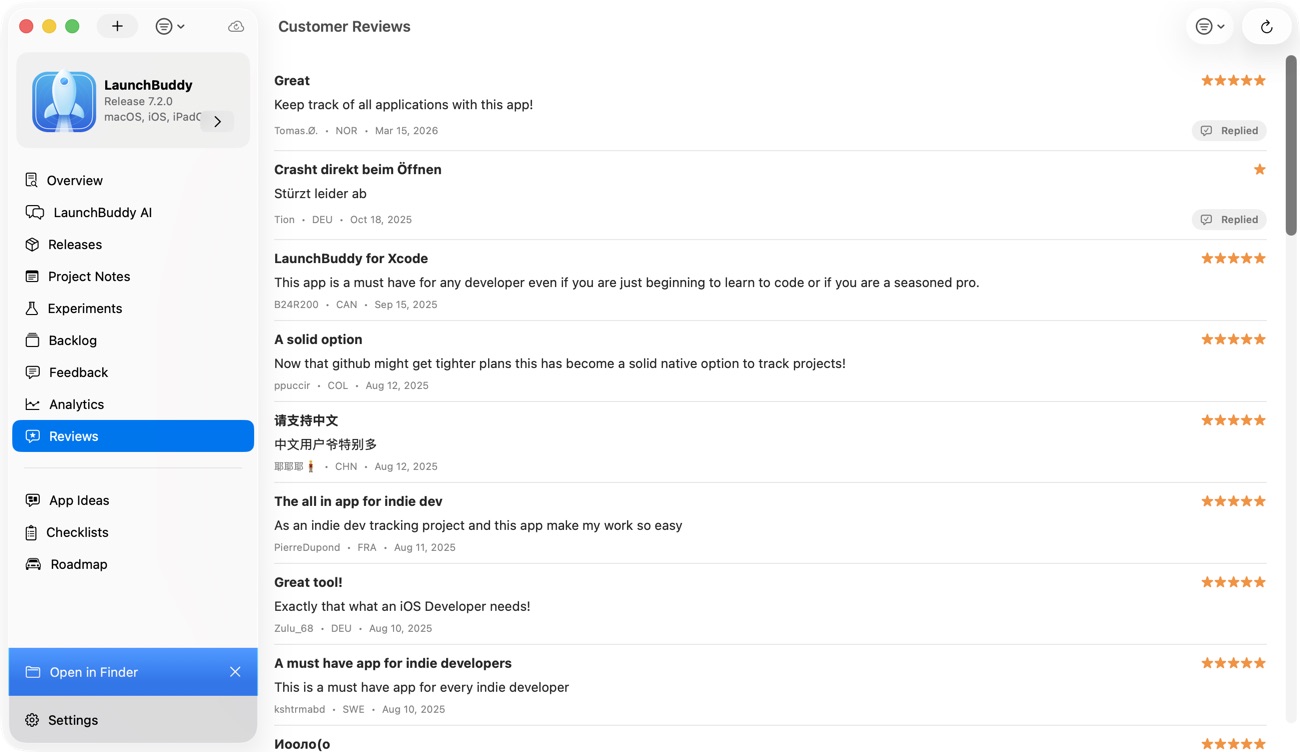
LaunchBuddy is an App Store Connect companion for project and release management, not a replacement for Apple’s systems. With LaunchBuddy Pro and App Store Connect API credentials, its reviews inbox lets you read and reply to reviews on iPhone, iPad, and Mac. Its review-to-task workflow can turn a review into a structured backlog task with details, type, estimate, and priority.
Keep the customer and product queues distinct:
Customer queue: reviews awaiting a decision or response
Product queue: bugs and candidates awaiting investigation or release
AI reply drafts are editable, and AI write actions pause for approval before they are sent or applied. Verify every proposed response and task against the live product state.
The App Store Connect integration requires an API key and Pro. Core LaunchBuddy tasks and default submission checklists don’t require that connection. Use the App Store Connect API key setup guide if you choose to connect Apple data.
Frequently asked questions
Can I delete or report an App Store review?
You can’t delete a customer review. In App Store Connect you can report a concern about a review that breaks Apple’s rules, such as spam, offensive language, or a review meant for a different app, and Apple decides whether to remove it. For a review that is harsh but genuine, a short factual reply usually does more good.
Should I reset my App Store rating when I ship a fix?
Resetting replaces the rating summary on your product page with ratings for the new version only, while existing written reviews stay visible. It’s worth it when the release fixes the problem behind most low ratings, because you also give up the rating count new visitors see. The rating reset guide covers the timing.
Run the loop, not just the inbox
Good review management produces internal decisions developers can trace and public updates customers can verify. Start with one bounded session, triage by risk and evidence, record any product follow-up, and repeat the loop after the next release.
