App Store Review Reply Generator: A Practical AI Workflow
An App Store review reply generator can turn a blank response box into a useful first draft. The best ones do more than rephrase “thanks for your feedback”: they identify what the customer experienced, use relevant app context, and suggest a response you can verify before publishing.
That last step matters. A developer response appears publicly on your App Store product page, and Apple notifies the customer when you respond. A polished but inaccurate AI reply can therefore be worse than a short, honest response written by hand.
This guide explains how to draft better App Store review responses with AI, which reviews to prioritize, what to include, and how to turn recurring feedback into actual product work.
What is an App Store review reply generator?
An App Store review reply generator is an AI or template-based tool that drafts a developer response from a customer review. You usually provide the review text, star rating, and a little context about your app. The generator returns a reply that you can edit and post through App Store Connect.
A basic generator only sees the pasted review. A context-aware generator can also use information such as:
- Your app’s purpose and tone
- Known bugs and workarounds
- Features included in the current release
- Planned or completed fixes
- Support contact details
- Previous feedback and release tasks
More context can produce a more useful draft, but it does not remove the need for review. AI cannot know whether a bug is fixed, whether a feature is approved for the roadmap, or whether a support instruction is still correct unless you provide and verify those facts.
Treat the generator as a writing assistant, not an autonomous support agent.
How App Store review responses work
Apple lets developers publicly respond to customer reviews for supported App Store platforms. According to Apple’s ratings and reviews overview:
- The customer is notified when you respond
- The customer can update their review after reading your response
- Your response remains visible if the customer edits the review
- You can edit or delete your response later
- Only one response per review appears on the product page
Apple says responses may take up to 24 hours to appear publicly. They show as pending in App Store Connect during that time. Responding in App Store Connect requires the Account Holder, Admin, or Customer Support role.
You can reply from the Ratings and Reviews section of App Store Connect, use the App Store Connect API with an appropriate integration, or work through a tool that connects to the API. Apple’s response instructions are the source of truth for the current interface and permissions.
Because the review and response are public, write for two audiences:
- The customer who left the review
- Potential customers reading the exchange before downloading
A helpful response shows both audiences that feedback is read and handled thoughtfully. It should not expose private account details or turn a support case into a public argument.
What a good App Store review reply includes
Most strong developer responses use four parts.
1. Acknowledge the specific experience
Mention the actual issue, feature, or outcome in the review. This signals that you read it and helps avoid a generic AI tone.
Generic:
Thanks for your feedback. We are always working to improve the app.
Specific:
Thanks for flagging the sync delay after creating a new project.
Do not repeat an angry review back to the customer word for word. Identify the useful detail and respond to it.
2. Give an honest status
Say only what you know:
- The issue is being investigated
- A fix is available in a named version
- The feature is not supported today
- The request has been recorded for consideration
- More information is needed to diagnose the problem
Avoid saying “we fixed this” because a task exists in your backlog. Avoid promising a release date unless it is genuinely committed and safe to share.
3. Offer a useful next step
If the problem needs account details, logs, or a longer conversation, direct the customer to your support channel. If a fix already shipped, ask them to update and try again. If the review is a feature request, acknowledge the use case instead of pretending the feature is already planned.
Never ask the customer to post an email address, account identifier, receipt, or other personal information in an App Store review.
4. Keep it concise and human
Use the shortest response that resolves the public conversation. Remove filler, repeated apologies, marketing copy, and internal technical detail.
A useful editing test is:
Could this exact response be pasted under a different app’s review?
If the answer is yes, add one relevant detail or shorten the response until it feels intentional.
App Store review response templates
Templates are starting points, not canned replies. Replace every bracketed field and remove any sentence you cannot verify.
Bug report
Thanks for reporting the [specific problem]. We're investigating what happens when [relevant condition]. If you're willing to share more details, please contact us at [support channel] with your device and app version.If the fix has shipped:
Thanks for flagging the [specific problem]. We addressed it in version [version]. Please update the app and let us know through [support channel] if you still see it.Crash report
Sorry about the crash when [action from the review]. We want to investigate this. Please contact [support channel] with your app version and the steps just before the crash so we can narrow it down.Do not claim that a crash is fixed merely because you cannot reproduce it.
Feature request
Thanks for explaining how [requested feature] would help with [customer's use case]. The app doesn't support that today, but we've recorded the request for consideration as we plan future updates.This is more honest than “coming soon” when the idea has not been scheduled.
Confusing workflow
Thanks for pointing out that [screen or action] was unclear. You can currently [brief, accurate instruction]. We're also reviewing how to make that step easier to understand.Only include the instruction if it matches the current public version.
Subscription or pricing complaint
Thanks for sharing your concern about [plan or purchase]. [Brief factual explanation of what is free and what the purchase unlocks.] If the purchase isn't working as expected, please contact [support channel] so we can help privately.Do not debate whether the app is “worth it.” Explain the model clearly and give the customer a path to resolve an actual purchase problem.
Positive review
Thanks for the kind words about [specific feature or outcome]. We're glad it helps you [benefit mentioned by the customer].Positive responses do not need an upsell or a feature list. A brief, specific thank-you is enough.
Low rating with little or no detail
Sorry the app didn't meet your expectations. If you can share what went wrong through [support channel], we'd appreciate the chance to understand and improve it.Do not invent a reason for the rating. Ask for the missing context.
Which App Store reviews should you answer first?
You do not need to reply in chronological order. For an indie developer with limited support time, prioritize reviews where a response can change the outcome or reveal important product work.
Use this order:
- Severe or widespread problems: Crashes, data loss, login failures, purchase issues, broken onboarding, or regressions after an update
- Detailed one- and two-star reviews: Specific reports where a response, workaround, or follow-up question is useful
- Reviews affected by a shipped fix: Customers who should know that the issue they reported has been addressed
- Repeated confusion or feature requests: Signals that may need a task, documentation change, or roadmap decision
- Thoughtful positive reviews: Useful opportunities to thank customers and reinforce the value they described
- Vague ratings: Reply when asking for more context is likely to help
Priority should also change after a release. If several reviews mention the same new crash or confusing flow, stop treating them as isolated writing tasks. Create one product issue, link the related feedback, and track the fix against the affected version.
A safe AI workflow for App Store review replies
An AI App Store review reply generator works best inside a repeatable human-in-the-loop process.
Step 1: Read the original review in context
Capture:
- App and platform
- Country or region, if relevant
- Star rating
- Review title and text
- Review date
- App version named or associated with the feedback
- Whether the customer edited a previous review
Do not summarize too early. A short AI summary can omit the one detail that changes the correct response.
Step 2: Classify the feedback
Choose a simple category:
- Bug or crash
- Account or support problem
- Purchase or subscription problem
- Feature request
- Usability or copy confusion
- Praise
- Spam, abuse, or unrelated content
- Not enough information
Classification determines the next action. A purchase failure needs private support. A feature request needs honest expectation-setting. An inappropriate review may need Apple’s Report a Concern flow instead of a response.
Step 3: Check the product facts
Before generating a reply, verify:
- Does the issue still exist in the live version?
- Is there a known workaround?
- Is a fix completed, in beta, planned, or merely discussed?
- Which version contains the fix?
- Is the requested feature actually available?
- What support path should the customer use?
If the review reveals work that has not been tracked, create a task before drafting. The task status gives the reply a factual anchor.
For release-specific bugs, connect the task to your iOS app release management workflow so “fixed” means included in a real version, not just discussed.
Step 4: Generate a draft from approved context
Give the AI only the context needed to write the response. Do not paste API keys, customer account data, private support messages, unreleased business information, or secrets into a prompt.
Use this prompt:
Draft a public developer response to an Apple App Store review.

App context:
- App purpose:
- Current public version:
- Brand tone:
- Support contact:

Review:
- Rating:
- Title:
- Text:
- Version, if known:

Verified product context:
- Feedback category:
- Known issue:
- Fix status:
- Fix version, if shipped:
- Approved workaround:
- Related feature request status:

Requirements:
- Acknowledge one specific detail from the review.
- Be calm, concise, and non-defensive.
- Do not invent a fix, roadmap promise, cause, or release date.
- Do not ask for personal information in public.
- Move account-specific troubleshooting to the support contact.
- Return one draft and list any factual claim that needs verification.
Asking the model to list claims separately makes the review step easier. If it cannot draft without guessing, the right output may be a neutral request for more information.
Step 5: Run a human safety check
Before publishing, confirm:
- The reply addresses the actual review
- Every product claim is true for the public app
- Any fix is tied to the correct released version
- No confidential or personal data is included
- No unsupported roadmap or timing promise is made
- The tone is calm and respectful
- The support contact is current
- The response is concise
- The response is appropriate for a public product page
Read the response once without the original review. Potential customers should still understand it, and it should not sound dismissive or defensive.
Step 6: Publish, then keep the work connected
Post the approved reply and record any follow-up:
- Create or update the bug task
- Attach the review to the affected release
- Group duplicate feedback
- Update help text or onboarding
- Revisit App Store screenshots or description if expectations are unclear
- Follow up on the review after the fix ships
Apple allows you to edit a response, so a later update can be appropriate when the status materially changes. Do not repeatedly edit replies just to keep the review active.
Common AI review reply mistakes
Inventing a fix
AI often turns “the team is investigating” into “this has been resolved.” Check the task and the live App Store version before accepting any fix language.
Promising the roadmap
“We’ll add this in the next update” sounds helpful but creates an expectation you may not be able to meet. Use “we’ve recorded the request” unless the release commitment is real and public.
Sounding empathetic without being useful
A long apology does not replace a next step. Name the problem, state the verified status, and offer the right support path.
Giving private support in public
Do not troubleshoot account details, payments, or personal data in the review response. Move the conversation to a secure support channel.
Treating every review as a reply task only
Recurring reviews are product data. If five customers report the same confusion, the best response is not five variations of an apology. It is a linked task, a release decision, and a clearer experience.
Auto-publishing without review
AI can misunderstand sarcasm, miss an edited review, use stale app information, or expose prompt context. Generate drafts automatically if that helps your queue, but keep a human approval step before public posting.
Turn App Store reviews into release work
Review management becomes valuable when customer feedback changes what you build and ship.
For each actionable review:
- Link it to an existing task or create a new one
- Record the app version associated with the report
- Mark whether it blocks the current release or belongs in the backlog
- Add acceptance criteria based on the reported experience
- Confirm the fix in TestFlight
- Include it in release notes only after it ships
- Revisit the developer response when the update is live
This closes the loop between support and development. It also gives an AI reply generator better context: completed tasks and released versions are safer sources than memory.
For a pre-release feedback process, use the TestFlight feedback management guide. For public App Store feedback, the same principle applies: every meaningful signal needs a visible decision.
How LaunchBuddy helps with App Store review replies
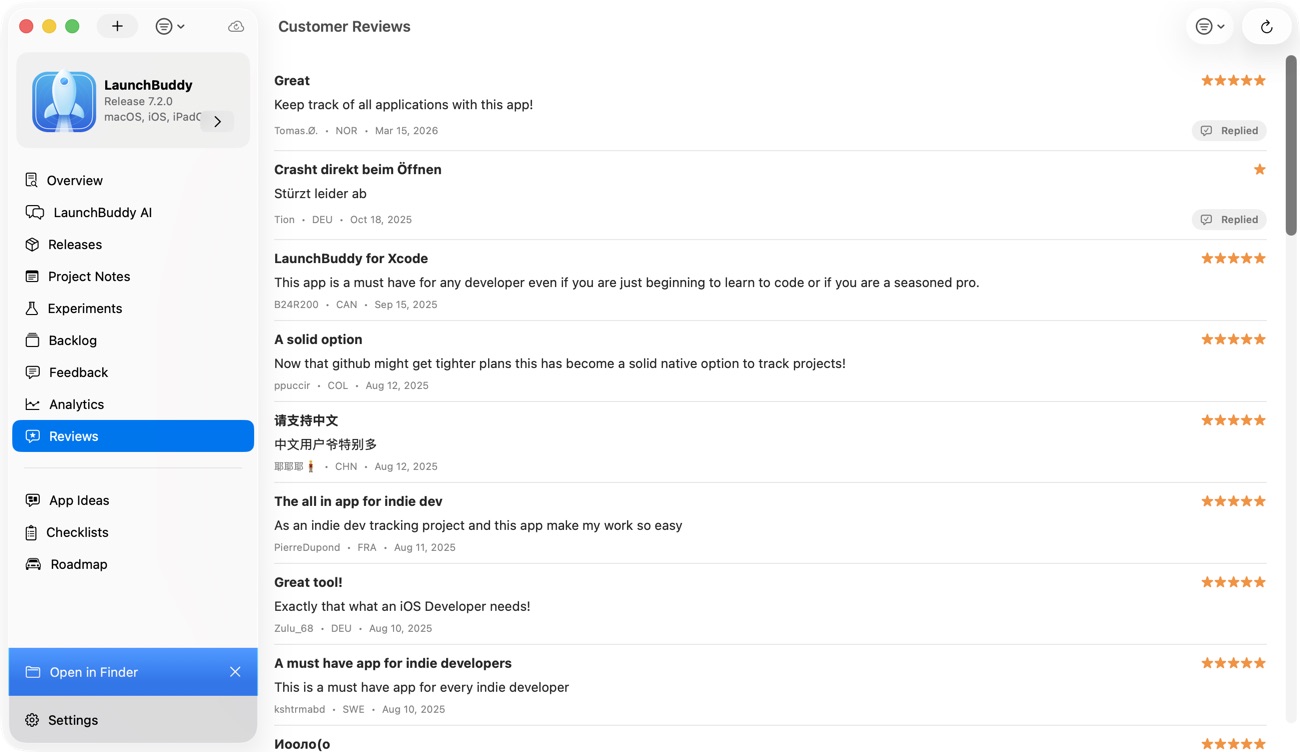
LaunchBuddy combines project and release management for iOS developers with an App Store Connect reviews inbox.
With LaunchBuddy Pro, you can:
- Read and reply to App Store reviews without opening App Store Connect in a browser
- Draft AI review replies using your app context
- Turn one-star feedback into a backlog task
- Keep tasks organized by app and release
- Review App Store analytics beside the work that may affect them
- Sync project data across iPhone, iPad, and Mac through your private iCloud account
The App Store Connect integration requires an API key from Apple. LaunchBuddy’s tasks, checklists, and AI chat can be used without connecting App Store Connect; connect it when you want reviews, analytics, and release-note uploads in the app. The AI features are included with Pro and subject to usage limits.
LaunchBuddy does not replace App Store Connect. It reduces the context switching between the customer review, the response draft, the backlog task, and the release that addresses the feedback.
If you are setting up the integration for the first time, follow the App Store Connect API key guide and grant only the access the integration requires.
Frequently asked questions
Should I use AI to respond to every App Store review?
No. Use AI where it saves drafting time, but prioritize reviews where a specific response is helpful. A short positive review may only need a human thank-you. Spam or inappropriate content may need to be reported to Apple. Every AI draft should be reviewed before publishing.
Can an App Store review reply generator post responses automatically?
Some tools only generate text, while others connect to the App Store Connect API and can publish a response. The safer workflow is to require human approval, especially for negative reviews, bug reports, purchases, and account issues.
Can customers see developer responses?
Yes. Developer responses are public on the App Store product page. Apple also notifies the customer when you respond, and the customer can update the review afterward.
Can I edit an App Store review response?
Yes. Apple allows you to edit or delete your response. Only one response per review is visible on the product page, and an edited response is marked as edited.
What should I say to a one-star App Store review?
Acknowledge the specific problem, give an honest status, and provide a useful next step. Do not argue about the rating, invent a fix, or make an unsupported promise. If you need private details, direct the customer to a secure support channel.
Does replying to reviews improve App Store ranking?
Apple does not document developer responses as a direct App Store search-ranking factor. Reply because it helps customers, makes your public support quality visible, and creates a feedback loop for improving the app—not because of an unverified ranking promise.
Draft faster without losing the human review
The best App Store review reply generator is not the one that produces the most text. It is the one that helps you write a specific, accurate response and connect the feedback to the work it should influence.
Start with the original review. Verify the product status. Let AI create a concise draft from approved context. Check every claim before publishing. Then turn recurring problems into tasks and track the fix through a real release.
That is how review replies become more than customer support: they become part of a healthier iOS development workflow.