App Store App Preview Requirements: A Video Checklist
An App Store app preview is optional, but every video you submit must be 15–30 seconds, no larger than 500 MB, progressive, and no faster than 30 frames per second. Apple accepts H.264 in .mov, .m4v, or .mp4, and ProRes 422 HQ in .mov. You can add up to three previews per supported device size and language for iOS, macOS, tvOS, and visionOS apps.
Those file checks are only the first gate. The preview must use screen-captured footage of the app itself, represent the submitted experience honestly, fit the target device and localization, and have a useful poster frame. Use this five-gate preflight:
- Story gate: every scene has a job and shows real app behavior.
- Content gate: footage, claims, disclosures, rights, and sample data are safe for review.
- Export gate: duration, size, codec, frame rate, audio, and resolution match Apple’s specification.
- Coverage gate: device sizes, orientations, languages, and fallback choices are explicit.
- App Store Connect gate: the correct files finish processing, poster frames are set, and the rendered placements are checked.
Apple changes its accepted-device table over time. The requirements below were checked against Apple’s live app preview specifications on October 20, 2026. Recheck that table before your final export.
App preview requirements at a glance
| Requirement | Apple’s current rule |
|---|---|
| Number of previews | Up to three per supported device size and language |
| Duration | 15–30 seconds |
| Maximum file size | 500 MB |
| H.264 container | .mov, .m4v, or .mp4 |
| ProRes container | .mov, using ProRes 422 HQ only |
| Scan and profile | Progressive; H.264 up to High Profile Level 4.0 |
| Maximum frame rate | 30 fps |
| H.264 target bit rate | 10–12 Mbps |
| ProRes target bit rate | Variable, approximately 220 Mbps |
| Default poster frame | Five-second mark |
| Processing time | Up to 24 hours after upload |
| iOS orientation | Portrait or landscape |
| macOS, tvOS, and visionOS orientation | Landscape only |
For H.264 audio, Apple specifies stereo AAC at 256 kbps with a 44.1 or 48 kHz sample rate. ProRes may use stereo PCM at 16, 24, or 32 bits, or the same AAC settings. Apple says all audio tracks should be enabled. Because previews normally autoplay muted, audio should add value rather than carry the only explanation.
Don’t reuse the 5–30 second, 30 or 60 fps rules for Apple’s newer header and search-result creative videos. Those are a different asset class, currently available for iOS and iPadOS apps and games running iOS or iPadOS 27 or later. An app preview has its own 15–30 second, maximum-30-fps specification. The App Store Connect Asset Library guide explains the placement distinction.
Choose the device and orientation before editing
App previews are device-specific. Export to an accepted preview resolution, not automatically to the physical device’s native screen resolution. Apple’s current table accepts these common targets:
| Target display | Portrait | Landscape |
|---|---|---|
| Modern iPhone, including Dynamic Island, Face ID, and iPhone Duo wells | 886 × 1920 | 1920 × 886 |
| iPhone with Home Button, large display | 1080 × 1920 | 1920 × 1080 |
| iPhone with Home Button, medium display | 750 × 1334 | 1334 × 750 |
| iPad 13-inch, 11-inch, and 10.5-inch | 1200 × 1600 | 1600 × 1200 |
| Mac | Not accepted | 1920 × 1080 |
| Apple TV | Not accepted | 1920 × 1080 |
| Apple Vision Pro | Not accepted | 3840 × 2160 |
Some legacy iPad wells also accept 900 × 1200 portrait or 1200 × 900 landscape. Rather than maintaining a second private dimensions list, choose the target well in Media Manager and compare your export with Apple’s live table.
Apple can scale a high-resolution preview down when the interface is the same across device sizes and localizations. Treat that as a visual decision, not merely a convenience. Create an unscaled version when scaling would show the wrong navigation, hide an important control, make text unreadable, or imply an interface the smaller device doesn’t have.
Keep orientation consistent with the story. iOS previews may be portrait or landscape and rotate to their original orientation during playback. Mac, Apple TV, and Apple Vision Pro previews are landscape only. When a preview’s aspect ratio differs from the screenshots, Apple places it in the A Closer Look section instead of presenting it in the same product-page sequence.
For static-image sizes and a screenshot-specific truth check, use the App Store screenshot requirements. Screenshot dimensions aren’t app preview dimensions.
Plan a 15–30 second story that works muted
Three videos aren’t a license to repeat the same opening three times. Apple’s app preview guidance recommends a cohesive story in which each preview adds something new.
A useful single-preview timeline is:
| Time | Job | Example for a focus timer |
|---|---|---|
| 0–3 seconds | Establish the outcome visually | Start a focus session from the task list |
| 3–12 seconds | Show the core interaction | Run the timer and complete the task |
| 12–22 seconds | Show one meaningful second step | Review the completed-session history |
| 22–27 seconds | Resolve the story | Return to today’s progress |
This isn’t an Apple-mandated storyboard. It is a production constraint that forces every scene to earn time while leaving room under the 30-second limit.
Preview the opening with sound off. App previews autoplay muted on product pages and in search results, while the poster frame appears when autoplay doesn’t run. Any essential idea should survive both conditions. Use short, legible copy if the footage needs context, but don’t cover the interface with a second product page.
If you use more than one preview, give each a separate question:
Preview 1: What is the app's core loop?
Preview 2: What advanced workflow matters after the first session?
Preview 3: What device-specific or collaborative experience is genuinely different?
Remove a video if it doesn’t answer a distinct question. One coherent preview is stronger than three near-duplicates.
Run the App Review content gate
Apple’s App Review Guidelines say previews may use only video screen captures of the app itself. Guideline 2.3.4 separately mentions stickers and iMessage extensions showing their experience in Messages, while Apple’s current App Store Connect specifications say app previews aren’t available for iMessage apps. Narration and video or text overlays may clarify the footage, but transitions and overlays must not imply missing behavior.
Review the final cut, not just the script:
- The footage shows the app itself, not hands using a device or an over-the-shoulder recording.
- Every screen, control, and result exists in the build being submitted.
- The sequence doesn’t make a cutscene look like gameplay or a mockup look interactive.
- Featured in-app-purchase content is identified as requiring purchase, and any subscription model or login requirement is disclosed.
- No specific prices appear; currencies and storefront prices vary.
- Every visible trademark, song, clip, and other protected work is authorized for marketing use.
- Real customer, tester, health, account, or transaction data has been replaced with fictional information.
- The footage is suitable for a 4+ audience even if the app’s age rating is higher.
- Text remains readable long enough at product-page size.
- The video doesn’t depend on narration or music to explain the core action.
Record the source build beside the export. “Matches version 4.2” isn’t enough if several TestFlight builds carried that version number:
Preview ID: CORE-EN-IPHONE-01
App version and build: 4.2 (317)
Device well: iPhone Dynamic Island, large display
Accepted export: 886 × 1920 portrait
Duration: 27.4 seconds
Codec and frame rate: H.264, 30 fps
Features shown: Task selection, focus session, session history
Paid or login disclosure: Not applicable
Rights and sample-data review:
Product reviewer and date:
That manifest adds value after submission too. When navigation changes six months later, you can tell which preview became stale without replaying every source project.
Export and inspect the actual file
Editor settings and exported-file properties can diverge. Inspect the file you will upload:
- Duration is at least 15 seconds and no more than 30 seconds.
- File size is 500 MB or less.
- Resolution matches the selected device well.
- Orientation is accepted for the platform.
- Scan is progressive.
- Frame rate is 30 fps or lower.
- H.264 uses
.mov,.m4v, or.mp4, or ProRes 422 HQ uses.mov. - Bit rate is appropriate for the selected codec.
- Audio uses an accepted stereo codec, sample rate, and channel layout.
- Every enabled track belongs in the deliverable.
- The entire video plays cleanly after export.
- The first frame, five-second default poster frame, and final frame are intentional.
Use a deterministic filename even though customers won’t see it:
01-core-loop_iphone-modern_en-US_v4.2-b317_h264-30fps.mp4The name preserves position, target, locale, build, and encoding. Keep those facts in the manifest too; filenames alone are easy to truncate or overwrite.
Build an explicit localization and fallback matrix
A preview can appear in every storefront where the app is available. If a product-page localization lacks its own preview and another compatible preview exists, Apple uses the next best available language. That can show customers UI or captions they don’t understand.
For every supported locale and device well, record either a localized preview or the fallback Apple actually displays. Record no preview only when no compatible preview exists. Don’t leave the result implicit.
| Locale | Device well | Preview | In-app UI | Overlay copy | Fallback verified |
|---|---|---|---|---|---|
| en-US | Modern iPhone | CORE-EN-IPHONE-01 | English | English | Not applicable |
| de-DE | Modern iPhone | CORE-DE-IPHONE-01 | German | German | No |
| fr-FR | Modern iPhone | Inherits en-US | English | English | Yes, documented |
Check more than translation:
- Dates, decimal separators, names, and sample content fit the locale.
- Text survives compression and product-page playback size.
- Voiceover and music rights cover every intended territory.
- The shown feature is available in that storefront and language.
- Login, purchase, and subscription disclosures remain clear.
If visual localization is outside the release scope, verify the next-best-language fallback, record it as a conscious limitation, and create a follow-up task. The App Store localization workflow covers the wider metadata handoff.
Upload early, then set the poster frame
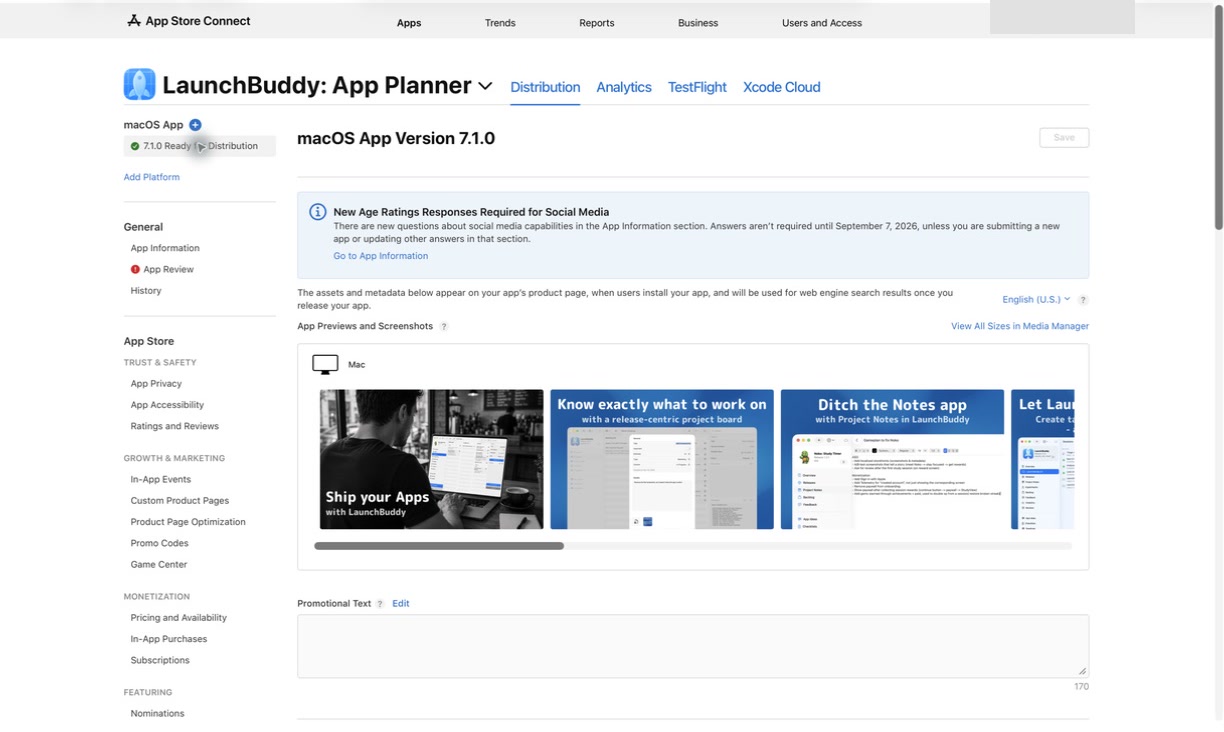
In App Store Connect, open the app version and its Product Page Information, choose App Previews and Screenshots, select the target device tab, then upload the video or choose a compatible approved asset. Use View All Sizes in Media Manager to inspect placements, scaled variants, and other localizations.
Apple permits preview and screenshot changes when the version is in Prepare for Submission, Invalid Binary, Rejected, Metadata Rejected, or Developer Rejected. The Account Holder, Admin, App Manager, and Marketing roles can manage these assets.
Allow the full documented 24-hour processing window rather than uploading on the submission deadline. Processing time isn’t review approval, and a successful upload isn’t proof that the right video landed in every intended well.
Apple initially uses the frame at five seconds as the poster. In Media Manager, point to the processed preview, choose Edit Poster Frame, navigate to a stronger frame from the footage, and save it. Poster frames can’t be edited after the asset is approved; changing one on an already approved preview requires a new preview submission.
Inspect the poster as its own listing asset:
- It makes sense without motion or audio.
- It shows a real, readable app state.
- It doesn’t freeze on a transition, keyboard animation, loading state, or disclosure half entering the frame.
- It matches the preview’s device, language, and current build.
Verify placement after processing
App previews appear before screenshots on iPhone, iPad, Mac, and Apple TV even if you rearrange the app record. That can change the story told by a screenshot sequence, so review the combined product page rather than each asset in isolation.
Run this final check in every intended device and language well:
- The uploaded filename or asset ID matches the manifest.
- Processing completed for the intended uploaded file, and the original export was retained unchanged.
- Orientation, crop, playback, text, and audio are correct.
- The chosen poster frame appears.
- Preview order tells the intended story.
- Screenshot order still makes sense after previews are placed first.
- Scaled device variants accurately represent their interfaces.
- Each locale has the intended preview or a verified next-best-language fallback.
- A second reviewer compared every claim with the recorded app version and exact build.
- Final preview state is attached to the wider App Store Connect release checklist.
App previews aren’t available for iMessage apps. Don’t treat an absent iMessage preview well as an upload failure.
Worked example: preflight one universal app preview
Suppose a focus timer ships version 4.2 (build 317) on iPhone, iPad, and Mac in English and German. The iPhone uses tabs, the iPad uses a sidebar, and the Mac flow includes keyboard controls.
The owner first defines three source stories:
iPhone: Start a task, run a focus session, complete it
iPad: Choose a project in the sidebar, then run the same session
Mac: Start and complete a session using keyboard controls
Each English cut is 27 seconds. The H.264 exports are progressive, 30 fps, and below 500 MB:
iPhone: 886 × 1920 portrait
iPad: 1200 × 1600 portrait
Mac: 1920 × 1080 landscape
The German versions use German in-app UI and shorter, natural overlays rather than word-for-word English captions. During muted review, the Mac cut fails: a voiceover is the only explanation for a keyboard command. The owner adds a brief key overlay and re-exports.
After upload, the six videos finish processing. The five-second frame on the iPhone cut catches a transition, so the owner selects a clear running-timer frame before approval. A second reviewer opens build 317 and discovers that session history appears only in a later build. That scene is removed instead of allowing polished but inaccurate footage into review.
The useful artifact is not just six accepted videos. It is a traceable matrix connecting each preview to a build, device well, locale, export, product claim, poster, and reviewer.
Where LaunchBuddy fits
App Store Connect remains authoritative for preview files, device compatibility, processing, placement, poster frames, and review. LaunchBuddy doesn’t capture, edit, encode, inspect, validate, upload, or submit app preview videos.
LaunchBuddy can organize the surrounding work on iPhone, iPad, and Mac:
- Add story, rights, export, localization, upload, poster, and rendered-placement tasks to the release the preview describes.
- Use the default App Store submission checklist on Free. The plan is limited to two apps, two releases, and limited project notes.
- Build a reusable custom preview checklist with Pro.
- Track a separate screenshot or copy experiment with Pro’s ASO experiments, without treating that record as an Apple Product Page Optimization test.
Keep source footage and exports in your asset workflow and the official preview state in App Store Connect. Use LaunchBuddy releases, tasks, and project notes to record deadlines, exact-build context, who is responsible, and verification work.
Copy-and-use app preview checklist
Scope
[ ] App version and exact build recorded
[ ] Devices, orientations, and languages selected
[ ] Every preview has one distinct job
[ ] Next-best-language fallbacks displayed by Apple verified and recorded

Content
[ ] Footage follows App Review Guideline 2.3.4's screen-capture rule
[ ] UI and claims match the selected build
[ ] Purchases, subscriptions, and login requirements disclosed
[ ] Rights verified; real personal data removed
[ ] Content suitable for a 4+ audience
[ ] Core story works muted

Export
[ ] 15–30 seconds
[ ] 500 MB or less
[ ] Accepted resolution and orientation
[ ] Progressive, maximum 30 fps
[ ] Accepted H.264 or ProRes 422 HQ container
[ ] Bit rate, audio codec, sample rate, tracks, and channels checked
[ ] Export replayed from start to finish

App Store Connect
[ ] Correct device and language wells used
[ ] Processing completed
[ ] Poster frame selected before approval
[ ] Preview and screenshot order checked together
[ ] Scaled variants and language fallbacks inspected
[ ] Second reviewer compared the result with the recorded build
Turn the preview preflight into versioned release work instead of a last-minute upload: download LaunchBuddy and add it to your next App Store checklist.