iOS Post-Launch Checklist: What to Monitor After Release
After an iOS release, confirm that the correct version is live, test the public build, look for customer-blocking problems, measure the release against its goal, and turn credible findings into follow-up work.
The short version is:
- Verify App Store availability and the live product page.
- Test the public build and its critical customer journeys.
- Check crashes, reviews, support, and service health.
- Compare acquisition, engagement, and monetization with a fair baseline.
- Decide whether each signal means fix now, investigate, observe, or take no action.
- Close the release with owned tasks and a dated review.
For a first launch or update, work through the detailed iOS post-launch checklist below. Adjust the cadence to your traffic and risk; there isn’t one crash, conversion, or review threshold that fits every app.
Before monitoring, create one release record
Write down the state you are about to observe:
App:
Public version:
Release date and time:
Release type: First launch | update | phased update
Release goal:
Primary metric:
Guardrail metrics:
Known risks:
Marketing, pricing, or metadata changes:
Owner:
First review:
Longer-term review:
This record preserves the other changes that could explain a post-launch result.
Keep two queues beside it:
- Incident queue: confirmed or credible problems that may require immediate investigation or a corrective release.
- Learning queue: observations that need more time, segmentation, or evidence before they become product work.
Put urgent problems in the incident queue. Keep uncertain or low-volume signals in the learning queue until you have enough evidence to act.
Launch day: verify the release customers can reach
Approval, release, and availability are different states. Apple notes that an approved version can take up to 24 hours to appear on the App Store. Its app and submission status reference defines Available as live for users in a particular country or region.
Check App Store availability
- Confirm the expected version is no longer waiting for manual release.
- In App Store Connect, review availability for every intended country or region.
- Treat Processing to Available as processing, not proof that customers can download the app.
- If the app was meant to launch only in selected regions, check those regions rather than one familiar storefront.
- Save the actual public availability time in the release record.
Inspect the live product page
Open the public listing as a customer would and verify:
- App name, subtitle, icon, screenshots, and app previews
- Description, promotional text, and What’s New copy
- Price and available in-app purchase or subscription information
- Support, marketing, and privacy links
- Device and platform availability
- Localized assets and copy in launch regions
- Campaign and website links that should open the listing
Don’t assume every storefront is correct because one direct link works. Availability varies by country or region; localized metadata depends on what you supplied and the language the customer sees.
Test the public build
Test the version downloaded from the App Store, not only the archived or TestFlight build:
- Perform a clean install and first launch.
- Test an update from the previous public version when applicable.
- Complete the app’s primary outcome.
- Check sign-in, account creation, sync, and account recovery if used.
- Check purchases, subscriptions, trials, and restore purchases if used.
- Exercise deep links, notifications, widgets, or extensions that matter to the release.
- Verify server-backed features against the production environment.
Record the device, OS version, account state, and exact failing step. “Launch is broken” isn’t actionable yet.
First 24 hours: watch for customer-blocking failures
Start with customer impact, not whichever dashboard shows the largest movement.
Review crashes and quality by app version
Apple’s App Usage documentation includes crashes and lets you filter supported metrics by app version. App Store Connect provides aggregate crash trends; Xcode Organizer provides detailed crash reports and logs for investigation.
Check:
- Crashes for the new app version
- Affected device and OS versions
- Whether the crash blocks launch, login, purchase, sync, or another core flow
- Whether support messages or reviews describe the same sequence
- Whether your production services show a related failure
A crash increase after release shows correlation, not cause. Inspect the detailed reports, reproduce the sequence if possible, and preserve the evidence before assigning a diagnosis.
Triage support and App Store reviews together, but keep them distinct
Check new support conversations and customer reviews for:
- Data loss or corruption
- Repeated crashes or hangs
- Login, purchase, subscription, or restore failures
- A core action that no longer completes
- Accessibility or localization blockers
- Repeated confusion caused by product-page or onboarding copy
App Store reviews are public and may contain limited diagnostic detail. Apple’s ratings and reviews guidance confirms that developer responses are public and that customers are notified when a response is posted. Keep private troubleshooting out of the reply, and do not say an issue is fixed until the fix is in a version customers can download.
Use this disposition for each signal:
| Decision | Use it when | Required next step |
|---|---|---|
| Fix now | Impact is severe and the problem is confirmed or strongly evidenced | Assign an owner, contain the impact, and scope the smallest safe corrective release |
| Investigate | Impact may be severe but the cause or reproduction is unclear | Record evidence and the next diagnostic action |
| Observe | The signal is plausible but low-volume, incomplete, or delayed | Name the metric, segment, and next review date |
| No action | The report is unsupported, out of scope, resolved, or not actionable | Record the reason so it is not repeatedly reconsidered |
For a complete review workflow, including replies and review-to-task decisions, use the App Store review management guide.
If this is a phased update, make a rollout decision
Apple’s phased-release documentation applies to version updates, not a first App Store launch. It gradually releases an update to users with automatic updates over seven days, but anyone can still download the update manually from the App Store.
During each phase:
- Compare the new version with the previous version where the metric supports version filtering.
- Review severe incidents before the next rollout step.
- Decide whether to continue, pause, release to everyone, or prepare another update.
- Write down who made the decision and the evidence used.
Apple allows a phased release to be paused for a total of 30 days. Pausing limits further automatic rollout; it is not a rollback and does not remove the version from devices that already received it. See the App Store phased release guide for the rollout schedule and limitations.
First week: measure the release without chasing noise
Once immediate stability checks are covered, return to the release goal. Apple’s Analytics dashboard supports investigating launches and updates across acquisition, engagement, retention, quality, sales, and subscriptions.
Compare acquisition with a complete baseline
Review:
- Impressions
- Product page views
- First-time downloads and redownloads
- Conversion rate
- Source, territory, and product-page segments
Compare complete periods. Don’t compare a partial launch day with a full previous day. If a campaign, featuring placement, price, icon, screenshot, or keyword changed, record it before attributing the result to the app update.
Check usage and retention when the data has matured
Review the signals that match the release goal:
- Installations and active devices
- Sessions
- Deletions
- Retention cohorts
- Crashes by app version
Usage data includes only users who agreed to share it and appears only after Apple’s privacy thresholds are met. A blank chart doesn’t mean zero usage, and new cohorts need time to produce Day 7 or Day 28 retention.
Review monetization in context
For a paid app or one with in-app purchases, review paying users, purchases, sales, and proceeds. For an app with auto-renewable subscriptions, add Plan Starts, Conversion to Paid, Paid Plans, Renewals, and Churned.
Ask what could have caused the result. Higher proceeds, for example, may come from a price change or renewal timing rather than new customers. Use Payments and Financial Reports, not an operational post-launch note, for payout reconciliation.
The App Store Connect analytics guide explains Apple’s metric definitions, segmentation, reporting caveats, and a repeatable analysis workflow.
Turn observations into decision-ready work
Don’t create a task called “Fix retention” or paste a one-star review in as a requirement. Preserve the evidence and leave the solution open until the cause is understood.
Observation:
Affected version:
Customer impact:
Evidence:
Segments checked:
Confidence: Confirmed | likely | unclear
Decision: Fix now | investigate | observe | no action
Next action:
Owner:
Target release or backlog:
Done when:
Review date:
Example: combine evidence without inventing a cause
Suppose version 3.4 shows more crashes, two support messages mention failure after importing a document, and one review says the app closes during import.
The evidence supports:
Observation: Investigate app termination during document import
Affected version: 3.4
Customer impact: Import cannot be completed
Evidence: Crash increase for 3.4, two support reports, one review
Confidence: Likely shared symptom; root cause unconfirmed
Decision: Investigate
Next action: Inspect symbolicated reports and reproduce with the reported file types
Done when: Cause and affected conditions are identified, then fix scope is decided
Neither “rewrite the import engine” nor “fixed in 3.4.1” is justified yet. Investigation must identify the cause, and customers must be able to download the corrective version.
Close the post-launch loop
At the longer-term review, answer:
- Did the release achieve its stated goal?
- Did any guardrail worsen?
- Which findings are confirmed, still uncertain, or closed?
- Which incident tasks belong in a corrective release?
- Which learning tasks belong in the product backlog?
- Which launch changes should be kept, reversed, or tested separately?
- What should change in the next release checklist?
End with a small number of owned actions. “Keep monitoring” is incomplete unless it names the signal, segment, owner, and next review date.
Connect the findings to the next version through an iOS app release management workflow. That keeps a customer-visible problem separate from a proposed fix and a proposed fix separate from work that has actually shipped.
How LaunchBuddy fits the post-launch checklist
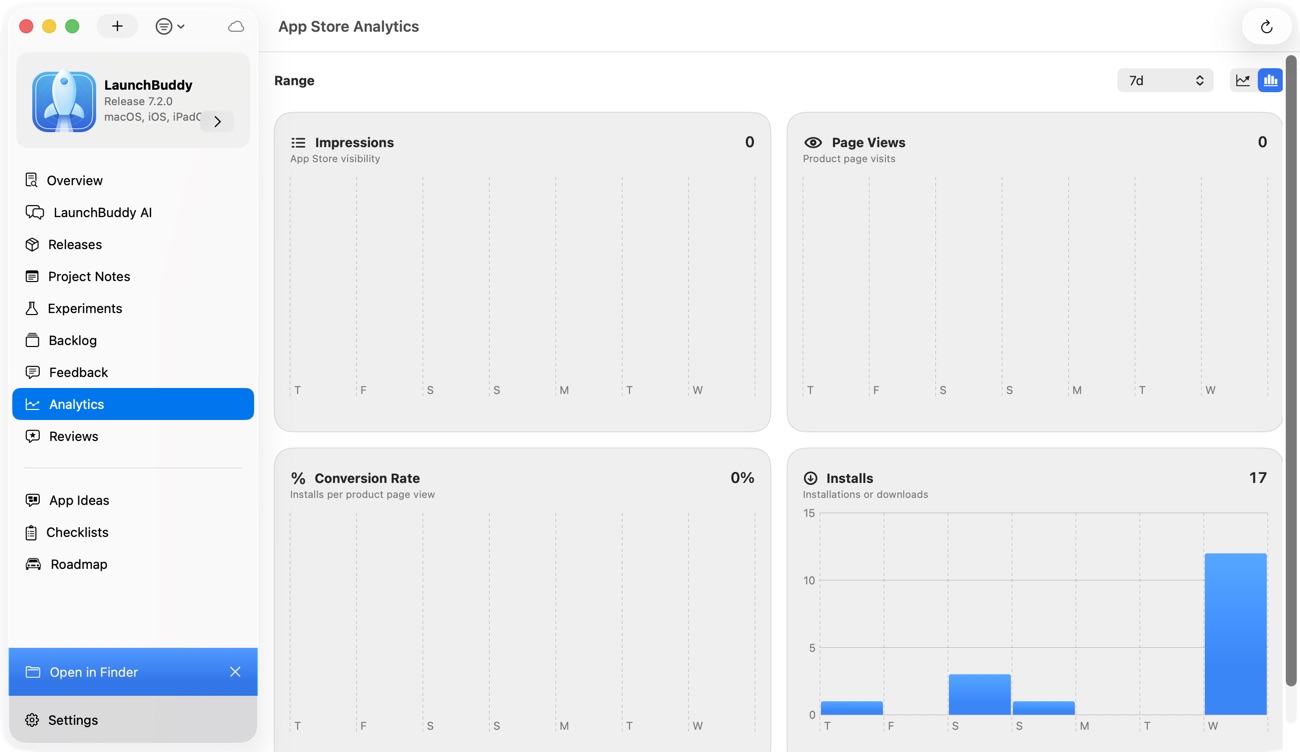
LaunchBuddy is the planning layer around Apple’s systems, not a crash reporter, binary uploader, or replacement for App Store Connect and Xcode.
Use App Store Connect for availability, detailed analytics, and financial reports, and Xcode for crash investigation. In LaunchBuddy, you can keep release tasks and follow-up tasks tied to the relevant app and version. LaunchBuddy Pro, with App Store Connect API credentials, adds a reviews inbox plus downloads, revenue, and subscription metrics. Review-to-task can turn selected customer feedback into structured backlog work.
The integration does not decide whether a signal is a regression, and it does not make every review a requirement. Keep the fix-now and learning queues explicit, verify evidence in Apple’s tools, and approve the work that belongs in the next release.