App Store Phased Release: How Apple's 7-Day Rollout Works
App Store phased release gradually delivers a version update over seven days to a random sample of users who have automatic updates enabled on eligible devices. Apple’s fixed schedule is 1%, 2%, 5%, 10%, 20%, 50%, and finally 100%. It can reduce how quickly a bad update spreads through automatic updates, but it is not a rollback system: anyone can still download the update manually from the App Store.
That distinction should drive the whole plan. Use phased release when a slower automatic rollout gives you useful time to detect a problem and respond. Do not use it as a substitute for TestFlight, upgrade testing, server monitoring, or a prepared hotfix path.
What is an App Store phased release?
A phased release is an App Store Connect setting for a version update. Apple currently documents it for iOS, macOS, and tvOS updates; this guide focuses on the iOS workflow. After Apple approves the update and it becomes available, Apple automatically expands distribution according to this schedule:
| Day | Users receiving the automatic update |
|---|---|
| 1 | 1% |
| 2 | 2% |
| 3 | 5% |
| 4 | 10% |
| 5 | 20% |
| 6 | 50% |
| 7 | 100% |
Apple selects a random sample from users with automatic updates turned on for eligible devices. Those users are not told that they are part of a phased release. The percentages and seven-day sequence are fixed; App Store Connect does not offer a custom rollout curve in the documented workflow.
The setting controls automatic delivery of an update. It does not make the version private or prevent an eager user from updating. Apple’s phased release documentation explicitly says that anyone can manually download the update from the App Store at any time.
What phased release does and does not protect against
Phased release limits one route by which an update reaches users: automatic updates. That can give you a wider response window if a problem appears as the rollout grows.
It can help you:
- Limit automatic distribution during the first few days
- Compare quality signals by app version before the rollout reaches 100%
- Pause further progression while you investigate
- Release to all users early when you no longer need the gradual rollout
It cannot:
- Stop manual downloads of the new version
- Revert users to the previous App Store version
- Validate migrations, purchases, authentication, or backend compatibility
- Guarantee that a low-volume app produces enough early data for a confident decision
- Replace a tested hotfix and submission plan
The pause control is easy to overestimate. Apple documents that a resumed release continues from the day where it paused. Separately, Apple says you cannot revert to a previous App Store version; you must create and submit a new version. A defective update therefore needs a fix-forward response.
When should you use phased release?
Use it when the extra observation window can change a real decision.
Good candidates include:
- An update with a database or data-model migration
- A major change to onboarding, login, sync, subscriptions, or purchases
- A version that depends on a new backend path
- A large refactor whose failures may only appear across a broader device mix
- A routine update where you can monitor daily and submit a new hotfix version if needed
Consider a full release instead when:
- The update is an urgent hotfix that users need as soon as possible
- Your active user base is too small for the early percentages to produce useful evidence
- A coordinated event requires the update to be available to all users at roughly the same time
- You will not be available to monitor or respond during the rollout
Phased release is not automatically the safer choice. A seven-day rollout without named signals, decision rules, or an owner is simply a slower release.
Prepare a phased-release decision card
Before submission, write down what would make you continue, pause, or finish the rollout early. This is the part most release instructions omit, and it prevents a stressful day-one signal from turning into an improvised decision.
Version:
Rollout start:
Why this update is phased:

Baseline:
- Previous-version crash count or rate:
- Normal support volume:
- Normal review volume:
- Backend error and latency range:

Continue when:
- No confirmed release-blocking issue:
- Quality signals remain within the expected range:

Pause when:
- Confirmed data loss, login, purchase, or migration failure:
- App-version crash signal crosses the threshold set for this release:
- Backend errors cross the threshold set for this release:

Release to all users early when:
- The reason for gradual delivery no longer applies:
- Required checks are complete:

Response:
- Investigator:
- User communication:
- Smallest hotfix scope:
- Hotfix version, build, and submission steps:
Use thresholds that fit your own baseline and risk. A universal crash number would be misleading because app volume, analytics availability, and the severity of a failure vary. For a small app, one reproducible data-loss report may matter more than a percentage change in a sparse dashboard.
Add the decision card to the version’s release plan and include the release option in your App Store Connect release checklist. That keeps the monitoring rules beside the build and scope they apply to.
How to enable an App Store phased release
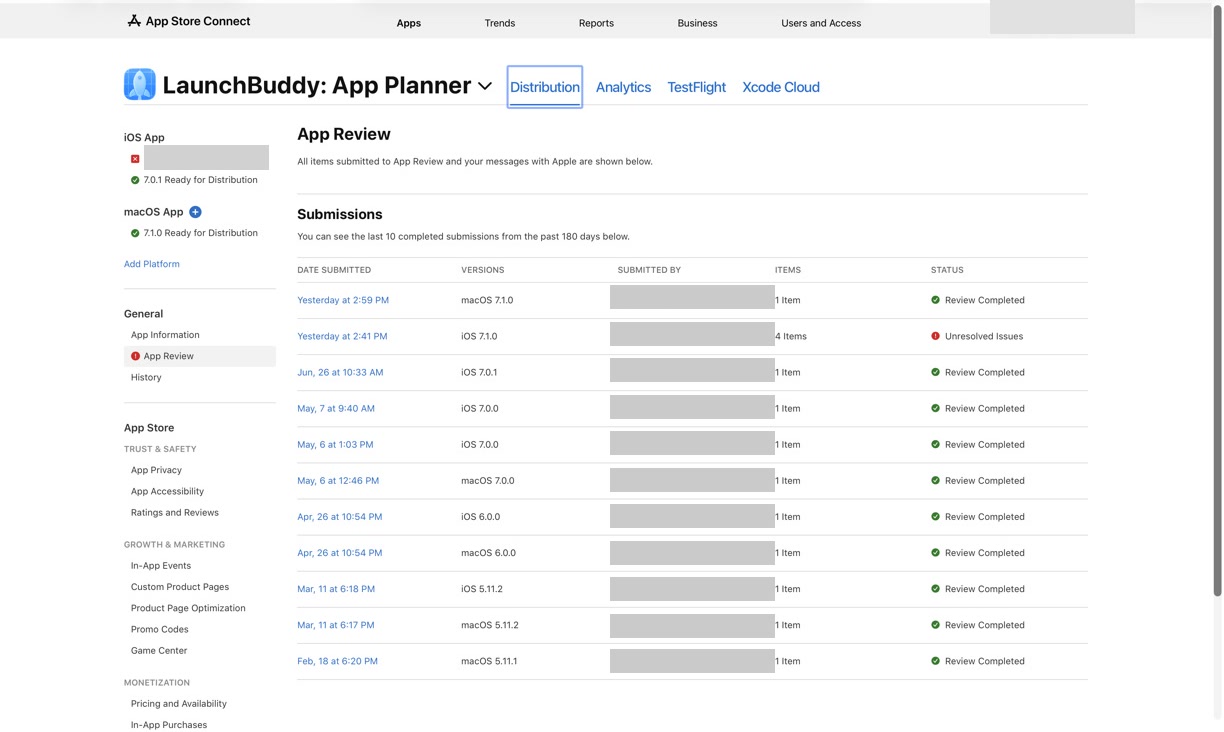
Apple’s current App Store Connect steps are:
- In Apps, select the app.
- Select the version update in the sidebar.
- Scroll to Phased Release for Automatic Updates.
- Select Release update over a 7-day period using phased release.
- Click Save.
- Submit the version for review if it has not already been submitted.
Apple makes this option available for a version update in several pre-release and review states, including Prepare for Submission, Waiting for Review, In Review, Pending Developer Release, and certain rejected states. Once the approved update is active, the version page shows Ready for Distribution with Phased Release beside the status.
The required App Store Connect role is Account Holder, Admin, or App Manager. Release timing is still an Apple-side setting, so verify the selected version and status directly in App Store Connect before acting.
Monitor the rollout in three lanes
Do not wait for one dashboard to declare the release healthy. Check technical, customer, and operational evidence separately.
1. Technical quality
Review crashes by app version, backend errors, latency, and any release-specific telemetry you operate. Apple’s Analytics dashboard supports app-version filters and includes crashes by app version when data is available.
Usage and quality data have limits. Apple notes that Analytics usage data comes from users who agreed to share it and only appears after privacy thresholds are met. Missing data is not proof that no problem exists. The App Store Connect analytics guide explains how to compare complete periods and avoid treating sparse data as certainty.
2. Customer evidence
Watch support messages and new reviews for symptoms tied to the update. A review is a report, not a diagnosis, so reproduce the issue and confirm the affected version before changing the rollout.
Keep reports separate until evidence shows they share a cause. The App Store review management workflow provides a practical way to classify feedback and turn confirmed problems into scoped tasks.
3. Release operations
Check App Store Connect for the current phased-release state, record each daily decision, and keep a hotfix path ready. If a backend flag or service change is part of the release, verify that it remains compatible with both the old and new app versions while both are active.
A compact daily log is enough:
Day and rollout percentage:
App Store Connect state:
Crash or quality signal:
Support and review themes:
Backend signal:
Decision: continue / pause / release to all
Evidence and owner:
Next check:
A practical LaunchBuddy setup uses three version-scoped tasks: capture the baseline before release, record the daily rollout decision, and close the rollout or open a hotfix task. Convert the decision card into those tasks so it stays tied to the version instead of drifting into a generic project note.
LaunchBuddy supports release tasks and submission checklists across iPhone, iPad, and Mac. Its free plan covers up to two apps and two releases and includes default checklists; custom checklists require Pro. It does not enable, pause, resume, or complete Apple’s phased release, nor does it build or upload the app binary. App Store Connect remains the source of truth for rollout controls. For the surrounding planning process, use the full iOS app release management workflow.
How to pause, resume, or finish the rollout
For a version showing Ready for Distribution, open Phased Release for Automatic Updates in App Store Connect.
- Pause: Select Pause Phased Release, then save.
- Resume: Select Use Phased Release, then save. The rollout continues from the day where it stopped.
- Finish early: Select Release to All Users for the submitted version.
Apple allows up to 30 paused days in total for that version, split across any number of pauses. Ten paused days followed by a resume leaves 20 paused days available.
Removing the app from sale is not an alternative pause method. Apple says removal from sale, including removal caused by a lapsed developer membership, stops phased release for that version. If the app is reinstated, that version becomes available to all users immediately. A controlled rollout after that requires a new version update with phased release enabled.
Frequently asked questions
Does phased release delay the update for everyone?
No. It stages automatic updates for a random sample of eligible users. Anyone can manually download the update from the App Store at any time.
Can I choose my own percentages?
Not in Apple’s documented App Store Connect workflow. The schedule is fixed at 1%, 2%, 5%, 10%, 20%, 50%, and 100% over seven days.
Does pausing a phased release roll users back?
No rollback behavior is part of Apple’s documented pause control. Pause stops the rollout from progressing; resume continues from the same day. Treat an affected installed version as a fix-forward incident.
Make the rollout a decision process
The useful part of phased release is not the seven-day table. It is the chance to decide, from evidence, whether to continue, pause, or move everyone to the update.
Define those decisions before submission, monitor more than one signal, and keep App Store Connect controls separate from your release plan. Then the phased rollout becomes an operating process instead of a setting you turn on and hope will help.

