Manual vs Automatic App Store Release: How to Choose
Choose manual release when you need a final human gate after App Review. Automatic release fits when approval should make the version available without another action. Use “automatic, no earlier than” when you have a target date but do not need to press the release button yourself.
For an existing app update, make a separate rollout choice: phased release spreads automatic updates over seven days. App Store Connect has three version release settings—manual, automatic, and automatic no earlier than—while phased release controls how an update reaches users with automatic updates enabled. Answer two questions:
- When should the approved version become available?
- For an update, should automatic delivery reach eligible users at once or in phases?
Manual vs automatic App Store release at a glance
| Option | What happens after App Review approval | Best fit | Main caveat |
|---|---|---|---|
| Manual | The version moves to Pending Developer Release and waits for an authorized user to release it | Coordinated launches, backend cutovers, or any release needing a final go/no-go check | Someone must remember and have permission to release it |
| Automatic | Apple releases the version after approval | Routine updates with no external dependency or launch event | Approval can make the version available when you are not ready to monitor it |
| Automatic, no earlier than | Apple waits until the specified date and time if approval finishes first | A target date where “not before” matters more than a manual launch moment | The date sets the earliest release; it does not guarantee App Review will finish by then |
| Phased release | For a version update, automatic updates expand over Apple’s fixed seven-day schedule | Updates where early signals could determine whether you continue, pause, or prepare a hotfix | Anyone can still download the update manually; it is not a rollback |
After manually releasing a version, Apple says it may take up to 24 hours to appear on the App Store. Do not promise an exact public minute for a manual launch.
Treat release timing and rollout speed as separate decisions
Apple’s version release settings answer when availability begins. Manual waits for your action after approval, automatic follows approval, and automatic no earlier than waits for the specified date if approval finishes first.
The Phased Release for Automatic Updates setting answers a different question: how quickly an existing app update reaches a random sample of users who have automatic updates enabled on eligible devices. Apple’s fixed schedule reaches 1%, 2%, 5%, 10%, 20%, 50%, and 100% over seven days. Users can still open the App Store and download the update at any time.
This creates a useful two-part record:
Availability start: manual / automatic / no earlier than [date and time]
Automatic-update rollout: full / phased
For a first app version, the rollout line is not applicable because Apple documents phased release for version updates. For an update, record both decisions before submission.
Manual App Store release adds a final go/no-go gate
Manual release adds a deliberate checkpoint between approval and availability. Once Apple approves the version, its status changes to Pending Developer Release. An Account Holder, Admin, or App Manager can then open the version and select Release This Version.
Use manual release when approval is necessary but not sufficient to launch. Common examples include:
- A marketing page, announcement, or support article must go live first.
- A backend migration, feature flag, or service dependency needs a final check.
- You want to confirm that the person monitoring crashes and support is available.
- Several platform versions need coordinated handling.
- A first public launch needs a final product-page and operational review.
Manual release does not improve the build or make App Review more predictable. Apple’s release-option documentation describes it as a post-approval control, not a way to speed up review. Use it only when the checkpoint has a named owner and defined criteria.
Document the gate before submission:
Release when:
- Production dependency:
- Public copy and support:
- Monitoring owner:
- Final App Store Connect check:
- Person authorized to release:
Apple sends a reminder when a version remains in Pending Developer Release for more than 30 days. That reminder is a backstop, not a release process.
If an unreleased app is being set up for pre-order in a country or region, Apple requires manual release. App Store Connect dims the release-option section and automatically selects Release the app yourself.
Automatic App Store release removes the post-approval handoff
Use automatic release when there is no meaningful reason to hold an approved version.
It usually fits:
- A routine bug-fix update with no coordinated announcement.
- A small improvement whose server and support dependencies are already live.
- A release where delayed availability would only add idle time.
- A solo workflow where you cannot reliably return to press a release button, but you can tolerate the approval time being outside your control.
The tradeoff is operational, not technical. Automatic release can reduce forgotten handoffs. However, approval may happen while you are asleep, traveling, or unable to investigate early reports. If that matters, either choose manual release or finish the monitoring and support preparations before submitting.
Do not choose automatic just because it is the shortest workflow. Choose it because approval is your final gate.
Use “automatic, no earlier than” for date-based launches
Apple labels this option Automatically release this version after App Review, no earlier than a specified date and time. Use it when an early release would be a problem but no one needs to initiate the launch once both conditions are met.
Good fits include:
- An announcement or campaign has an embargo date.
- Updated documentation or pricing communication must go live first.
- You want the earliest acceptable date recorded in App Store Connect instead of relying on a calendar reminder.
The wording “no earlier than” is important. The setting cannot make App Review finish by your chosen date. If review is still in progress, the date does not override it. Keep a contingency for a late approval, and avoid promising customers that the app will appear at an exact time.
Choose manual instead if you still need a real-time go/no-go decision on launch day. A scheduled floor is not a substitute for checking an uncertain backend migration or unresolved incident.
Add phased release only when you can monitor it
Phased release is most useful when gradual automatic delivery creates an observation window you can act on. It is not automatically safer.
Consider it for an update involving:
- A data migration or sync change.
- A major login, purchase, subscription, or onboarding change.
- A new backend path that must remain compatible with older versions.
- A large refactor where failures may emerge across a wider device mix.
Skip phased release when:
- Early rollout volume is too small to produce useful evidence.
- No one can monitor the release.
- A coordinated event needs the update to reach users through automatic updates quickly.
- An urgent fix should reach automatic-update users as quickly as possible.
Apple allows up to 30 paused days in total, with no limit on the number of pauses. You can also select Release to All Users once the version is Ready for Distribution. After a pause, resuming continues from the day where the rollout stopped. The detailed App Store phased release guide covers the fixed percentages, pause behavior, monitoring card, and fix-forward limits.
Four App Store release scenarios
1. First public launch with a newsletter announcement
Choose manual release. Finish App Review first, then verify the product page, support path, and announcement before releasing. Phased release does not apply to the first version.
2. Routine patch with no launch event
Choose automatic release if the patch and its dependencies are ready before submission. Do not enable phased release unless slower automatic delivery would produce enough evidence to support a decision.
3. Update with a risky database migration
Choose the availability setting based on your final gate. Manual may help if you need to verify production dependencies after approval; automatic may be reasonable if every dependency is ready before submission. Then consider phased release and define what would make you continue, pause, or prepare a replacement version.
4. Feature release tied to a fixed campaign date
Choose automatic, no earlier than if the only hard rule is “not before this date.” Choose manual if the campaign team, backend, or support owner must still confirm readiness. Keep a fallback in case App Review finishes after the campaign date. If you choose manual release, also allow for Apple’s stated delay of up to 24 hours after release before the version appears on the App Store.
How to select the release option in App Store Connect
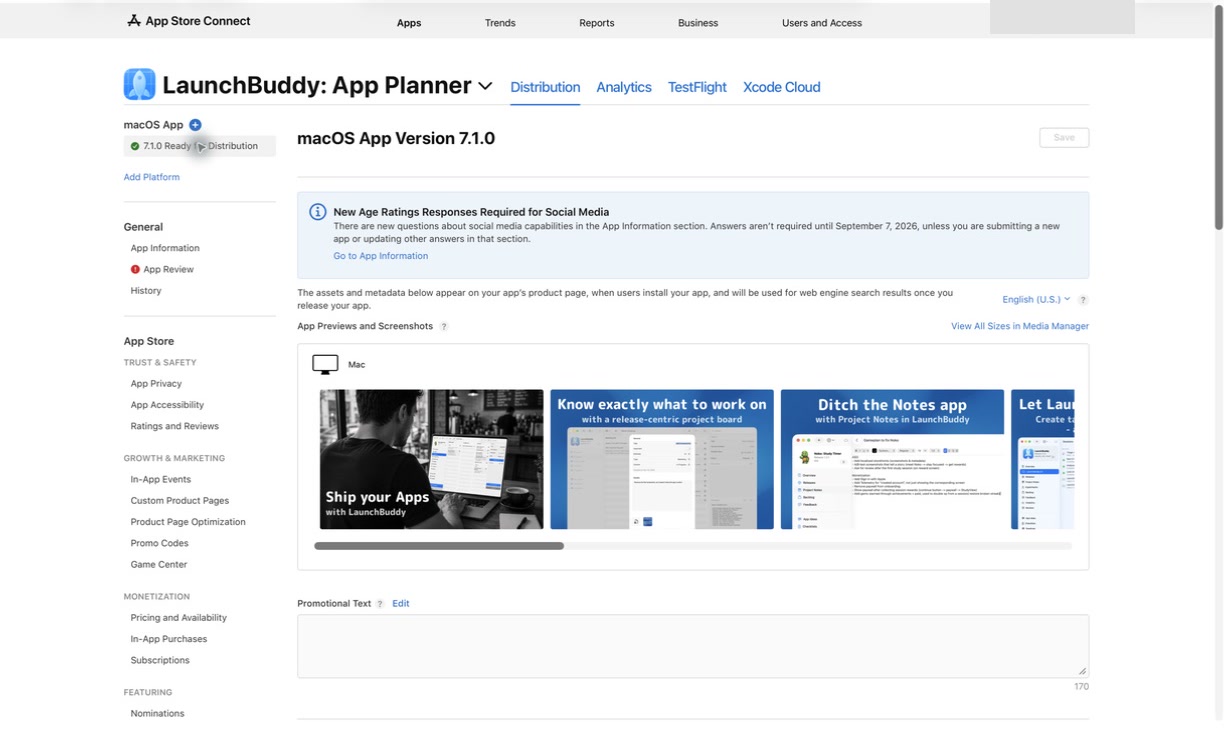
Apple’s current release-option instructions require an Account Holder, Admin, or App Manager:
- In Apps, select the app.
- Select the platform version in the sidebar.
- Find App Store Version Release.
- Choose Manually release this version, Automatically release this version, or Automatically release this version after App Review, no earlier than.
- If you chose the no-earlier-than option, enter the date and time.
- Save the version.
- For an eligible version update, review the separate Phased Release for Automatic Updates setting.
If you manually release, return after approval when the version shows Pending Developer Release, choose Release This Version, and confirm. Release actions are platform-specific, so check each platform version you intend to publish.
Before submitting, add the selected setting to your App Store Connect release checklist. The checklist should name the decision, not merely say “release option chosen.”
Use a release decision record, not a remembered preference
The best setting changes from version to version. A routine patch and a subscription migration should not inherit the same option just because you used it last time.
Use this compact record:
App and version:
Release goal:

Availability start:
- Manual / automatic / no earlier than:
- Reason:
- Authorized release owner, if manual:

Automatic-update rollout:
- Full / phased / not applicable:
- Reason:

Dependencies that must be ready:
- Backend:
- Marketing and documentation:
- Support and monitoring:

Late approval plan:
First post-release check:
Hotfix owner and smallest fix scope:
This separates a decision from a habit. The record also exposes contradictions early, such as selecting automatic release while a required backend change remains scheduled for later.
LaunchBuddy organizes version-scoped tasks and reusable submission checklists across iPhone, iPad, and Mac. The free plan includes release planning, default checklists, iCloud sync, and Release Status widgets, with limits of two apps and two releases; custom checklists require Pro. Those widgets summarize your LaunchBuddy plan, not Apple’s live review or distribution state.
LaunchBuddy does not choose, trigger, pause, resume, or complete Apple’s release options. It does not build or upload the binary. App Store Connect remains the source of truth for the selected release setting and official status. Use the broader iOS app release management workflow to connect this decision to scope, testing, submission, monitoring, and follow-up.
Common release-option mistakes
- Treating phased release as a private beta. Manual downloads remain available.
- Assuming a no-earlier-than date guarantees approval or an exact launch time.
- Choosing manual without naming the person who will release each platform version.
- Choosing automatic while a backend, support, or marketing dependency is unfinished.
- Enabling phased release without signals or rules for continuing, pausing, and fixing forward.
- Reading a planning widget as proof of App Store availability instead of checking App Store Connect.
- Reusing the same choice for every version without considering release-specific risk.
Record both choices before submission, verify them in App Store Connect, and make sure the owner, dependencies, and monitoring plan match the settings.

