iOS Release Status Widget: Track Progress from Home and Lock Screens
An iOS release status widget puts a compact summary of an app version on your Home Screen or Lock Screen. LaunchBuddy’s Release Status widget shows release progress, a due date, task counts, and checklist completion. Use it to notice when a plan needs attention, then open the plan before deciding what those signals mean.
The widget summarizes your LaunchBuddy release plan. It does not prove that a build was uploaded, accepted by App Review, or released on the App Store. App Store Connect remains the source of truth for those states.
Add the Release Status widget on iPhone
Apple’s current widget instructions provide the system-level steps.
Add it to the Home Screen
- Touch and hold an empty Home Screen area until the apps jiggle.
- Tap Edit, then Add Widget.
- Find LaunchBuddy in the widget gallery.
- Choose an available Release Status size.
- Tap Add Widget, place it, and tap Done.
Add it to the Lock Screen
- Touch and hold the Lock Screen, then tap Customize.
- Tap Add Widgets.
- Add an available LaunchBuddy Release Status widget.
- Close the picker and tap Done.
Apple notes that Lock Screen space is limited. If the widget does not fit, remove another widget or choose a different arrangement.
After adding the widget, compare its signals with the release inside LaunchBuddy. This guide does not assume a release-selection control or a particular tap destination because neither behavior appears in LaunchBuddy’s current documented product details.
The current App Store listing requires iOS 26.0 or later on iPhone and iPadOS 26.0 or later on iPad. Check compatibility before looking for the widget.
Prepare the release before relying on its summary
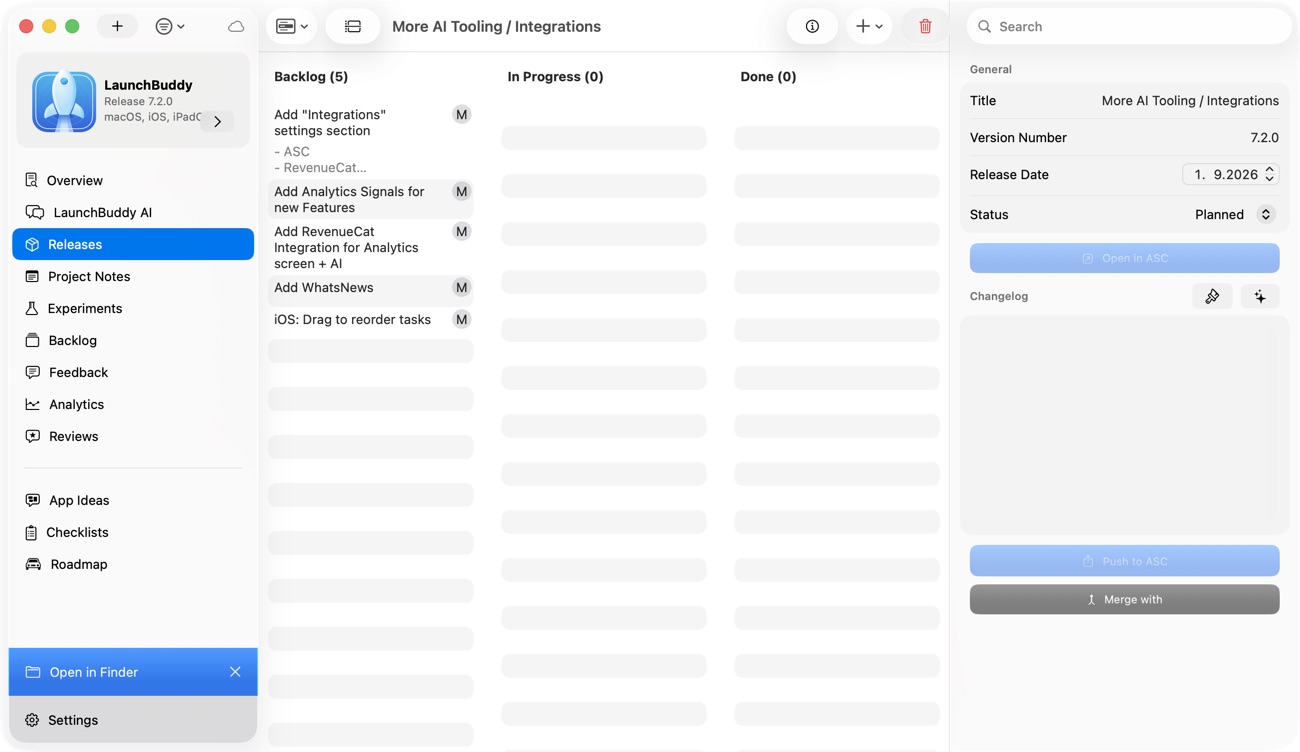
A clean widget starts with a clean release plan:
- Create the app version you are actually preparing.
- Set a target date only if it represents a real milestone.
- Put committed work in that release.
- Mark tasks complete only after the work is done.
- Apply the submission checklist you intend to follow.
- Move deferred work out of the version.
Keep this prerequisite short. The full iOS app release management workflow explains version boundaries, testing, metadata, submission, and follow-up.
Choose the surface by the question
LaunchBuddy supports the Release Status widget on iPhone, iPad, and Mac, and documents Lock Screen sizes. On iOS, each surface serves a different question:
| Surface | Question it can prompt | Where to investigate |
|---|---|---|
| Home Screen | Does this release plan need attention today? | Open the release in LaunchBuddy |
| Lock Screen | Is the due date or summary worth checking now? | Open LaunchBuddy for context |
| Full LaunchBuddy app | Which tasks or checks explain the summary? | Review the release plan |
| App Store Connect | What is the official build, review, or distribution state? | Verify Apple’s record |
Read each release signal correctly
The four documented signals are not interchangeable. None of them is a release-readiness guarantee.
Release progress
LaunchBuddy documents release progress but does not specify how it is calculated. Do not assume it accounts for every task, checklist item, or piece of evidence you care about. Use the value as a reason to inspect the release, not as a calculated probability of shipping.
Due date
A due date records your target. It does not mean Apple will review or publish the app on that date.
Before acting on it, clarify whether the date represents:
- an internal scope target;
- the day you plan to submit;
- a marketing commitment; or
- a desired public release date.
Those dates carry different risks. Keep App Review timing out of promises you cannot control.
Task counts
LaunchBuddy only documents that the widget shows task counts. It does not specify in the repository whether a displayed count means total, open, completed, or another subset. Read the label presented by the installed widget, then inspect the tasks before judging workload or risk.
If you need to define better version-scoped tasks, the iOS developer task manager guide explains how to separate project ideas from release commitments.
Checklist completion
Checklist completion summarizes tracked checks. The documented facts do not promise a particular percentage, fraction, or visual format, and a completion indicator cannot verify the evidence behind a checked item.
For example, “Test subscription upgrade” is meaningful only if the selected build, account state, and result are known. A checked item does not inspect the binary or guarantee App Review approval. Use a detailed App Store Connect release checklist to define the checks, then preserve test evidence in an appropriate supporting record.
Use a signal-to-evidence ladder
When the widget raises a question, move down one level at a time:
Widget signal
  ↓
LaunchBuddy release, tasks, and checklist
  ↓
Build and test evidence
  ↓
Official App Store Connect state
Stop at the first level that answers the question. A due-date reminder may only require opening the release plan. Build tooling can show an upload attempt, while App Store Connect is authoritative for whether Apple received, processed, or selected that build. A question about whether a fix works requires test evidence from the relevant build.
This keeps the widget useful without asking it to carry facts it does not contain.
A worked release-status example
Suppose you are preparing version 3.1 of a receipt organizer for a September 12 target. The release contains:
Release tasks
- Verify offline receipt import on the selected build
- Check App Privacy answers after an OCR change
- Draft customer-facing release notes

Submission checks
- Upgrade from the previous version tested
- Screenshots checked against the final UI
- Reviewer instructions prepared
The widget surfaces its documented progress, date, task-count, and checklist signals. The date catches your attention, but the summary cannot tell you which item carries the most risk.
Open the release. The offline import test is unresolved, while the release-note draft is unfinished but non-blocking. Test the import first. If the OCR change altered data collection, verify the actual app behavior and update App Privacy in App Store Connect. Only then return to copy and screenshots.
The widget did its job without pretending to rank the tasks: it prompted a timely inspection. The evidence, not the summary, determined the next action.
Account for widget freshness
Widgets are not continuously running dashboards. Apple’s WidgetKit documentation explains that the system renders widget views from timelines, may combine scheduled reloads, and controls the exact update time to preserve resources.
Use two rules:
- If a value looks unexpected, compare it with the release inside LaunchBuddy.
- Before a consequential action such as submitting or announcing a release, verify the underlying record instead of relying on the widget.
LaunchBuddy stores project data in your private iCloud account and syncs apps, releases, tasks, and notes across supported devices. Sync helps keep the same release plan available on iPhone, iPad, and Mac, but it does not turn a widget into a live App Store Connect monitor.
Before submission, open the full release and App Store Connect. Verify the selected build, metadata, review information, release option, and official state. The App Store submission tracker guide explains how to keep Apple’s status separate from your next action.
Keep the widget in its documented role
The Release Status widget is available without Pro. Its documented role is to show release progress, due dates, task counts, and checklist completion. It does not build, sign, or upload a binary, inspect source code, submit an app to review, or guarantee approval.
If a persistent release summary would help you notice work sooner, download LaunchBuddy on the App Store and try the Release Status widget with one real version.