App Store Connect Catalog Reports: Portfolio Audit Guide
App Store Connect catalog reports are downloadable inventories of your organization’s app information and settings, including In-App Purchases and Game Center leaderboard and achievement metadata. Use them to find identity and configuration mismatches across several apps. Don’t use them as substitutes for App Analytics, Sales and Trends, financial reports, StoreKit entitlement data, or the live App Store Connect record.
A reliable audit takes six steps:
- Request the available catalog reports from the Apps page.
- Preserve the raw files with a request date.
- Match records by stable identifiers, not display names.
- Compare the report with your portfolio inventory and release plans.
- Verify every material mismatch in App Store Connect.
- Turn confirmed gaps into owned, testable follow-up work.
Apple’s current maintenance overview describes catalog reports as an organization-wide view for developers with several apps. Their advantage is breadth: you can inspect a portfolio without opening every app and product one at a time.
Request a dated set of catalog reports
Apple’s public Help confirms that accounts with several apps can generate organization-wide catalog reports, but it doesn’t currently document stable web-interface labels. In App Store Connect, open Apps and locate the catalog-report action available to your account. Request the report types you need and record the request and download times.
For a documented, repeatable route, Apple’s current Transporter User Guide supports the listReportTypes, listReports, and requestReport modes. App-developer report types include Apps, In-App Purchases, Game Center Leaderboard Metadata, and Game Center Achievement Metadata. Requests are limited to one per content type in a 24-hour period, and requestReport can download catalog reports from the preceding 30 days.
Apple has deprecated Transporter’s .itmsp app-metadata delivery. That retirement is separate from its catalog-report modes. Apple’s current reporting-tools overview documents API automation for Sales and Trends, App Analytics, and Financial Reports; it doesn’t present those APIs as the catalog-report download path.
Create a run receipt before opening the files:
Organization:
Requested by:
Requested at:
Downloaded at:
Report filenames:
Raw files stored at:
Comparison owner:
Comparison due:
Keep an untouched copy of each download. Work in a duplicate or import the files into a spreadsheet without renaming source columns. If a later cleanup changes a value accidentally, the raw copy lets you separate an Apple-exported value from your edit.
Treat each file as a dated snapshot. Record its request, generation when shown, and download times because the live record may change afterward.
Know what a catalog report can and cannot answer
A catalog report helps answer what is configured. Other Apple systems answer different questions:
| Question | Use this source |
|---|---|
| Which app, product, leaderboard, or achievement identifiers exist? | Catalog report, then verify in App Store Connect |
| What is the current editable value or review status? | Live App Store Connect page |
| How many downloads, sales, or subscription events occurred? | App Analytics or Sales and Trends |
| What proceeds were finalized and paid? | Payments and Financial Reports |
| Should a customer currently receive paid access? | Verified StoreKit transaction and entitlement state |
| Does the binary use the same identifiers and capabilities? | Xcode project, signed build, and runtime tests |
This boundary prevents two common audit errors. First, a row in a catalog file doesn’t prove that a product works in StoreKit. Second, an item missing from a planning document doesn’t prove that it is absent from Apple.
Build the identifier map before comparing values
Names are poor join keys. They can be localized, edited, reused in internal notes, or written differently by two people. Start with the identifiers Apple defines for each entity.
| Entity | Primary reconciliation key | Useful secondary check |
|---|---|---|
| App | Apple ID | Bundle ID and SKU |
| In-App Purchase | Product ID | Apple-generated In-App Purchase ID and parent app |
| Game Center leaderboard | Leaderboard ID | Reference name and leaderboard type |
| Game Center achievement | Achievement ID | Reference name and point value |
Apple’s app information reference distinguishes the generated Apple ID, developer-assigned SKU, and bundle ID. It also says the SKU can’t be changed after the app is added and the bundle ID can’t be changed after a build is uploaded. The In-App Purchase reference similarly says a saved product ID isn’t editable or reusable within the same app.
Game Center IDs deserve the same care. Apple’s references describe both leaderboard IDs and achievement IDs as permanent.
Build a compact map from the fields that actually appear in your downloaded files:
Entity type:
Apple organization:
Parent app Apple ID:
Stable identifier:
Secondary identifier:
Report filename:
Report row:
Observed value:
Don’t assume that a column exists because an old example mentions it. Preserve the header row and adapt the map to the current export.
Reconcile the portfolio in four passes
Pass 1: Find missing and unexpected records
Create one comparison row for every item in either source:
Entity:
Stable identifier:
In catalog report? Yes / No
In portfolio inventory? Yes / No
In an active release? Yes / No
Initial disposition:
Investigate both directions. A local-only item may be a planned product that hasn’t been created in App Store Connect. A report-only item may be live, retired, experimental, or simply omitted from your internal inventory. Neither condition is automatically an error.
For apps, compare the result with your indie app portfolio inventory. Include maintained and parked apps, not only products under active feature development.
Pass 2: Compare identity before editable metadata
Review Apple ID, bundle ID, SKU, product ID, leaderboard ID, and achievement ID first. Identity conflicts can send a build, StoreKit request, or Game Center integration toward the wrong record. A subtitle difference is usually less urgent.
For each mismatch, record all three values instead of overwriting one:
Report value:
Local value:
Live App Store Connect value:
Verified at:
Verified by:
Use the App Store Connect app-record guide when the conflict involves an app’s SKU, bundle ID, Apple ID, or platform model. It explains which values are permanent and which can still be corrected.
Pass 3: Review state and configuration with context
Now inspect statuses, availability, localizations, pricing, or Game Center behavior that the current files expose. Classify each difference:
| Classification | Meaning | Next action |
|---|---|---|
| Expected | The report and live record match the intended configuration | Record the verification date |
| Local record stale | Apple is correct; planning documentation wasn’t updated | Correct the local record and note the source |
| Apple configuration suspect | The report points to a possible unintended setting | Verify live, assess customer impact, then change through the proper Apple workflow |
| Report stale | The live record changed after the report request | Keep both timestamps and use the live value |
| Unknown | Evidence conflicts or the field’s meaning is unclear | Assign an owner to investigate; don’t guess |
An In-App Purchase status is not a customer entitlement. If a product-state mismatch needs investigation, use the In-App Purchase status guide and verify StoreKit behavior separately.
Pass 4: Spot-check the live system
Before closing the audit, open a sample in App Store Connect:
- every identity mismatch;
- every item with a release-blocking status;
- at least one clean app and product;
- each Game Center item changed since the previous audit;
- any record whose report timestamp predates a recent submission or transfer.
This isn’t a statistical sample. It’s a control against wrong joins, stale downloads, and misunderstood columns. If a supposedly clean record fails, expand the verification scope before declaring the portfolio reconciled.
Use a decision-ready mismatch record
A useful finding says what differs, why it matters, and what will prove resolution:
Finding ID: CAT-2026-10-03
Entity: In-App Purchase
Parent app Apple ID: 1234567890
Stable identifier: com.example.receiptbox.monthly

Report evidence:
Local evidence:
Live App Store Connect evidence:

Risk:
Owner:
Required action:
Verification:
Due date or trigger:
Status:
Avoid tasks such as “fix catalog.” A better action is “confirm which product ID the release candidate requests, compare it with the live In-App Purchase record, and attach a successful Sandbox result.” The report found the discrepancy; it didn’t diagnose the code.
Worked example: three mismatches, three owners
Consider a developer auditing three apps who finds these hypothetical differences:
| Finding | Risk | Correct next step |
|---|---|---|
| A release note uses an old app Apple ID | A link or automation may target the wrong record | Verify the live app record, update the planning note, and test the link |
| The release checklist names a different product ID from the report | The build may request the wrong In-App Purchase | Compare App Store Connect, source configuration, and a Sandbox product fetch |
| A planned achievement ID differs from the catalog row | Shipping code and Game Center may disagree on a permanent identifier | Verify the live achievement and the build constant before submission |
These don’t belong in one generic “metadata cleanup” task. The first is documentation ownership, the second crosses product configuration and code, and the third needs Game Center verification. Separate owners and proof make the audit actionable.
Keep LaunchBuddy on the planning side
LaunchBuddy doesn’t import, parse, or validate App Store Connect catalog reports. App Store Connect remains authoritative for the exported records and their live configuration.
LaunchBuddy can hold the related app and release plan, identifiers such as the bundle ID and App Store Connect app ID, follow-up tasks, notes, and submission checks. Its Free plan supports up to two apps and two releases with default submission checklists. Pro adds unlimited apps and releases plus custom checklists. Neither plan turns a catalog export into a live sync or verifies Apple configuration.
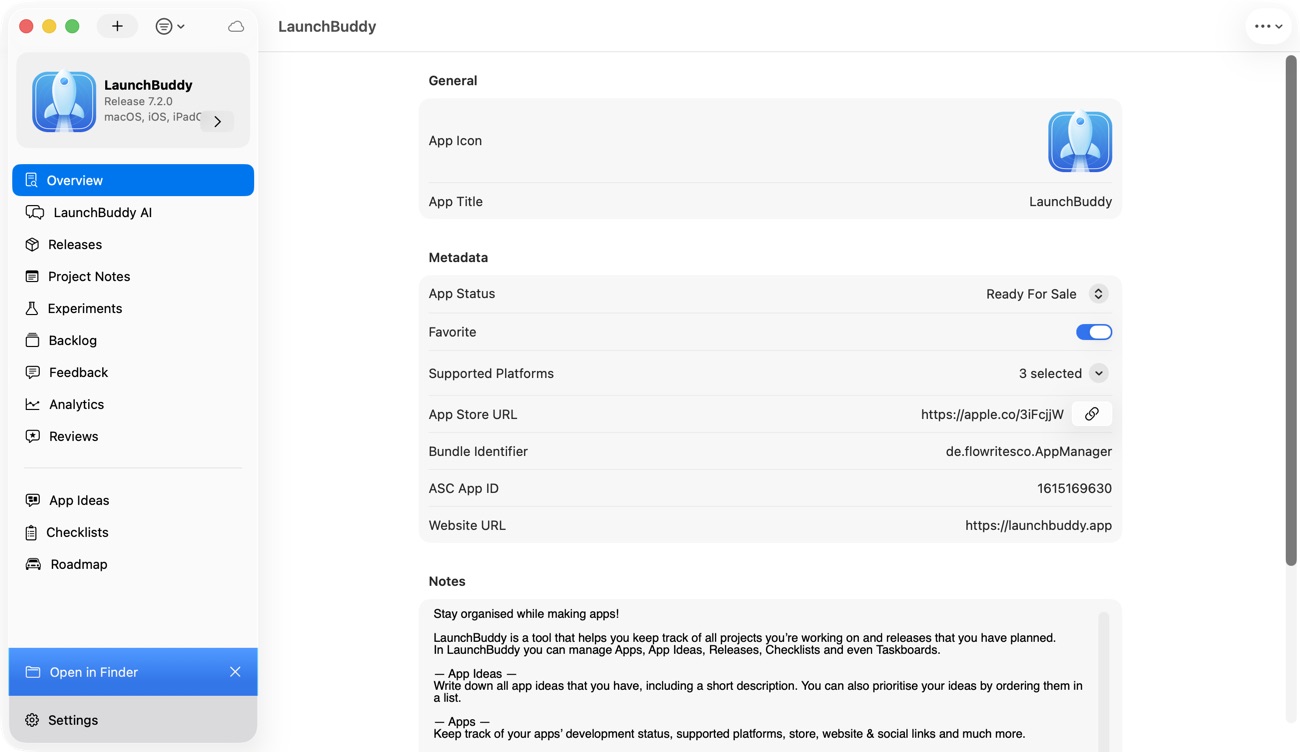
For a recurring portfolio audit, keep only the run receipt and confirmed findings with the project. Store the raw report in an access-controlled location suited to your organization rather than pasting the whole file into task notes. A confirmed release risk can become a scoped task; a repeated control can become a checklist item. Final verification still happens in App Store Connect, Xcode, StoreKit, or Game Center as appropriate.
Close the audit with a signed result
Finish with a summary that another developer can challenge:
Catalog request date:
Reports reviewed:
Apps covered:
Material mismatches:
Resolved:
Open:
Release blockers:
Live spot-check completed by:
Approved by:
Approved at:
Next audit trigger:
Good triggers include adding or transferring an app, changing durable identifiers, introducing In-App Purchases or Game Center, preparing a major release, or discovering that the local portfolio inventory no longer matches Apple.
The goal isn’t to make a spreadsheet look tidy. It’s to know which identity and configuration differences can affect the next build, purchase, leaderboard, achievement, or release, then prove that each important difference was resolved in the system that owns it.