App Store Product Page Optimization: A Practical Test Workflow
App Store product page optimization means improving how effectively your listing turns eligible App Store impressions into downloads or pre-orders. For iOS and iPadOS apps, Apple’s Product Page Optimization feature lets you compare the original page with up to three treatments that change the app icon, screenshots, or app previews.
A practical workflow is to choose one user question, test one idea, and write the decision rule before launch. Run the treatment in App Store Connect, then use Apple’s confidence and conversion estimates to apply, reject, or retest it. This guide explains that workflow without promising a conversion increase.
Separate discovery from product page conversion
Product page optimization can’t answer every App Store Optimization question.
- Discovery work asks whether the right people can find the app. It includes positioning, localization, and the App Store keyword field.
- Conversion work asks whether eligible people who see a product page variant download or pre-order the app.
- Post-download work asks whether those users activate, return, subscribe, or generate revenue.
Apple’s Product Page Optimization feature is primarily a conversion experiment. Its results don’t prove that a treatment improves keyword rankings, retention, revenue, or product quality.
Start by naming the part of the journey you want to change. If impressions are low because few people discover the app, a screenshot test may be premature. If impressions are healthy but the page doesn’t communicate the app’s value, a focused product page test is more appropriate.
For the definitions behind impressions, downloads, conversion, and downstream metrics, use the App Store Connect analytics guide before choosing a test objective.
Know what Apple’s test can and can’t do
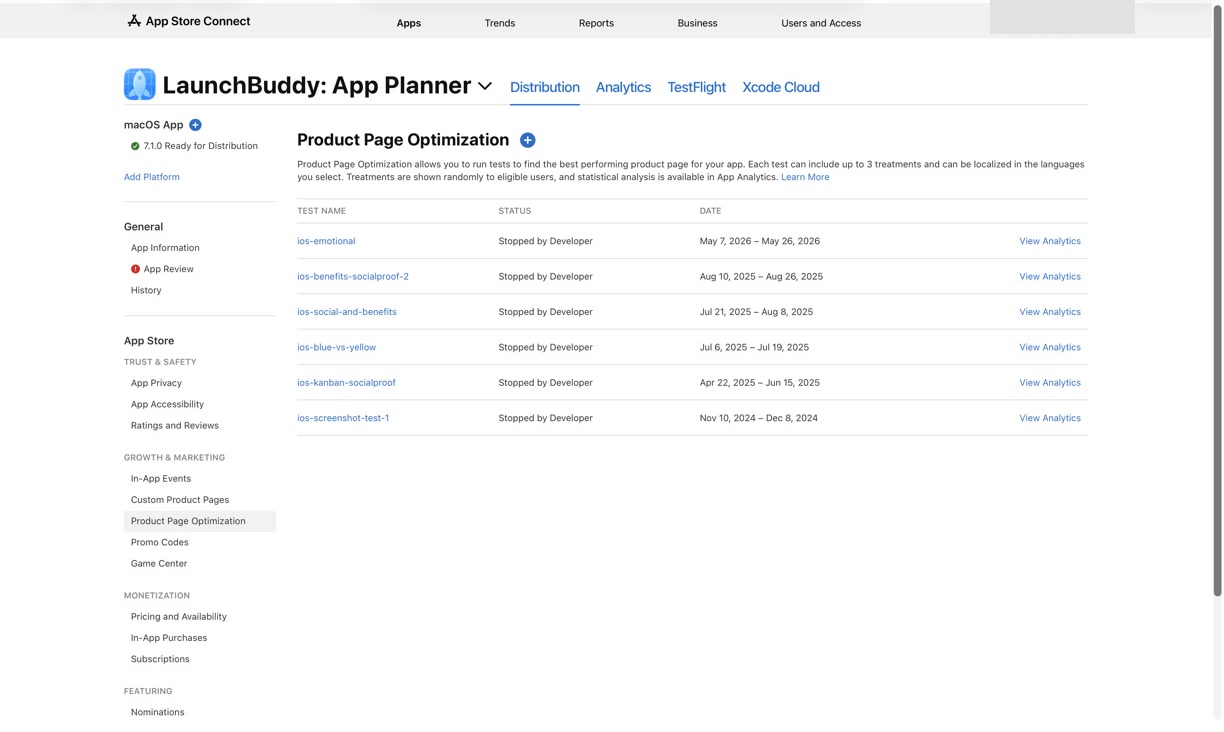
Apple’s current Product Page Optimization overview documents these boundaries:
- The app must be live on the App Store with Pre-Order Ready for Distribution or Ready for Distribution status.
- Treatments are shown on iOS 15 and iPadOS 15 or later.
- Account Holder, Admin, App Manager, or Marketing access is required.
- A test can include up to three treatments.
- The testable assets documented in Apple’s setup flow are app icons, screenshots, and app previews.
- Treatments can be localized in languages the app supports.
- Tests aren’t available for custom product pages or Apple Watch and iMessage product pages.
- A test runs for no more than 90 days, or until it is stopped manually.
The original page serves as the control. Because each treatment starts as a copy, any asset you don’t replace still comes from the original.
Operational constraints matter too. New treatment metadata requires approval, and alternate icons must already exist in the live binary. Apple also warns that releasing a new version during a test may affect results if it changes assets or metadata under test.
Treat App Store Connect as the source of truth. Because Apple’s help pages and controls can change, verify the current interface before preparing assets.
Step 1: turn a hunch into one testable question
“Improve conversion” isn’t a useful test brief. It doesn’t identify the audience, problem, change, or decision.
Use this structure instead:
Audience:
People eligible for the US English localization of the default product page test

Observed problem:
The first screenshot shows the editor before explaining the app's main benefit

Hypothesis:
A benefit-led first screenshot will make the app's purpose clearer

Treatment:
Replace only the first screenshot and keep the remaining sequence unchanged

Primary evidence:
Apple's estimated conversion rate and relative lift for the treatment

Decision:
Apply if the treatment is Performing Better and the plausible lift is useful
Reject if it is Performing Worse
Retest or keep the original if the result remains inconclusive
The Decision section is your decision contract. Write it before reviewing results so you’re less tempted to reinterpret a weak outcome because you prefer the new creative.
Choose a change large enough to matter
A one-word caption edit may be too subtle to produce a useful signal, especially for a low-traffic app. At the other extreme, a complete redesign may be easier to distinguish but harder to interpret because several ideas changed at once.
Aim for a meaningful contrast around one concept:
- Feature list versus outcome-led first screenshot
- Dense interface versus one clear workflow
- Abstract icon versus a simpler, recognizable symbol
- Silent preview opening versus a preview that reaches the key action sooner
“One concept” doesn’t always mean one file. A coherent screenshot-sequence test may replace several images while testing a single story. Record the distinction so you know what the result can support.
Step 2: capture the baseline before creating treatments
Save enough context to understand the result later:
Test name:
App version:
Start date:
Included localizations:
Acquisition context:

Original icon:
Original screenshot order:
Original previews:

Audience problem:
Hypothesis:
Changed concept:
Assets changed:
Assets deliberately unchanged:

Recent events:
- App release:
- Featuring:
- Paid campaign:
- Pricing change:
- Seasonal event:
A result label can’t preserve this context. Six months later, “Treatment B won” tells you little if you no longer know what it tested or what else changed during the experiment.
Save the original assets, not just a written summary. If the live product page changes later, you still need an exact record of the control users saw.
Step 3: design treatments that answer the question
Apple divides allocated treatment traffic equally among treatments. In its test creation guidance, Apple gives an example with 30% allocated across three treatments: each receives 10% of total traffic, and the remaining 70% sees the original. Adding treatments divides the available traffic further and may delay a useful result.
For a small app, one clear treatment often produces a more interpretable test:
Original:
"Plan every part of your day"

Treatment:
"Finish today's three priorities"

What changed:
The first screenshot's promise

What stayed fixed:
Icon, remaining screenshots, preview, price, and acquisition campaign
This design makes a conclusive result easier to attribute to the first screenshot’s promise. An inconclusive result leaves the message question unanswered.
Plan localization deliberately
Apple selects all supported localizations by default, but you can include a subset. A user whose displayed localization isn’t included won’t enter the test.
Don’t translate a treatment literally and assume it expresses the same idea. For each included locale, verify that:
- The benefit is natural in that language.
- Text fits the creative.
- The screen shown matches the localized product.
- The treatment is meaningfully different from the control.
- There is enough relevant traffic to justify including the locale.
If several localizations express materially different messages, a blended result may conceal those differences. Narrower coverage can improve interpretability, but it also reduces eligible traffic. Record the tradeoff.
Prepare icon tests earlier
Icon treatments require more release planning than screenshot treatments. Apple’s treatment configuration documentation says alternate icons must use the supported setup and already be included in the live App Store binary. The tested icon also appears during download and on the user’s device, so plan it before shipping the binary.
Step 4: configure and preflight the test
In App Store Connect:
- Open the app and choose Product Page Optimization.
- Create a test and give it a reference name you will recognize later.
- Choose the number of treatments.
- Set the percentage of traffic allocated to treatments.
- Select the included localizations.
- Review Apple’s duration estimate for the improvement you hope to detect.
- Add the icon, screenshot, or preview assets for each treatment.
- Submit new treatment metadata for review when required.
- Start the test only after the assets and decision record are final.
Apple bases its duration estimate on existing performance, including impressions and downloads. The estimate doesn’t alter the test or guarantee that the desired improvement will be detectable within 90 days.
Run this preflight before pressing Start:
Question and decision
[ ] The test asks one specific audience question
[ ] The decision rule is written in advance
[ ] The baseline assets are archived

Treatment integrity
[ ] Changed assets express one recorded concept
[ ] Unchanged assets match the original
[ ] Every selected device size was checked
[ ] Every included localization was reviewed
[ ] Alternate icons are in the live binary, if applicable

Measurement
[ ] Traffic allocation is recorded
[ ] Major campaigns and releases are recorded
[ ] No overlapping creative change is planned
[ ] A review date is scheduled
You can’t edit a test after it starts. A two-minute preflight is cheaper than discovering that Treatment A contains the wrong screenshot after traffic has been split.
Step 5: read the result without overstating it
Apple displays Product Page Optimization analytics after the test has generated at least five associated first-time downloads. The data then updates daily.
The result includes:
- Unique impressions for each variant
- Estimated conversion rate
- Estimated relative lift against the selected baseline
- A 90% credible interval
- Confidence
- A status such as Collecting Data, Performing Better, Performing Worse, or Likely to be Inconclusive
Apple uses Bayesian reasoning for these estimates. “Performing Better” and “Performing Worse” require at least 90% confidence that the variants perform differently. This isn’t a promise that the displayed lift will repeat exactly.
Don’t confuse relative lift with percentage points
Suppose the original’s estimated conversion rate is 4% and a treatment’s is 4.4%.
- Absolute change: 0.4 percentage points
- Relative lift: 10%
Both describe the same change from different angles. Writing “conversion improved by 10 percentage points” would be wrong.
Check the credible interval too. A positive point estimate with a wide range carries more uncertainty than the headline suggests. Ask whether the plausible range is useful for your app, not merely whether the treatment has a green label.
Treat inconclusive as a valid result
“Likely to be Inconclusive” means current traffic is unlikely to provide enough data within the test window for a 90%-confidence comparison. It doesn’t prove that the variants are equal.
Choose a next step based on the test:
- Keep the original when the change isn’t important enough to revisit.
- Retest a stronger contrast when the original question still matters.
- Narrow the test when several changes made the result hard to explain.
- Wait for a naturally higher-traffic period without manufacturing a campaign solely to rescue the result.
- Use qualitative evidence for creative direction while labeling it separately from experiment evidence.
Low traffic is a constraint, not a reason to pretend a handful of downloads is decisive.
Step 6: apply a result and preserve what you learned
Applying a treatment is a product decision, not a housekeeping click.
Apple’s apply-treatment guidance says:
- You can apply one treatment from a test.
- Applying it can’t be undone through that action.
- Applying a treatment while the test is running stops the test.
- Only screenshots and previews are applied this way.
- To promote a tested alternate icon, make it the default icon in a future app version.
Before applying a treatment, save:
Outcome:
Selected baseline:
Treatment status:
Estimated conversion rate:
Estimated relative lift:
Credible interval:
Decision:
Reason:
Assets applied:
Date applied:
Next question:
Then add the accepted assets to your App Store metadata management process and verify the next submission with an App Store Connect release checklist. Don’t let the test record and live page diverge without an explicit decision.
A complete worked example
Consider a timer app whose first screenshot shows many controls. The developer believes search users can’t tell what outcome the app offers.
Question: Does a single-task promise communicate the app faster than a control-heavy screenshot?
Treatment: Replace the first screenshot with a focused timer screen and the caption “Finish one focused session.” Keep the icon, remaining screenshots, preview, pricing, and search campaign unchanged.
Scope: US English default product page, one treatment.
Decision contract:
- Apply if Apple marks the treatment Performing Better and the credible interval supports a worthwhile positive effect.
- Keep the original if the treatment is Performing Worse.
- If the test is inconclusive, keep the original and decide whether a stronger benefit-led sequence deserves a new test.
Result: Imagine the treatment receives a positive estimated lift but remains Collecting Data. The correct decision isn’t “ship the winner.” There is no supported winner yet. Continue within the planned window, then record an inconclusive result if confidence never resolves.
Learning: The test record still preserves a useful hypothesis, exact assets, traffic context, and unanswered question. A neutral decision is better than turning uncertain evidence into a growth claim.
Where LaunchBuddy fits
Product Page Optimization tests are configured and analyzed in App Store Connect. LaunchBuddy doesn’t administer those tests or upload screenshot sets.
LaunchBuddy Pro separately tracks icon, screenshot, and copy experiments with baseline and experiment metrics for each app. Its App Store Connect analytics dashboard shows downloads, revenue, and subscription metrics; it doesn’t reproduce Apple’s full Product Page Optimization analysis. Pro costs $2.99 per month or $19.99 per year, and LaunchBuddy’s App Store Connect integrations require Pro and App Store Connect API credentials.
Product page optimization FAQ
Is Product Page Optimization the same as a custom product page?
No. Product Page Optimization randomly compares treatments with the original page. A custom product page is a separately configured, localizable App Store page with a unique shareable URL. Apple doesn’t allow Product Page Optimization tests on custom product pages.
Can I test a new app icon without releasing a new binary?
Only if that alternate icon is already included in the binary currently live on the App Store and uses Apple’s supported alternate-icon setup. Otherwise, ship a binary containing the icon before trying to select it for a treatment.
Should I stop a test as soon as a treatment shows positive lift?
Not on lift alone. Check the status, confidence, credible interval, traffic context, and your prewritten decision rule. A positive estimate can remain uncertain.
What should a low-traffic app do?
Use fewer treatments, test a meaningful contrast, include only justified localizations, and accept that some tests will be inconclusive within 90 days. Keep raw context and qualitative evidence, but don’t present them as a statistically supported Product Page Optimization result.
Make the next test answer one question
A useful product page test needs a clear audience, one meaningful contrast, an archived control, a decision rule, and an honest account of uncertainty. Run it in Apple’s system, preserve the reasoning, and apply, reject, or retest without rewriting the question after seeing the result.
To track icon, screenshot, and copy experiments in LaunchBuddy Pro, download LaunchBuddy on the App Store.