How to Change Your App Store Primary Language
To change your App Store primary language, first make sure the target language was added to a previous app version and approved by App Review. Its approved screenshots must cover every supported platform and use the same sizes as the current primary language. Then open your app in App Store Connect, select App Information, choose the new Primary Language, and save.
If the target localization or its screenshots haven’t been approved yet, this isn’t a one-version change. Use one version to add and approve the localization, then switch the primary language in a subsequent update. Apps with custom product pages also need screenshots in the target language on every configured page.
That sequence is easy to miss because the final setting is only one menu. The work is in making the new fallback complete before changing it.
What changing the primary language actually changes
The primary language is the fallback for App Store metadata, not the language of your app binary.
Apple chooses the product-page localization using factors that include the customer’s App Store location, device language settings, the localizations you’ve added, and your primary language. If no localization matches, Apple can use the next most relevant localization; in other storefronts, it displays the primary-language metadata.
Changing the primary language therefore changes what some customers see when no better localization applies. It doesn’t:
- Add translations to your app’s interface.
- Change a customer’s device language or storefront.
- Translate missing metadata automatically.
- Replace localizations you’ve already supplied.
- Prove that the target-language product page accurately describes the app.
Before switching, review Apple’s current App Store localization table and identify the storefronts where the new fallback could be visible.
Pass the primary-language readiness gate
Apple’s localization instructions define four practical prerequisites. Don’t schedule the switch until every row is ready.
| Gate | Evidence to collect | Not enough |
|---|---|---|
| Localization exists | The target language was added to a previous app version | A translation draft outside App Store Connect |
| App Review approval | The target localization was approved with that version | Metadata saved in an editable draft |
| Platform screenshots | Approved target-language screenshots exist for every supported platform and their sizes match the current primary language | Screenshots inherited from another localization |
| Custom product pages | Every configured custom product page has screenshots in the target language | Only the default product page is covered |
Also confirm that the app is in an editable status. Apple allows language management only while the app status is editable, and the user making the change needs the Account Holder, Admin, App Manager, or Marketing role.
For the screenshot side of the gate, use the App Store screenshot requirements checklist. The important detail here is parity: compare the screenshot sizes for the target language with those used by the current primary language on each supported platform.
Use a two-version transition when the target isn’t approved
Treat the preparation and the switch as separate releases. This prevents a fallback change from getting mixed into an unapproved localization.
Version A: add and approve the future primary language
- Open the app in App Store Connect while its status is editable.
- From the language menu, add the target language under Not Localized.
- Complete the platform-specific localized metadata, including the description and keywords.
- In App Information, add the shared localized fields, including the app name and privacy policy URL.
- Upload screenshots for the target language on every supported platform.
- Confirm that those screenshot sizes match the current primary language’s sizes.
- Replace inherited screenshots with manually uploaded target-language assets.
- Add target-language screenshots to every configured custom product page.
- Review the copy and images against the build, then submit the version for App Review.
- Wait until App Review has approved the localization and screenshots.
When you add a language, Apple initially derives screenshots and most properties from the primary language, except the description and keywords. That inheritance helps populate a draft, but inherited screenshots don’t satisfy Apple’s prerequisite for changing the primary language. Upload the target-language screenshots and get them approved first.
Use a release record like this:
Preparation version: 4.6
Current primary language: English (U.S.)
Future primary language: German

Shared metadata reviewed:
[ ] Name
[ ] Privacy policy URL

Platform metadata reviewed:
[ ] Subtitle
[ ] Description
[ ] Keywords
[ ] Promotional text
[ ] What's New text

Screenshot evidence:
[ ] iPhone target-language assets uploaded
[ ] iPhone sizes match current primary language
[ ] iPad target-language assets uploaded
[ ] iPad sizes match current primary language
[ ] Other supported platforms covered
[ ] Inherited screenshots replaced

Custom product pages:
[ ] Every configured page listed
[ ] Target-language screenshots present on every page

Approval:
[ ] Version approved
[ ] Target localization approved
[ ] Screenshots approved
The fields available at app and version level can change with your platform and app setup, so use App Store Connect as the final inventory. The record’s purpose is to stop a completed translation from being confused with an approved, complete localization.
Version B: change the primary language
Once Version A and its target-language assets are approved:
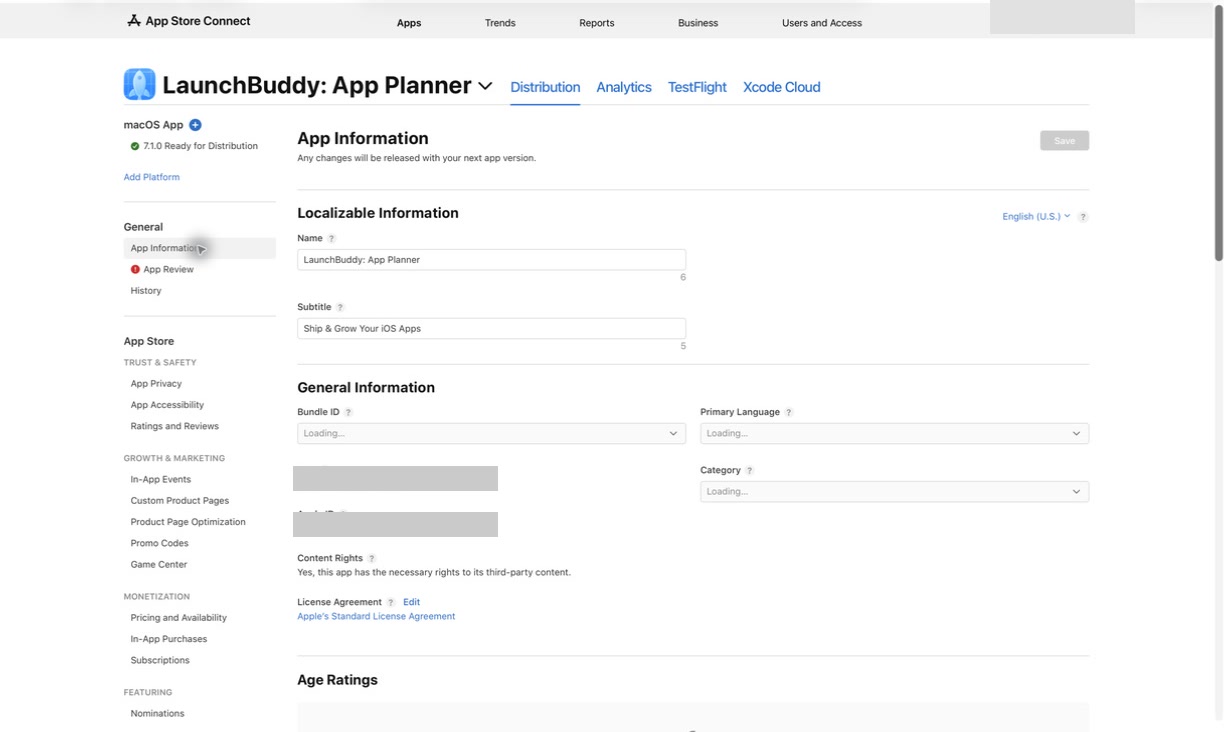
- Open Apps in App Store Connect and select the app.
- In the sidebar, choose App Information.
- Open the Primary Language menu under General Information.
- Select the approved target language.
- Click Save.
If the target language isn’t available in the menu, don’t work around the gate by deleting and re-adding localizations. Recheck the approval, platform screenshot, size-parity, inherited-asset, and custom-product-page requirements first.
Audit fallback behavior before and after the switch
A complete translation isn’t the same as a safe fallback. The new primary language may appear outside the storefront you had in mind, so make the exposure explicit.
Create a small matrix before saving:
| Test case | Customer context | Expected page |
|---|---|---|
| Direct match | Device and storefront support an added localization | Matching localization |
| Alternative match | No exact match, but Apple has a more relevant added localization | Apple’s selected relevant localization |
| No suitable match | No added localization applies | New primary language |
| Custom product page link | Customer opens a configured page | That page with the intended localized assets or documented fallback |
Don’t claim a deterministic storefront-to-language mapping from your own assumptions. Apple’s reference says the displayed language can depend on the customer’s device and system settings as well as storefront support. Verify representative combinations on the live App Store instead.
After saving the new primary language:
- Reopen App Information and confirm the saved selection.
- Inspect the default product page in the old and new primary languages.
- Check representative storefront and device-language combinations from the matrix.
- Open each custom product page URL and inspect its images and copy.
- Confirm that the old primary localization still shows where you expect it to.
- Record mismatches as follow-up work instead of silently accepting an accidental fallback.
For a broader field-by-field review, use the App Store localization workflow.
Worked example: move from English to German
Suppose a universal iPhone and iPad app currently uses English (U.S.) as its primary language. German metadata exists as a draft, but its screenshots still inherit the English assets.
The language can’t safely become primary yet. The developer uses version 4.6 to:
- Finish the German app name, privacy policy URL, subtitle, description, keywords, and version copy.
- Upload German iPhone and iPad screenshots whose sizes match the English source sets.
- Add German screenshots to two configured custom product pages.
- Check every German claim against version 4.6.
- Submit the version and wait for approval.
For version 4.7, German is now selectable in the Primary Language menu. The developer changes the setting, saves it, and checks three cases: a German customer who should receive German, an English customer who should still receive the approved English localization, and a storefront with no more relevant added localization that may receive the new German fallback.
The key is the handoff between versions:
4.6 proves the future fallback is complete and approved.
4.7 changes which approved localization is the fallback.
That separation gives you a clear failure boundary. If German isn’t selectable for 4.7, inspect the 4.6 approval and asset evidence instead of guessing which field is blocking the menu.
Fix the common blockers
| Symptom | Likely cause | Next check |
|---|---|---|
| Target language isn’t in the Primary Language menu | It wasn’t added to a previous approved version | Confirm the localization appears on the approved version |
| Language exists but can’t be selected | App Review hasn’t approved the localization yet | Check the previous version’s review result |
| Screenshot prerequisite is incomplete | One supported platform is missing target-language assets | Audit iPhone, iPad, Mac, Apple TV, Apple Vision Pro, or Apple Watch as applicable |
| Uploaded screenshots still don’t qualify | Their sizes don’t match the current primary language’s sizes | Compare the actual approved size sets, not local export names |
| Assets appear present but the gate still fails | The localization is inheriting screenshots from another language | Manually upload target-language screenshots and submit them with a version |
| App has custom product pages | At least one configured page lacks target-language screenshots | Inventory every page, not only active campaign links |
| Language controls aren’t editable | The app’s current status doesn’t permit metadata changes | Wait for an editable status or resolve the active submission state |
Avoid deleting the old primary localization as a cleanup step. It may still serve customers whose settings match it, and removing a language makes affected countries or regions fall back to the primary language. Keep or remove it only as a separate localization decision backed by your coverage plan.
Track the change without overstating LaunchBuddy
App Store Connect owns the localization, review status, screenshots, custom product pages, and Primary Language setting. LaunchBuddy doesn’t translate metadata, validate screenshot sizes, change the primary language, or submit localization data.
LaunchBuddy can hold the release work around the change:
- Create Version A and Version B as separate release plans.
- Attach localization, screenshot, custom-page, and verification tasks to the correct version.
- Run the default App Store submission checklist on the Free plan.
- Use a custom reusable transition checklist with Pro.
- Keep the approval evidence and fallback decision in release or project notes.
- Sync that plan across iPhone, iPad, and Mac through the user’s private iCloud account.
This boundary matters. The release plan records what must be true; App Store Connect remains the authority on what is editable, approved, and live. If the switch is part of a larger metadata change, the App Store metadata management guide provides the surrounding audit.
Plan the preparation version and the switch version as separate gates: download LaunchBuddy and add the transition checklist to your next release.