TestFlight Build Metrics: What Each Number Means
App Store Connect shows five TestFlight build metrics: Invites, Installs, Sessions, Crashes, and Feedback. Invites counts invited testers, while Installs counts installations on devices. Sessions covers all tester sessions during the last seven days. Crashes counts the times the build crashed on tester devices, and Feedback counts tester submissions.
These numbers are evidence, not a release score. They use different units and, for Sessions, an explicit rolling time window. Read them alongside the build, tester groups, test objective, and actual feedback before deciding to ship.
TestFlight build metric definitions
Apple’s build status and metrics documentation defines the columns this way:
| Metric | What Apple says it counts | What it can help answer | What it does not prove |
|---|---|---|---|
| Invites | Invited testers | How large is the invited audience for this build? | That testers accepted, installed, or tested |
| Installs | Installations on devices | Did the build reach test devices? | A unique-tester count or completed test path |
| Sessions | Sessions across all testers in the last seven days | Has the build been used recently? | Which flow was tested or whether it worked |
| Crashes | Times the build crashed on tester devices | Is there crash evidence to investigate? | Cause, severity, affected flow, or number of distinct testers |
| Feedback | Feedback submissions from testers | Did testers submit qualitative evidence? | That every submission is unique, actionable, or release-blocking |
The key distinction is between activity and coverage. Sessions show activity; they don’t show whether someone completed the purchase restoration, migration, sync, or onboarding path named in your test brief. Pair the table with a build-specific TestFlight What to Test note and direct confirmation of the risky path.
Where to find build metrics in App Store Connect
In App Store Connect, open Apps → your app → TestFlight. Under Builds, select the platform. Apple displays build status, groups, and metrics in the table for versions and build groups. Apple currently allows the Account Holder, Admin, App Manager, Developer, and Marketing roles to view this page.
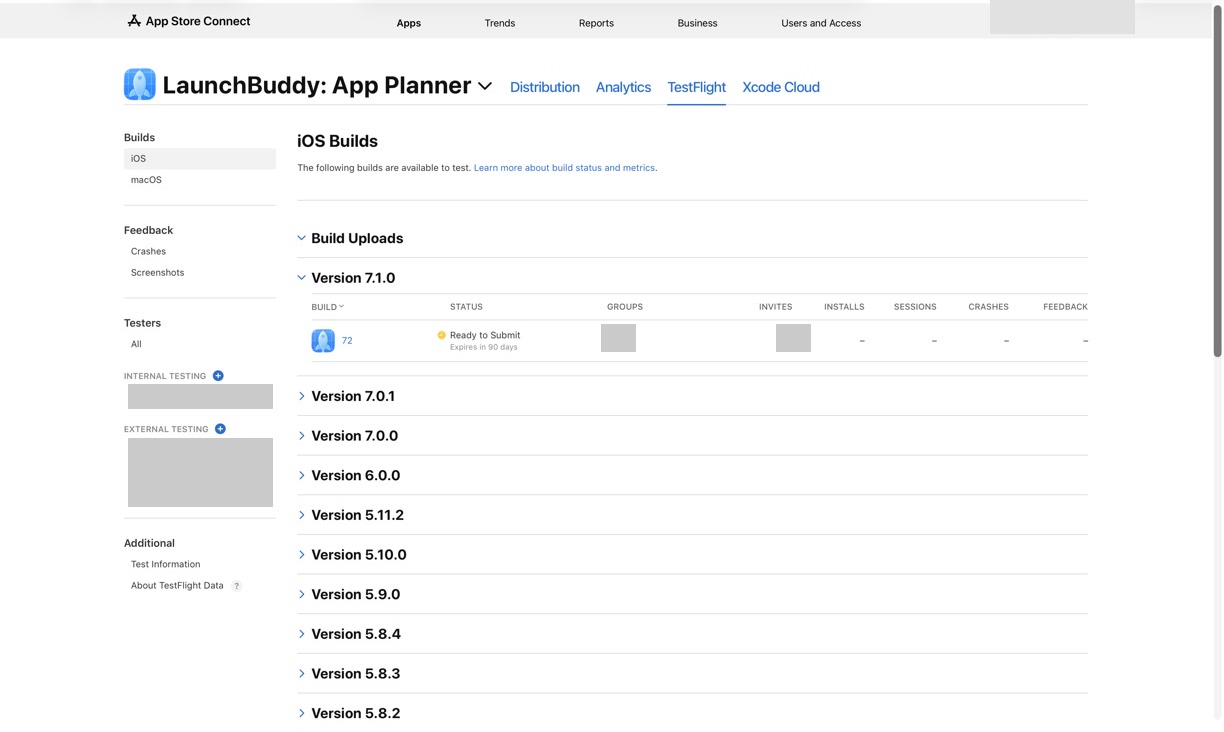
Keep this build table separate from two nearby data sets:
- Tester metrics live under Testers → All and can be filtered by tester, configuration, and metrics. Apple says these metrics are available only for testers who installed the app and can take up to 24 hours to appear.
- Public-link metrics measure a 30-day enrollment path: Views in TestFlight, Accepted, Didn’t Meet Criteria, and Didn’t Accept. They are explained in the TestFlight public link criteria guide.
Choose the page that matches the question. A public link can attract people without producing build usage; a build can produce sessions without showing whether its public link recruited the right cohort.
Do not turn the five columns into a funnel
The row may look like a funnel from Invites to Feedback, but the definitions do not support that calculation.
Invites counts testers, while Installs counts installations on devices. Because the units differ, dividing Installs by Invites does not establish an install conversion rate. Sessions is an event count over the last seven days, not a count of active testers. Crashes and Feedback are also event or submission counts, not proof that a particular number of people encountered a problem.
The definitions do not establish matching time windows either. Apple explicitly gives Sessions a seven-day window but does not state that window for the other four build columns on the same page. Do not divide Crashes by Sessions or compare those figures as if their periods were documented as equivalent.
Use the row as five prompts:
- Reach: Were the intended testers invited and placed in the correct groups?
- Access: Did the intended cohort install the build?
- Activity: Was there recent use during the test window?
- Stability: What caused each relevant crash, and did it affect the target flow?
- Learning: What do the actual feedback submissions say?
Those questions expose missing evidence instead of hiding it inside a percentage.
Read each metric as a beta decision question
Invites: did the right audience get access?
A larger invite count is not automatically better. Start with the build’s test question and the group assigned to answer it.
For a layout change, the relevant audience may be testers with the affected device class. For account migration, it may be people in a known pre-update state. Confirm group membership and invitation status rather than treating the Invites total as coverage.
Record:
Build:
Tester group:
Why this group can answer the test question:
Invited:
Accepted or access issues to investigate:
Installs: did the build reach devices?
Installs is a device-installation count. Use it as an access signal, then check tester status and the intended cohort when you need to know who installed.
If Invites rises while Installs does not, possible checks include invitation acceptance, group assignment, build availability, compatible devices, and whether testers were told why to update. The metric identifies a gap; it does not diagnose the cause.
Sessions: was the build used recently?
Sessions is the only build-column definition with an explicit rolling window: the last seven days across all testers. Capture the date and time whenever you record it. A snapshot without a timestamp will become ambiguous as the window moves.
Sessions can show that the build was used, but not that testers followed the requested path. Even ten sessions do not verify a checkout flow. Ask for confirmation or feedback tied to the exact scenario.
Crashes: what needs investigation?
A nonzero crash count is a reason to inspect evidence, not an automatic verdict. Apple’s documentation says TestFlight testers automatically share crash logs with developers. From the TestFlight Crash Feedback page, you can open available crash feedback in Xcode and inspect associated comments.
For each relevant crash, determine:
- version and build;
- affected device and OS when available;
- crash location and likely affected flow;
- whether a tester supplied context;
- whether it reproduces;
- whether a later build contains a verified fix; and
- whether the issue blocks the release.
Do not call a build stable merely because Crashes is zero. The target flow may not have been attempted, and a session count does not establish test coverage.
Feedback: what did testers actually report?
Feedback is a count of submissions, not a sentiment score. Open the submissions and read them.
Apple’s tester feedback documentation covers screenshot feedback, crash comments, and general comments. It also lets you filter by platform, version, build group, build, OS version, or device. Use those dimensions to connect a report to the release candidate before creating a task.
Route each useful submission to one of four outcomes:
- blocks this build;
- fix and retest in a replacement build;
- follow-up work for a later release; or
- reviewed, with no action.
The TestFlight feedback management workflow goes deeper on that triage step.
Use a build-metrics decision record
A screenshot of the table is not enough because it loses the testing question and your interpretation. Save one compact record for each release-candidate review:
App:
Version and build:
Metric snapshot date and time:
Tester groups:
Test window:
Build-specific test question:

Invites:
Installs:
Sessions (last seven days):
Crashes:
Feedback:

Critical path confirmed by:
Crash findings:
Feedback findings:
Open blocker:
Decision: ship / replace and retest / continue testing
Decision owner:
Next review date:
This record adds two facts the metric row cannot provide: what the beta was meant to learn and which evidence justified the decision.
Worked example: one row, three possible decisions
Suppose a hypothetical build shows:
Version/build: 4.2 (118)
Invites: 24
Installs: 15
Sessions: 96
Crashes: 2
Feedback: 3
Test question: Can an existing subscriber restore access after reinstalling?
Calculating a 62.5% install conversion rate would be invalid: Invites is a tester count, while Installs is a device-installation count. Nor does a total of 96 sessions establish strong restoration coverage. The table doesn’t say which paths those sessions exercised.
The next checks determine the decision:
- Open the two crash records. Did either occur during purchase restoration?
- Read the three feedback submissions. Does any identify the account state, step, and result?
- Confirm that an intended tester actually completed restore after reinstalling on build 118.
The same row can support different outcomes:
- Ship: the restoration path was explicitly verified, the crashes are understood and unrelated or otherwise resolved for this release, and feedback contains no open blocker.
- Replace and retest: a crash or report shows restoration fails, so a new build and focused retest are required.
- Continue testing: there is activity but no evidence that anyone completed the target path.
No universal Invites, Sessions, crash, or Feedback threshold can make that decision for every app.
Compare TestFlight builds without creating a false trend
Before comparing two rows, write down what changed:
- tester groups and invitation method;
- days available to testers;
- date of the metric snapshots;
- What to Test instructions;
- supported devices or OS versions;
- feature scope; and
- known incidents or access problems.
A newer build with fewer sessions may simply have spent less time in testers’ hands. More feedback could come from clearer instructions, a larger cohort, or a real problem. A lower crash count could reflect less use. Keep the counts visible, but compare the surrounding conditions before claiming improvement.
For release management, the useful comparison is often not “Which build has the best numbers?” It is “Which build answered the release question with no unresolved blocker?” The broader TestFlight release management guide connects that answer to final submission work.
Where LaunchBuddy fits
App Store Connect remains the source of truth for TestFlight builds, tester groups, metrics, feedback, and crash records. LaunchBuddy does not display TestFlight build metrics, distribute builds, assign testers, inspect crash logs, or upload binaries.
Use LaunchBuddy for the decision trail around Apple’s data: keep the beta question with the release, add tasks for crash investigation and focused retesting, and run the submission checklist only after blockers are resolved. Release planning, taskboards, and default submission checklists are available on the Free plan within its two-app and two-release limits; reusable custom checklists require Pro.
Capture one timestamped metric snapshot, write the missing evidence as release tasks, and organize the beta decision in LaunchBuddy.