iOS Hotfix Release Process: A Fix-Forward Runbook
An iOS hotfix release process is a fix-forward response to confirmed production harm: contain further exposure, reproduce the failure, ship the smallest safe correction as a new app version, and verify that customers can download it. Apple doesn’t let you revert the App Store to a previous version; you must create and submit a new version.
Use the hotfix lane for confirmed, high-impact problems such as data loss, a blocked core workflow, repeated launch crashes, or a purchase failure. A vague customer review, an unexplained metric change, or a minor visual bug belongs in investigation until the evidence justifies an emergency release.
iOS hotfix release process: eight-step checklist
- Confirm the affected public version, user impact, and reproduction path.
- Contain exposure without pretending the incident is resolved.
- Open a separate hotfix release with one correction goal.
- Implement and test the smallest safe change.
- Create a new App Store version, upload a new build, and select it.
- Write build-specific App Review notes and customer release notes.
- Submit the draft to App Review and request expedited review only when Apple’s criteria fit.
- Verify the public replacement version, then close or continue the incident.
This is a troubleshooting sequence, not a license to skip normal release checks. Speed comes from cutting unrelated scope and making each handoff explicit.
1. Confirm the incident before starting a hotfix
Start with a symptom and an affected version, not a proposed code change. App Store reviews and support messages can reveal harm, but they rarely prove the cause by themselves. Corroborate reports with crash details, server logs, affected device and OS conditions, or a repeatable sequence.
Use a compact incident record:
Affected public version:
First confirmed at:
Customer impact:
Evidence:
Reproduction steps:
Affected devices, OS versions, or account states:
Current containment:
Decision: hotfix now / investigate / observe
Decision owner:
Choose hotfix now when the harm is serious and the problem is confirmed well enough to test a correction. Choose investigate when impact may be serious but the root cause or affected conditions remain unclear. The iOS post-launch checklist has a fuller decision model for separating urgent incidents from slower product learning.
Don’t turn “urgent” into “everything suspicious.” Every extra fix expands the regression surface and makes it harder to know whether the replacement build corrected the incident.
2. Contain exposure while you investigate
Containment reduces new harm; it doesn’t repair devices that already have the bad version.
If the affected update is in phased release, pause it in App Store Connect. Apple allows the seven-day automatic rollout to remain paused for up to 30 days in total.
Manual downloads remain available. A pause stops rollout progression; it isn’t a rollback to an earlier App Store version. The App Store phased release guide explains the exact pause, resume, and release-to-all controls.
Other containment depends on systems your app already has. A server-side correction or an existing feature flag may disable a failing path without a binary update. Use those only when you understand their effect on both old and new app versions.
Don’t assume an over-the-air update mechanism, forced-update flow, or remote switch is available unless it was implemented and tested before the incident. As a last resort for a legal or usability issue, Apple says that if you can’t submit an update, you must remove the app from the App Store. That is a high-impact availability decision, not a substitute for a hotfix.
Record containment separately from resolution:
Containment action:
Who is protected:
Who may still be affected:
How to reverse the containment:
Next check:
That distinction prevents “phased release paused” or “feature disabled” from being mistaken for “fixed.”
3. Open a dedicated hotfix release
Create a dedicated hotfix workstream rather than folding the correction into the normal roadmap. The record should have one outcome: remove the confirmed customer harm.
Hotfix version:
Affected version:
Correction goal:
Included change:
Explicit exclusions:
Candidate build:
Required regression checks:
App Review owner:
Release and monitoring owner:
The exclusions matter. Avoid refactors, dependency upgrades, opportunistic UI polish, and unrelated bug fixes unless they are necessary for the correction.
If the fix touches a shared component, name the adjacent flows that need regression coverage instead of silently widening the product scope.
4. Test the smallest safe correction
When it is safe, reproduce the failure with a controlled account, device, or data fixture that represents the affected public version. Don’t risk further data loss, duplicate purchases, or account damage merely to produce a fresh failure. If reproduction is unsafe, preserve the existing diagnostic evidence and verify the candidate with a non-destructive equivalent.
At minimum, test:
- The reported path under the affected device, OS, account, network, or data conditions
- A clean install of the candidate
- An update from the affected public version to the candidate
- Launch, login, sync, purchase, restore, or migration behavior touched by the change
- Any extension, widget, notification, or background path sharing the changed code
- The customer-visible behavior described in your planned What’s New text
Use TestFlight as a candidate check, not as proof that the production incident is closed. A small internal group can verify the reproduction path and upgrade behavior, but production recovery still requires a reviewed version that customers can download. For the broader beta handoff, use the TestFlight release management workflow.
Define a stop condition before testing. If the original failure still reproduces, the upgrade path corrupts data, or a new severe regression appears, don’t submit merely because the incident clock is running.
5. Create and select the replacement build
Apple’s new-version documentation says the existing version must be Ready for Distribution before you can create another version. The replacement needs an incremental App Store version number, and its candidate needs an incremented build string.
For the replacement:
- Set the incremental App Store version and a unique build string, then confirm both match the intended version record.
- Build, sign, and upload through an Apple-supported route such as Xcode or Transporter. If you use CI, it still needs to invoke a supported upload mechanism.
- Wait for Apple to process the upload.
- Open the new version in App Store Connect.
- Add the processed build in the Build section.
- Verify the displayed build string before saving.
Apple’s upload documentation says the bundle ID and version number associate an upload with the app and version record, while the build string uniquely identifies the build. App Store Connect lets you change the selected build until submission, but only one build can be selected for an app version at a time.
If the build doesn’t appear: confirm processing has finished, inspect Apple’s processing message for errors, and verify that the uploaded bundle ID and version number match the intended app and version record. Don’t select a different “latest” build merely to unblock submission.
Write down the candidate build at every handoff. “The latest build” becomes unsafe as soon as another archive is uploaded.
Before an incident, confirm that someone with the required App Store Connect role and app access is available for every handoff: creating the version, uploading and selecting the build, controlling a phased release, and submitting. Apple lists the allowed roles on each linked procedure; one person’s upload access doesn’t guarantee permission for the later actions.
6. Write App Review notes and What’s New text
App Review notes and What’s New text aren’t interchangeable.
App Review notes should help Apple understand the affected-version failure and verify the correction. Include the affected public version, concise reproduction steps, the corrected path, required demo access, and any special setup. Apple’s App Review guidance asks developers to provide complete review information, including valid demo credentials and special configuration when needed.
This update fixes [customer-visible failure] in version [affected version].

Reproduction on the current version:
1.
2.

Verify in version [hotfix version], build [build]:
1.
2.
Expected result:

Demo access or setup:
Contact:
What’s New is customer-facing. State only what the candidate actually fixes:
Fixed an issue that could prevent existing subscribers from restoring purchases.Don’t say “all crashes fixed,” promise recovered data you can’t verify, or expose internal incident details. Check the wording against the selected build.
What’s New is localizable, so prepare a separately translated, build-verified version for every locale you intend to update. The App Review notes guide covers reviewer instructions, demo accounts, and non-obvious feature paths in more detail.
7. Submit without confusing a draft with a submission
App Store Connect’s submission flow has two separate actions:
- Add for Review adds the app version to a draft submission and changes it to Ready for Review.
- Submit for Review sends that draft to App Review.
Apple documents this distinction in Submit an app. Reopen the App Review section after submitting and verify the submission status shown by App Store Connect rather than treating a completed checklist as proof that Apple received it.
For a critical production bug, Apple allows an expedited review request. Its guidance says to include steps that reproduce the bug on the current version. As a practical workflow, create the corrective submission first so the request can identify the version and build awaiting review. Keep the evidence specific and continue monitoring the normal App Review record. An expedited request is an Apple decision, not a guaranteed review time.
Choose availability timing and rollout speed separately. App Store Connect offers three version release settings:
- Automatic release: removes the post-approval handoff and may suit an urgent correction when monitoring and dependencies are ready.
- Manual release: preserves a final go/no-go check but requires an owner to act after approval.
- Automatic, no earlier than: prevents availability before a specified date, but doesn’t make App Review finish by that date.
For an update, phased release is a separate rollout control. It slows delivery to automatic-update users, so use it only when the replacement introduces enough risk to justify that delay.
Apple may offer to approve a bug-fix update while allowing an additional issue to be resolved in the next submission, provided there are no legal or safety concerns. If App Review makes that offer, reply in App Store Connect to accept it; don’t assume every hotfix qualifies.
8. Verify recovery before closing the incident
Approval, release, and customer recovery are different states. After release:
- Confirm the intended version is available in the relevant storefront.
- Install or update from the public App Store, then rerun the incident path.
- Check whether new reports still name the affected version or the replacement.
- Verify server-side containment remains compatible with the replacement before removing it.
- Acknowledge reports or share a verified workaround when useful, but don’t tell customers the issue is fixed until the corrective version is downloadable.
- Move unrelated follow-up work out of the hotfix and into the normal backlog.
If the replacement isn’t visible publicly: compare App Store Connect with the affected country or region, allow for storefront propagation, and keep the incident open until a public install or update succeeds.
Close the incident with a short decision record:
Replacement version and build:
Public availability verified at:
Original failure retested:
Remaining affected users or conditions:
Containment removed or retained:
Follow-up tasks:
What should change in the next release checklist:
This final record turns the hotfix into reusable release evidence.
Worked iOS hotfix example: purchase-restoration failure
Suppose version 3.6 has a confirmed restore-purchase failure for existing subscribers. Version 3.6.1 build 208 contains the narrow correction.
Incident
- Confirm failure on 3.6 with an authorized test account that matches the affected production subscription state.
- Record the affected account state and reproduction steps.

Hotfix release
- Open 3.6.1 with one fix goal.
- Exclude subscription-screen redesign and unrelated billing cleanup.
- Require clean-install, update, purchase, and restore checks.

Build and beta
- Build, sign, and upload build 208 through Xcode, Transporter, or CI.
- Verify processing and selected build in App Store Connect.
- Test the affected path with an equivalent sandbox subscription and adjacent purchase flows in TestFlight.

Submission
- Add build 208 to version 3.6.1.
- Add reviewer steps and valid demo access.
- Use fix-only What's New copy.
- Add for Review, then Submit for Review.

Recovery
- Verify 3.6.1 is publicly downloadable.
- Retest restore from the App Store build.
- Keep or remove containment based on evidence, not on the approval email alone.
Where LaunchBuddy fits in a hotfix
LaunchBuddy can hold the dedicated hotfix release, version-scoped tasks, and reusable submission checklist across Mac, iPhone, and iPad. The free plan supports up to two releases and includes default checklists; Pro has unlimited releases and custom checklists.
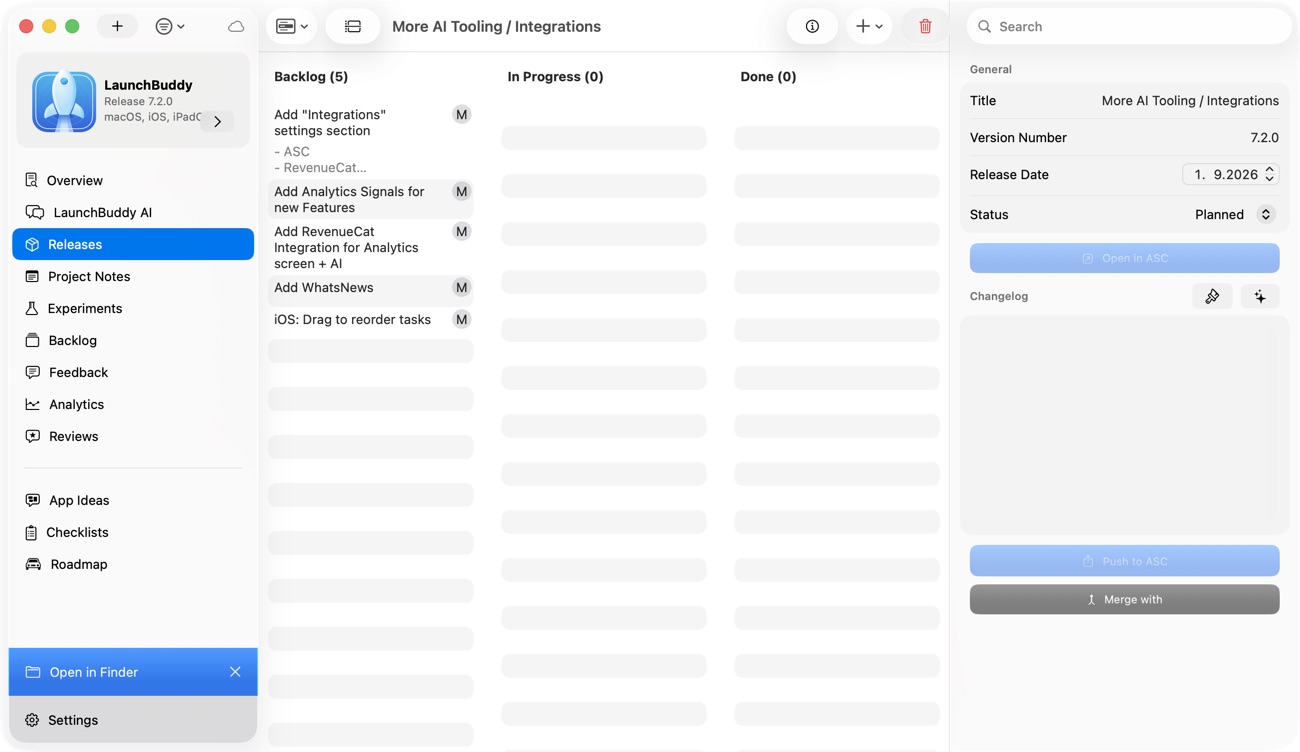
The Release Status widget can show progress, due date, task counts, and checklist completion for the LaunchBuddy plan. Those planning signals don’t verify Apple’s build processing, App Review, or public availability. Check those states in App Store Connect.
With Pro, app-aware chat can use context from the selected app, including releases and tasks, to help draft editable artifacts. AI-proposed changes to LaunchBuddy or App Store Connect pause for approval.
Pro plus App Store Connect API credentials can push approved customer release notes. LaunchBuddy doesn’t upload the binary, choose a build, submit for review, pause a phased release, request expedited review, or control Apple’s version availability.
Use LaunchBuddy as the release record and Apple tools as the distribution authority. That boundary keeps a checked task from being mistaken for a completed App Store action.
When production harm is confirmed, create a corrective release in LaunchBuddy and keep its scope, evidence, checklist, and handoffs together.