
iOS Version Number vs Build Number: What Each One Means
August 28, 2026
An iOS version number identifies the release users receive, such as 2.4.0. A build number identifies a particular compiled candidate for that release, such as 207. Keep the version at 2.4.0 while testing replacement candidates, and normally increment the build number for each new upload.
The shortest useful rule is:
- Change the version number when you’re creating a new App Store release.
- Change the build number when you’re uploading another build for that same release.
- At every testing and submission handoff, name both:
2.4.0 (207).
Apple’s documentation sometimes says build string, while Xcode labels the field Build and App Store Connect also uses build number in status views. In this guide, all three refer to the identifier backed by CFBundleVersion.
iOS version number vs build number at a glance
| Question | Version number | Build number |
|---|---|---|
| Example | 2.4.0 | 207 |
| Xcode build setting | MARKETING_VERSION | CURRENT_PROJECT_VERSION |
| Built-app key | CFBundleShortVersionString | CFBundleVersion |
| Main job | Names the user-visible release | Distinguishes one built candidate |
| When it changes | For a new App Store version | Before another upload for the version |
| Where you see it | App Store product pages and installed apps | App Store Connect and TestFlight build records |
| Good handoff language | “Test version 2.4.0” | “Test version 2.4.0, build 207” |
Apple’s current Xcode build-settings reference defines MARKETING_VERSION as the user-visible project version and maps it to CFBundleShortVersionString when Xcode generates the Info.plist. It maps CURRENT_PROJECT_VERSION to CFBundleVersion.
Think in app, release, and artifact
The two numbers become easier to use when you separate three levels of identity:
App:       com.example.FieldNotes
Release:   version 2.4.0
Artifact:  build 207
The bundle ID identifies the app. The version number identifies the planned release. The build number identifies the exact artifact someone can install, test, or submit.
Apple describes the same relationship in its App information reference: the combination of bundle ID, version number, and build string uniquely identifies a build. Its upload guide says the bundle ID and version number associate an upload with the app and version record, while the build string identifies the build.
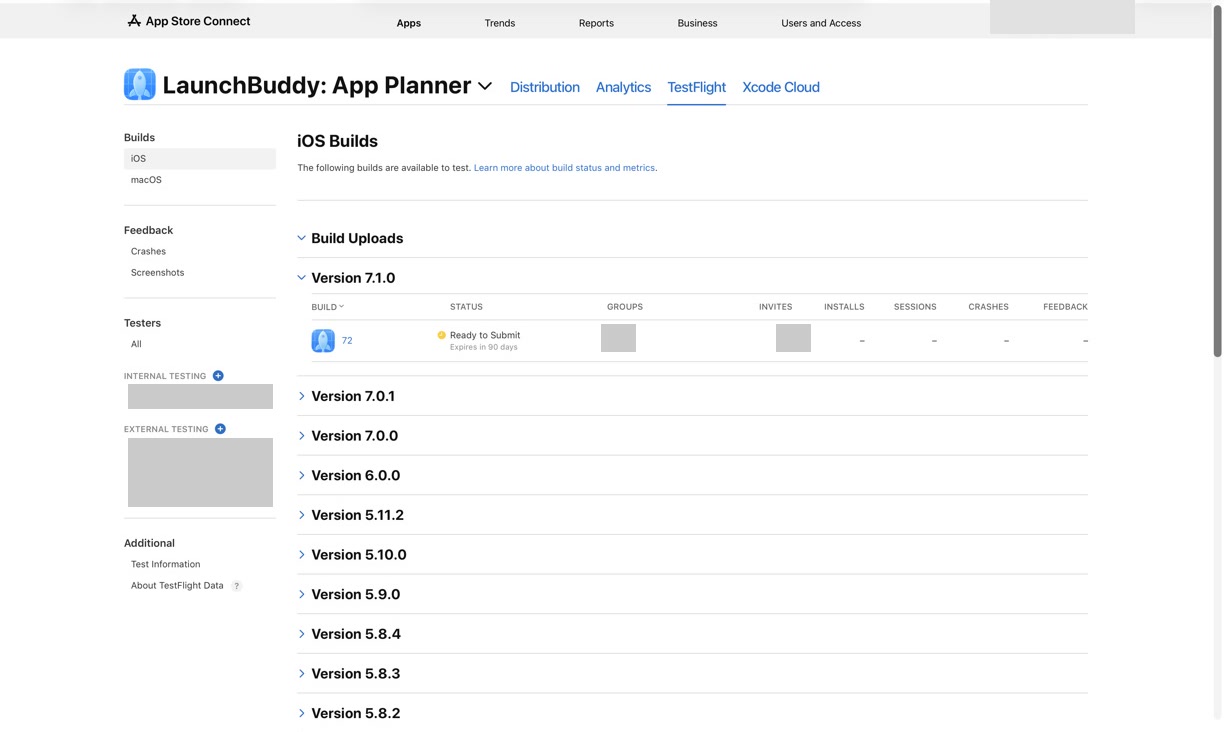
This is why “use the latest build” is a weak instruction. “Use 2.4.0 (207)” points to a specific artifact even if build 208 appears later.
When to increment the version number
Increment the version number when you’re opening a new customer release, not merely because you made another archive.
Apple’s Create a new version workflow asks for an incremental App Store version number. You then upload a build and add it to that version. The bundled version number must match the App Store version record you intend the upload to join.
For example:
- Public version:
2.3.1 - Next planned feature release:
2.4.0 - First candidate:
2.4.0 (205) - Candidate after a beta fix:
2.4.0 (206)
The beta fix doesn’t automatically create version 2.4.1; both candidates can belong to the unreleased 2.4.0 scope. Change the version again when you’re defining another public release, whether your policy calls it 2.4.1, 2.5.0, or another value that passes Apple’s current validation.
Don’t assume the digits prove what changed. Apple calls the version user-visible, but it doesn’t turn 2.4.0 into a guarantee about feature size or compatibility. Write down your numbering policy and apply it consistently.
When to increment the build number
Increment the build number when you need to upload a new candidate for the same version. That may follow a bug fix, a signing or configuration correction, a changed asset, or any other change that requires a new binary.
A clean sequence looks like this:
2.4.0 (205) — internal beta
2.4.0 (206) — fixes purchase restoration
2.4.0 (207) — release candidate
Apple tells developers to increment the build string before uploading a new build. There is one useful exception: if App Store Connect marks an upload Failed, Apple’s build-upload status documentation says you can reuse that build number after resolving the errors.
“Can reuse” isn’t the same as “must reuse.” Reusing the number can be reasonable when Apple never accepted a testable artifact. Incrementing anyway can make local archives and CI logs easier to distinguish. Choose one team rule, but let App Store Connect’s actual upload status decide whether reuse is even an option.
For a solo iOS app, a monotonically increasing build counter is usually the simplest operating policy. It avoids ambiguity about whether build 12 means the candidate from version 1.8 or version 3.0. Treat that as a clarity convention, not a claim that every platform follows one universal numbering rule.
A worked version-and-build record
Suppose version 2.4.0 adds offline capture. Three candidates reach TestFlight:
| Candidate | Result | Decision |
|---|---|---|
2.4.0 (205) | Offline items duplicate after reconnect | Reject as a release candidate |
2.4.0 (206) | Duplication fixed; upgrade test exposes a settings crash | Keep for diagnosis, don’t submit |
2.4.0 (207) | Targeted retests and upgrade checks pass | Select for final submission checks |
The release record should preserve more than the winning number:
Release: 2.4.0
Goal: Reliable offline capture and later sync

Selected candidate: 2.4.0 (207)
Replaces: 2.4.0 (206)
Reason: Settings crash corrected
Required retests:
- Upgrade from public version 2.3.1
- Create two items offline, reconnect, and verify one sync per item
- Open Settings before and after reconnect

TestFlight result:
App Store Connect build selected:
What's New checked against build 207:
App Review notes checked against build 207:
This candidate ledger adds something the two counters can’t express: why a build stopped being trustworthy and what evidence made its replacement acceptable. It also keeps completed testing from being silently attributed to a later build.
Verify the exact pair before TestFlight and App Review
Use this five-step check whenever a build changes:
- Read both values from the archive you’re sending. Don’t rely on the Xcode fields you remember editing; verify the produced artifact or Xcode Organizer record.
- Wait for App Store Connect processing. Confirm that the displayed version and build match the intended upload.
- Assign the exact candidate to TestFlight groups. Record
version (build)in What to Test, bug reports, and tester handoffs. - Select the intended build for the App Store version. Apple allows only one associated build per app version, although you can change it before submission.
- Recheck build-dependent copy and evidence. Release notes, App Review instructions, screenshots, known limitations, and test results must describe the selected build, not an earlier candidate.
Apple’s build-selection instructions show the build string and upload time in the version’s Build section. Use both when two candidates were uploaded close together.
For the wider beta handoff, use the TestFlight release-management workflow. Before submission, run the App Store Connect release checklist against the final pair.
Common version and build number mistakes
Changing the version for every beta
This creates several release identities for work that still belongs to one planned customer update. Keep replacement candidates under the same version while the release scope remains the same; distinguish them with build numbers.
Calling a candidate “the latest build”
“Latest” changes as soon as another upload finishes. Put version (build) in test instructions, issue reports, App Review notes, and release decisions.
Carrying test results forward without a retest boundary
Build 207 doesn’t inherit every result from build 206. Identify what changed, which completed checks remain valid, and which affected paths must run again.
Writing release notes for the version instead of the selected build
A version describes intended scope. The selected build determines what will actually ship. Remove any claim that isn’t true in that artifact.
Treating upload success as release readiness
A processed build is available for the next workflow step; it hasn’t proved the app works. Keep build identity separate from test outcome, App Review status, and public availability.
If a production issue forces another public version, follow a fix-forward iOS hotfix release process rather than trying to relabel an already released binary.
Where LaunchBuddy fits
LaunchBuddy can keep a planned version, its tasks, and submission checks together on iPhone, iPad, and Mac. Release planning, taskboards, default submission checklists, and iCloud sync are included in the core workflow, within the Free plan’s two-app and two-release limits. Reusable custom checklists require Pro.
Use release tasks for checks such as “confirm 2.4.0 (207) in TestFlight” and “verify What’s New against build 207.” Keep the candidate ledger in your project notes. These are records you maintain, not values LaunchBuddy discovers automatically.
LaunchBuddy’s current product documentation doesn’t claim to read Xcode version settings or App Store build metadata. It also doesn’t build, sign, inspect, or upload an app binary. Xcode and the built artifact remain authoritative before upload; App Store Connect remains authoritative after upload and for the selected submission build.
When you want the version, candidate builds, and final submission checks attached to one release, download LaunchBuddy on the App Store.
