ASO Experiment Tracker: A Practical Template for Better Decisions
An ASO experiment tracker is a decision log for App Store Optimization changes. At minimum, it should preserve the question, exact control and variant, audience, dates, metric definition, baseline and result, uncertainty, outside changes, and final decision.
The tracker shouldn’t pretend every metadata edit is an A/B test. Apple’s Product Page Optimization provides randomized evidence for supported creative treatments. A title, subtitle, keyword, or other copy change measured before and after release is an observational comparison. Recording which kind of evidence you have is the first step toward an honest result.
This guide provides a reusable tracking workflow for both cases. It focuses on preserving what changed and what the result supports; the separate App Store Product Page Optimization guide covers configuring and interpreting Apple’s native tests.
Start with the decision, not the dashboard
An experiment is useful only if its result can change a decision. Before preparing assets, finish this sentence:
We need to decide whether to ___ for ___ because we observed ___.
For example:
We need to decide whether to lead the US English screenshot sequence with the app’s focus timer because the current first screenshot shows controls before explaining the outcome.
That sentence identifies a decision, audience, and observed problem. “Improve conversion” does none of those things.
Write the possible outcomes before the test:
- Adopt: the evidence meets the prewritten rule and the change is worthwhile.
- Reject: the variant performs worse or fails a product constraint.
- Inconclusive: the evidence can’t distinguish the options well enough.
- Contaminated: another change makes the comparison unreliable.
Inconclusive and contaminated aren’t softer versions of “adopt.” They mean the tracker hasn’t earned a positive decision.
Step 1: label the evidence design
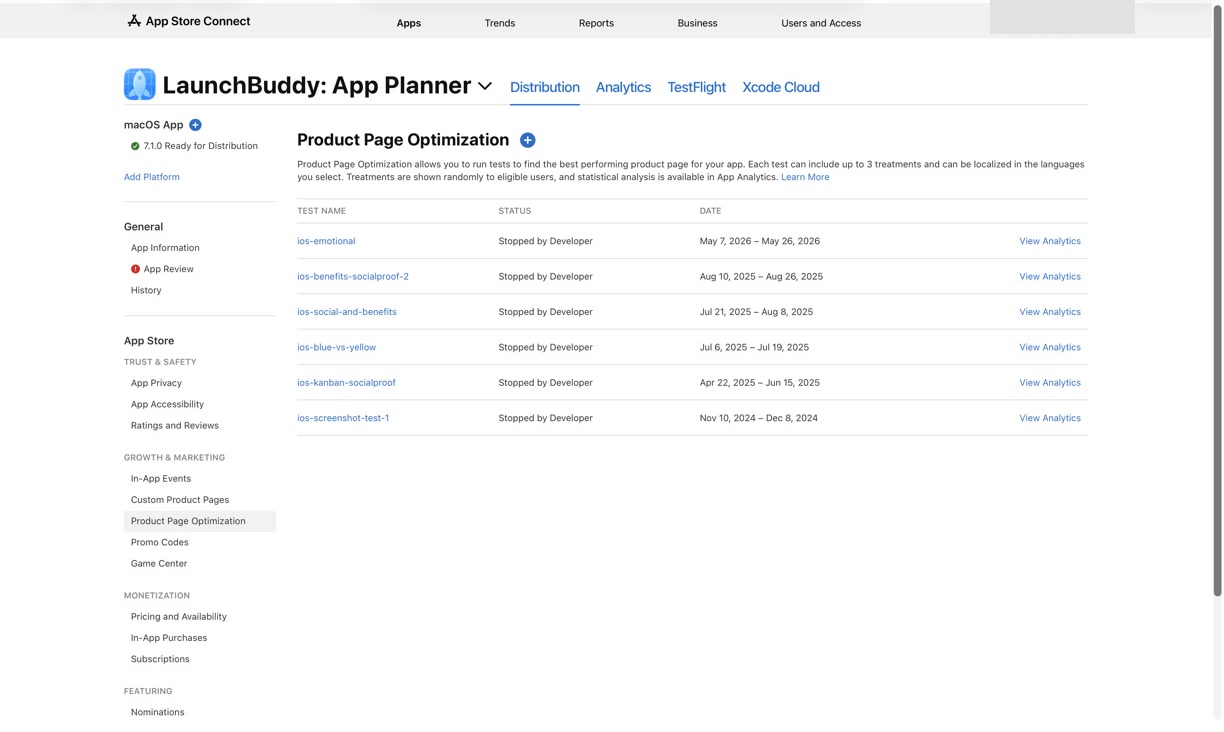
Use a separate record for each question, then mark it as randomized or observational.
| Evidence design | Appropriate use | What the result can support | Main limitation |
|---|---|---|---|
| Apple Product Page Optimization | App icon, screenshot, or app preview treatments on the default product page | A comparison between randomly assigned variants during the same test | It doesn’t test every metadata field or prove an effect on retention, revenue, or search ranking |
| Before-and-after comparison | Title, subtitle, keyword field, promotional copy, or another release-linked change outside Product Page Optimization | A directional change for a defined period and segment | Traffic mix, releases, campaigns, seasonality, and other events can explain the difference |
Apple’s current Product Page Optimization documentation says a test can include up to three treatments, runs for no more than 90 days, and uses randomly selected eligible traffic. Its treatment setup guidance lists app icons, screenshots, and app previews as editable treatment assets.
That boundary matters for copy experiments. If you use the App Store keyword field or subtitle in a before-and-after comparison, don’t add a Product Page Optimization confidence label to the result. Apple’s confidence belongs to Apple’s randomized test model, not to an unrelated comparison.
Step 2: create the experiment card before changing anything
Copy this template into your tracker:
Experiment ID:
App and version:
Status: Planned | Running | Ready to decide | Closed

Decision question:
Observed problem:
Hypothesis:
Evidence design: Product Page Optimization | Before-and-after

Audience:
Storefront or territory:
Localization:
Acquisition source:
Product page:

Control or previous copy:
Treatments or changed copy:
- Name:
- Traffic allocation, if randomized:
- Exact assets or text changed:
Deliberately unchanged:

Primary metric:
Metric definition:
Baseline period or variant:
Guardrail metrics:

Start date:
Planned decision date:
Decision requirements:

Known outside changes:
Links to archived assets and source data:
Decision requirements depend on the design. For Product Page Optimization, give every treatment its own name, traffic allocation, changed assets, and result metrics. Evaluate Apple’s treatment status, confidence, estimated conversion, lift, and credible interval together. For an observational change, require complete comparison windows and name the segments you’ll inspect. Don’t invent a universal download count or percentage threshold; traffic and business value differ by app.
Preserve the actual control
“Old screenshots” isn’t a reproducible control. Save the exact files, order, device sizes, captions, and localizations that customers could see. For copy, preserve the complete old and new fields rather than a summary of the edit.
Give the record a stable experiment ID and use it in asset filenames:
ASO-014/
  control-us-en-iphone-01.png
  variant-us-en-iphone-01.png
  hypothesis.txt
  result.txt
This small convention keeps a later product-page update from erasing the evidence.
Define one idea, not necessarily one file
A single hypothesis may require several coordinated assets. Replacing five screenshots can still test one idea if the sequence changes from a feature inventory to one coherent outcome story.
Record both levels:
Idea changed:
Lead with completing one focused session

Files changed:
US English screenshots 1–5

Deliberately unchanged:
Icon, app preview, price, acquisition campaign, and app version
If the icon, screenshots, subtitle, and price all change together, the record describes a redesign, not an interpretable single-question experiment.
Step 3: make the metric comparable
Write the metric definition into the experiment card. Similar labels can use different populations or denominators.
Apple’s Analytics dashboard documentation defines its overall App Store conversion rate as total downloads and pre-orders divided by unique-device impressions. Product Page Optimization reports an estimated conversion rate for each variant and an estimated relative lift against a selected baseline. Those figures shouldn’t be silently substituted for product-page-view conversion or first-time downloads.
For each metric, record:
- Exact name in the source
- Count, rate, or currency
- Numerator and denominator when it is a rate
- Date range
- Territory and localization
- Acquisition source
- Product page or treatment
- Device or platform filters when relevant
- Reporting delay, missing data, or privacy limitations
Keep raw counts beside rates when volume is small. A rate can move sharply because one additional download changed a tiny denominator.
Use the right baseline
For a Product Page Optimization test, the original page is the default baseline, although Apple lets you compare treatments by changing the selected baseline in its analysis. Record the baseline used for the decision.
For a before-and-after change, choose complete periods with comparable weekdays:
Baseline:
June 1–14, 14 complete days

Comparison:
June 22–July 5, 14 complete days

Excluded:
June 15–21, release rollout and reporting-settlement window
An exclusion window isn’t automatically required. Use one only when the release timing or delayed data makes it necessary, and document why. The goal is a fair comparison, not removing inconvenient results.
The App Store Connect analytics guide explains Apple’s acquisition metrics, filters, and small-app caveats in more detail.
Step 4: record confounders while the experiment runs
Don’t wait until the result looks surprising. Add events on the day they happen:
2026-06-04 — Version 3.2 released
2026-06-07 — Newsletter campaign started
2026-06-09 — Price changed
2026-06-11 — Featured in one storefront
2026-06-12 — App Store service issue observed
Useful confounders include:
- A new app version
- Featuring or a seasonal event
- Apple Ads or another campaign
- Pricing, offer, or subscription changes
- Ratings movement
- Another metadata or creative update
- Territory or source-mix changes
- Reporting gaps
For a randomized Product Page Optimization test, simultaneous outside events may affect all variants, but they can still limit how broadly the result applies. For a before-and-after comparison, they can undermine the central attribution. Mark the result contaminated when you can’t separate the explanations.
Step 5: update the tracker only when the state changes
Repeatedly copying a fluctuating headline number creates noise. Preserve meaningful checkpoints:
Date:
Status:
Primary metric:
Raw counts:
Segment:
Uncertainty:
New confounders:
Action:
Apple’s Product Page Optimization analytics reference says results appear after at least five associated first-time downloads and then update daily. Five downloads is only the reporting threshold. Keep Apple’s current treatment status, confidence, estimated conversion, relative lift, and credible interval together in each checkpoint, then use the dedicated Product Page Optimization guide for interpretation.
For a copy change measured before and after, use plain language such as:
- Comparison window incomplete
- Awaiting source segmentation
- Directionally positive
- No clear change
- Confounded by campaign
- Ready for decision
Avoid statistical labels your method didn’t produce.
Step 6: close the experiment with a decision record
A closed record should answer what happened, what it means, and what happens next:
Outcome: Adopt | Reject | Inconclusive | Contaminated

Result:
Evidence source:
Baseline:
Primary metric and raw counts:
Guardrails:
Uncertainty:
Confounders:

Decision:
Reason:
Assets or copy applied:
Date applied:
Next question:
Follow-up date:
Keep negative results. Deleting them creates a tracker full of apparent wins and invites you to repeat failed ideas.
Also separate the result from the decision. A treatment can perform better while the plausible improvement is too small to justify localization and maintenance work. Conversely, an inconclusive test may expose an asset problem worth revising, but it hasn’t validated the original variant.
When accepted copy needs to enter the next version, move it into the App Store metadata management workflow so the tracker and live listing don’t drift.
A worked copy experiment record
Suppose a focus timer’s keyword field contains several broad productivity terms. The developer wants to replace them with language that more closely describes focus sessions. Product Page Optimization can’t randomize this field, so the tracker must label the comparison as observational.
Experiment ID: ASO-014
App: Focus Timer
Baseline version: 3.1
Changed-copy version: 3.2
Evidence design: Before-and-after

Decision question:
Should the US English keyword field replace broad productivity terms
with terms specific to focus sessions?

Observed problem:
The existing field uses broad terms that describe the category but not
the app's main workflow.

Hypothesis:
More specific, relevant terms will be followed by stronger acquisition
from App Store Search in the selected storefront.

Audience:
US storefront, English localization, App Store Search

Previous copy:
Archive the complete approved keyword field.

Changed copy:
Archive the complete replacement field and list every term added or removed.

Deliberately unchanged:
App name, subtitle, icon, screenshots, price, product behavior,
and Apple Ads state

Required intervention:
Version 3.2 submission and release; record its public availability date

Primary evidence:
First-time downloads from App Store Search for two complete comparison periods

Diagnostic context:
Unique impressions and App Store conversion rate for the same source,
storefront, and periods

Decision requirements:
Two complete 14-day periods with comparable weekdays; no other product,
metadata, campaign, pricing, or product-page change; raw counts retained
beside rates
Now imagine an Apple Ads campaign begins five days into the comparison period. Even if search-source downloads rise, the planned attribution no longer holds because the traffic mix changed. Close the record as contaminated, preserve the copy, and schedule a clean comparison instead of calling the new field a winner.
Maintain a register across experiments
Individual cards hold detail. A compact register prevents duplicate and overlapping work:
| ID | App | Question | Design | Status | Result | Decision | Next eligible test |
|---|---|---|---|---|---|---|---|
| ASO-012 | Focus Timer | Simpler icon? | Product Page Optimization | Closed | Worse | Reject | New icon concept |
| ASO-013 | Focus Timer | Outcome-led screenshots? | Product Page Optimization | Closed | Inconclusive | Keep control | Stronger contrast |
| ASO-014 | Focus Timer | Narrower keyword set? | Before-and-after | Closed | Contaminated | No attribution | After campaign |
Before opening a new card, check the register for:
- The same idea under a different name
- A running test that changes the same asset or audience
- An unresolved result that already defines the next question
- A planned release or campaign that will contaminate the window
This is where a tracker adds value beyond a results dashboard: it keeps the reasoning available after the chart, assets, and live product page have changed.
Where LaunchBuddy fits
LaunchBuddy Pro can track icon, screenshot, and copy experiments with baseline and experiment metrics for each app on Mac, iPhone, and iPad. It costs $2.99 per month or $19.99 per year.
LaunchBuddy doesn’t create or run Apple’s Product Page Optimization tests, upload treatment assets, or reproduce Apple’s confidence analysis. Use App Store Connect for native tests and official analysis. LaunchBuddy’s separate App Store Connect analytics dashboard shows downloads, revenue, and subscription metrics and requires Pro plus App Store Connect API credentials.
That division keeps the sources clear. App Store Connect remains the source of truth for the live test and official metrics; LaunchBuddy keeps the experiment decision close to the app and its release work.
To keep ASO hypotheses, baselines, and outcomes with the apps you ship, download LaunchBuddy on the App Store.

